

This tutorial will show you how to enable or disable Spatial Sound in Windows 11.
What is Spatial Sound?
Spatial sound is an enhanced audio experience that simulates a realistic environment. Sounds can flow around you, including overhead, in three-dimensional (3D) virtual space. Spatial sound provides an enhanced atmosphere which traditional surround sound formats cannot.
Why use it? If you want a more immersive audio experience when listening to music, watching movies, or playing games, spatial sound creates a more realistic environment around you.
Reference:
Spatial Sound for app developers for Windows, Xbox, and Hololens 2 – Win32 apps – Developer guidance for Microsoft Spatial Sound, Microsoft’s platform-level solution for spatial sound on Xbox, Windows and HoloLens 2, enabling both surround & elevation audio cues.
Spatial Sound Tooltip on Volume Icon
The spatial sound tooltip on the volume icon is only available starting with Windows 11 build 22598. Starting with Windows 11 build 25231, when moving your mouse over the sound icon on Quick Settings, the tooltip will now display when spatial audio is in use – not just that it is enabled.
Option One: Enable or Disable Spatial Sound in Settings
- Open Settings (Win+I).
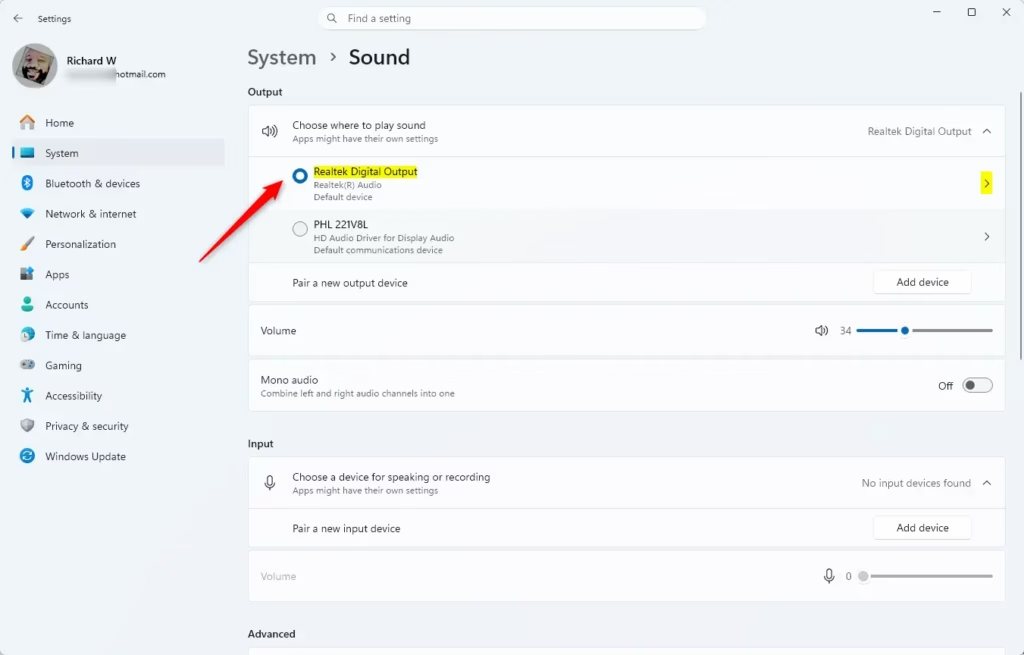
- Click/tap on System on the left side, and click/tap on Sound on the right side. (see screenshot below)

- Under Output devices, click/tap on the sound device (ex: “Digital Audio (S/PDIF)”) you want to enable or disable spatial sound for. (see screenshot below)
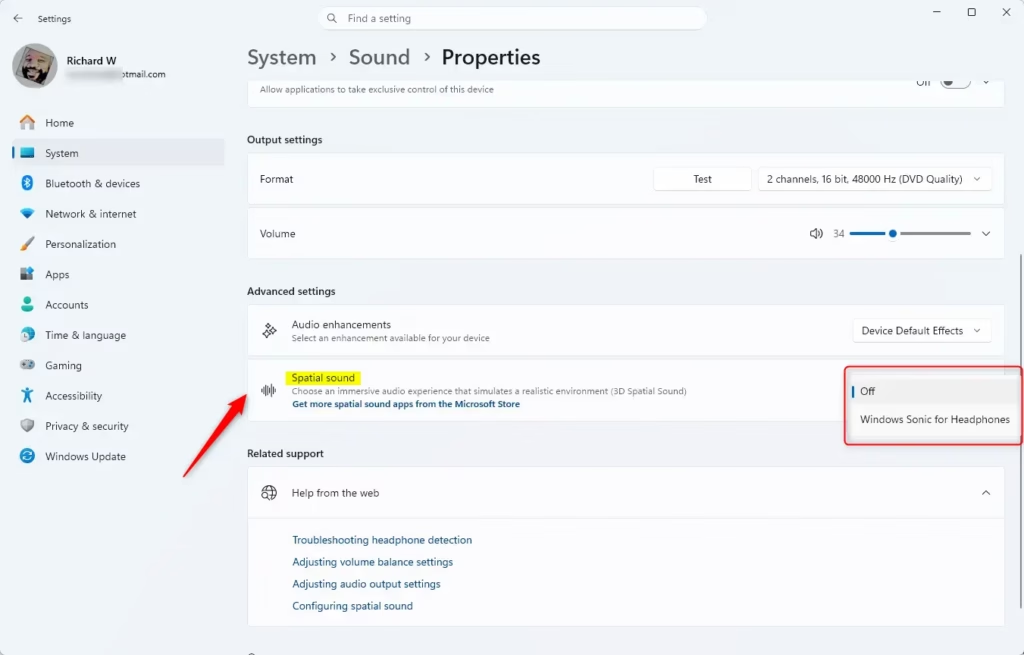
- In the Spatial audio drop menu, select Off (disable – default) or Windows Sonic for Headphones (enable) for what you want. (see screenshot below)
If you turned on mono audio, it will gray out and disable the spatial sound setting.
- You can now close Settings if you like.
Option Two: Enable or Disable Spatial Sound in Control Panel
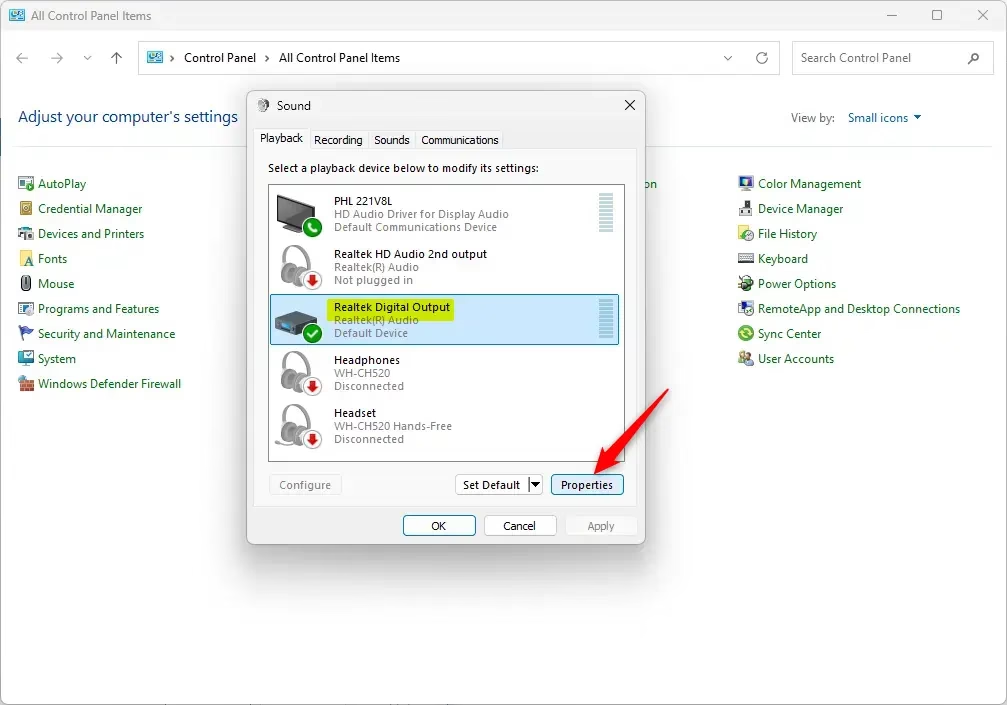
- Open the Control Panel (icons view), and click/tap on the Sound icon.
- In the Playback tab, select the device (ex: “Digital Audio (S/PDIF)”) you want to enable or disable spatial sound for, and click/tap on Properties. (see screenshot below)
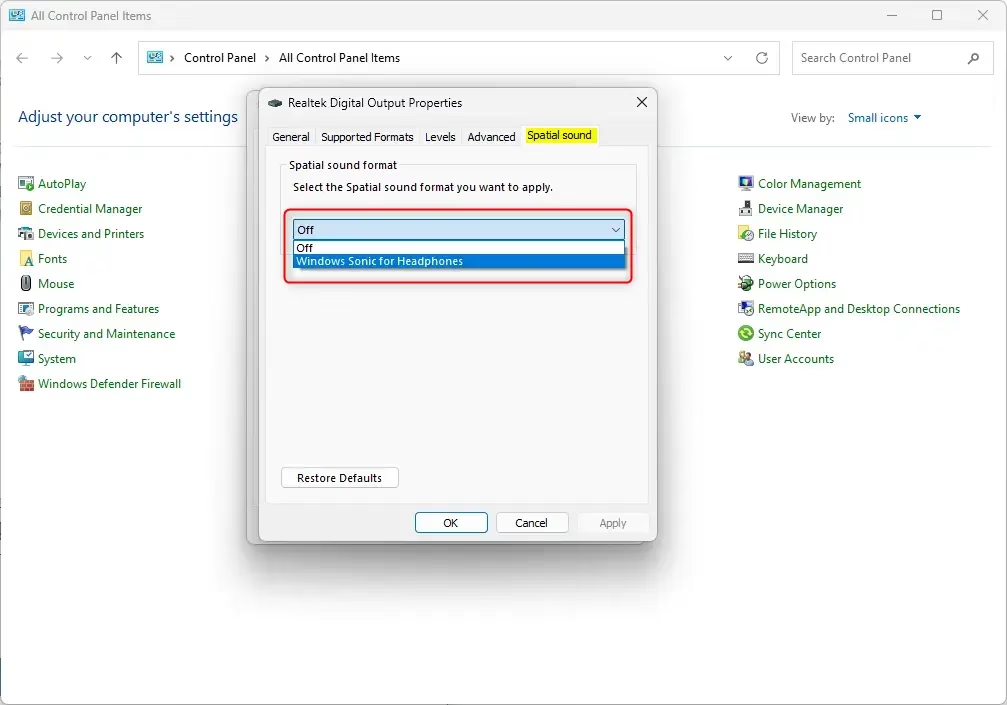
- Click/tap on the Spatial sound tab, select Off (disable – default) or Windows Sonic for Headphones (enable) for what you want in the Spatial sound format drop menu, and click/tap on OK. (see screenshot below)
- Click/tap on OK.
- You can now close the Control Panel if you like.
Option Three: Enable or Disable Spatial Sound in Quick Settings Volume Mixer
This option is only available starting with Windows 11 version 22H2 KB5030310 Build 22621.2361.1
Perform one of the following actions:
- Press the Win + Ctrl + V keys.
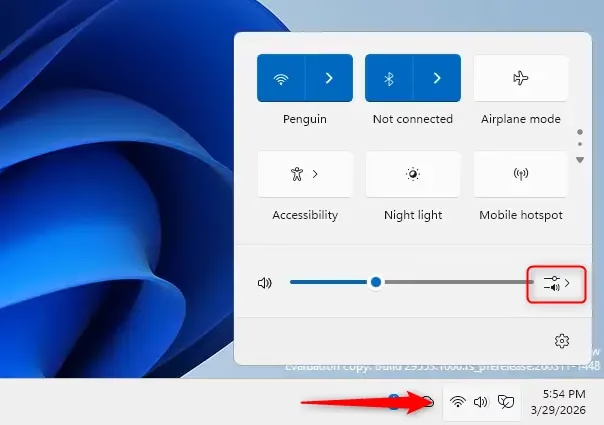
- Open Quick Settings (Win+A), and click/tap on the Select a sound output button. (see screenshot below)
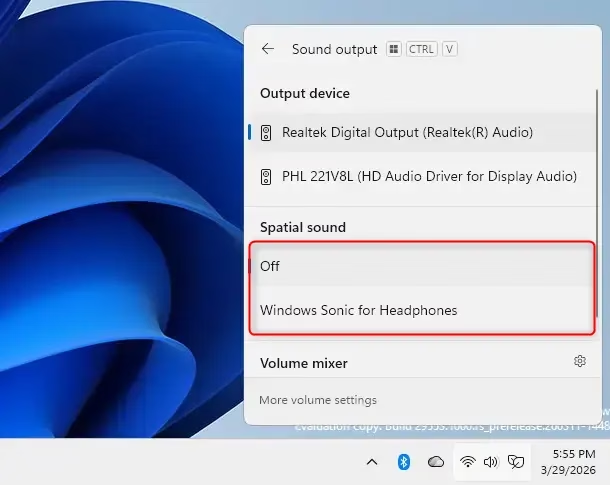
- Select Off (disable – default) or Windows Sonic for Headphones (enable) for what you want under Spatial Audio.
If you turned on mono audio, it will disable the spatial sound setting.
That’s it!
Summary
Spatial Sound in Windows 11 creates an immersive 3D audio experience. You can enable or disable it using three different methods: through Settings, Control Panel, or Quick Settings Volume Mixer. Each method takes just a few clicks. Simply find your audio device and select either Off to disable spatial sound or Windows Sonic for Headphones to enable it. The feature works best with compatible audio devices and is not available if mono audio is turned on.

Leave a Reply Cancel reply