

This post describes steps to enable or disable Sound keys or Toggle keystones in Ubuntu Linux.
Ubuntu Linux has a feature that will allow you to play or hear a tone while pressing the Caps lock, Num lock, and Scroll lock keys on your keyboard.
You will hear tone if you intentionally or accidentally press these buttons or keys. This feature is handy and should make you aware that one of the keys has been enabled, which can be good, so you don’t end up typing everything in capital letters or disabling the Num lock.
However, if you don’t want to hear a tone every time one of these keys is pressed, Ubuntu Linux lets you quickly disable it. Or, if you want to be reminded, go and enable it again.
Below is how to do that.
How to enable or disable Toggle Keys Tone in Ubuntu Linux
As described above, Ubuntu Linux has a feature that plays a tone while pressing Caps lock, Num lock, and Scroll lock.
Below is how to enable or disable it.
Ubuntu Linux has a centralized location for the majority of its settings. From system configurations to creating new users and updating, all can be done from the System Settings panel.

Alternatively, click on the System menu at the top-right corner of the top bar on your desktop.
On the System menu, select Settings, as highlighted below.

In the Settings app, click on the Accessibility tile to open the panel.

In the System Settings -> Accessibility panel, under Seeing, select the Sound Keys tile to expand.
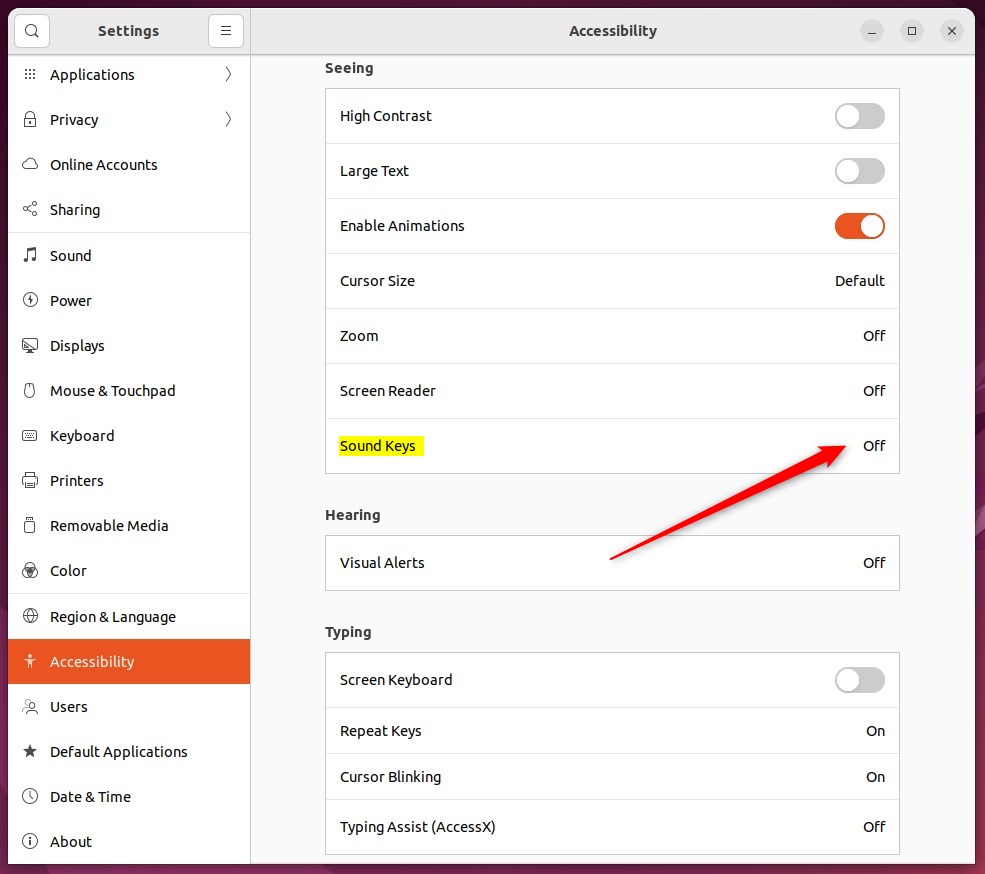
On the Sound Keys window, toggle the switch to the On position to enable Sound Keys. Your changes should apply immediately.
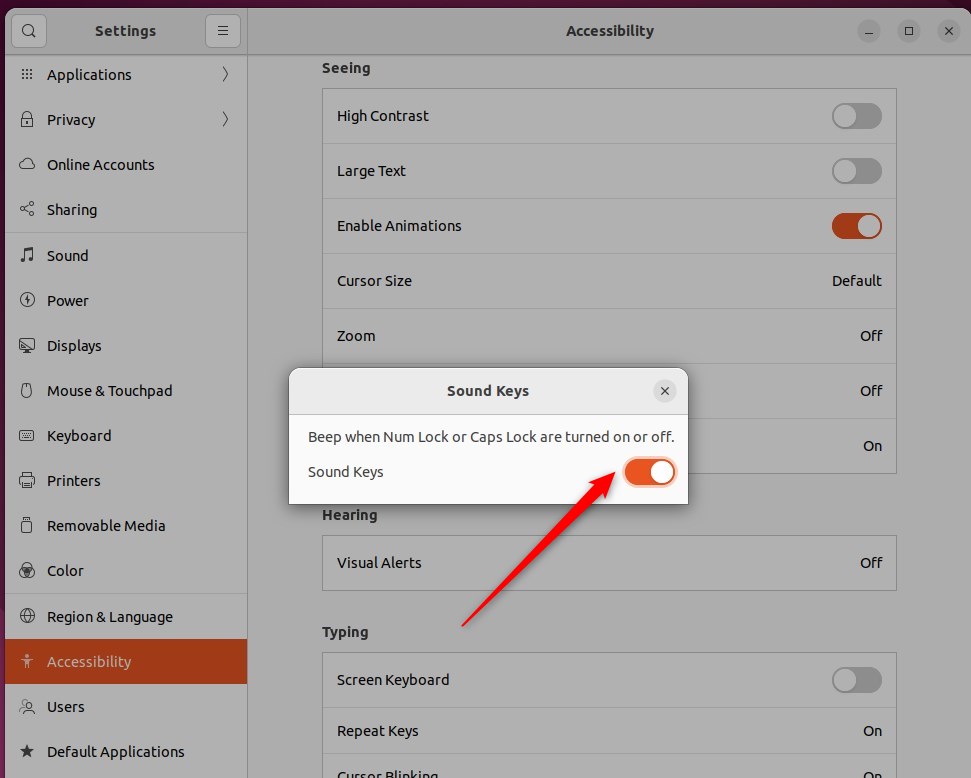
To disable it, toggle the switch back to the Off position.
That should do it! You can now close the Settings app.
Conclusion:
- Enabling or disabling sound keys in Ubuntu Linux is a simple process done through the System Settings panel.
- The feature provides auditory feedback for Caps lock, Num lock, and Scroll lock keys and can be easily toggled on or off according to individual preference.
- Following the steps outlined in this post, users can efficiently manage the sound keys feature to suit their needs.
Leave a Reply Cancel reply