
This guide shows you how to turn on or off the ignore touch input feature when using a pen in Windows 11. Why would you want this? If you often accidentally touch your screen while writing with a pen, this setting helps prevent those accidental touches from interfering with your work.
What is a Touchscreen?
A touchscreen lets you interact directly with what you see on your display. Instead of using a mouse or touchpad, you can touch the screen with your finger or a stylus pen.
Why Use This Feature?
When you enable the “Ignore touch input when I’m using my pen” setting, your computer stops responding to finger touches on the screen. This is useful if you bump or accidentally touch the screen while writing or drawing with your pen.
Option One: Use Settings
- Open Settings by pressing
Win+I. - Click on Bluetooth & devices on the left side.
- Click on Pen & Windows Ink on the right side.
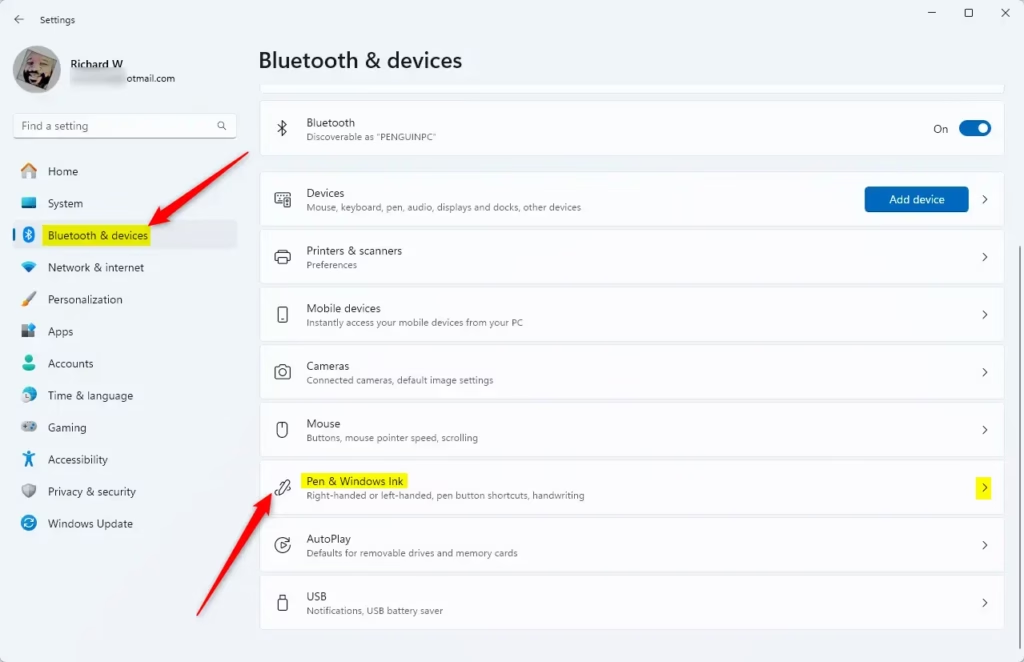
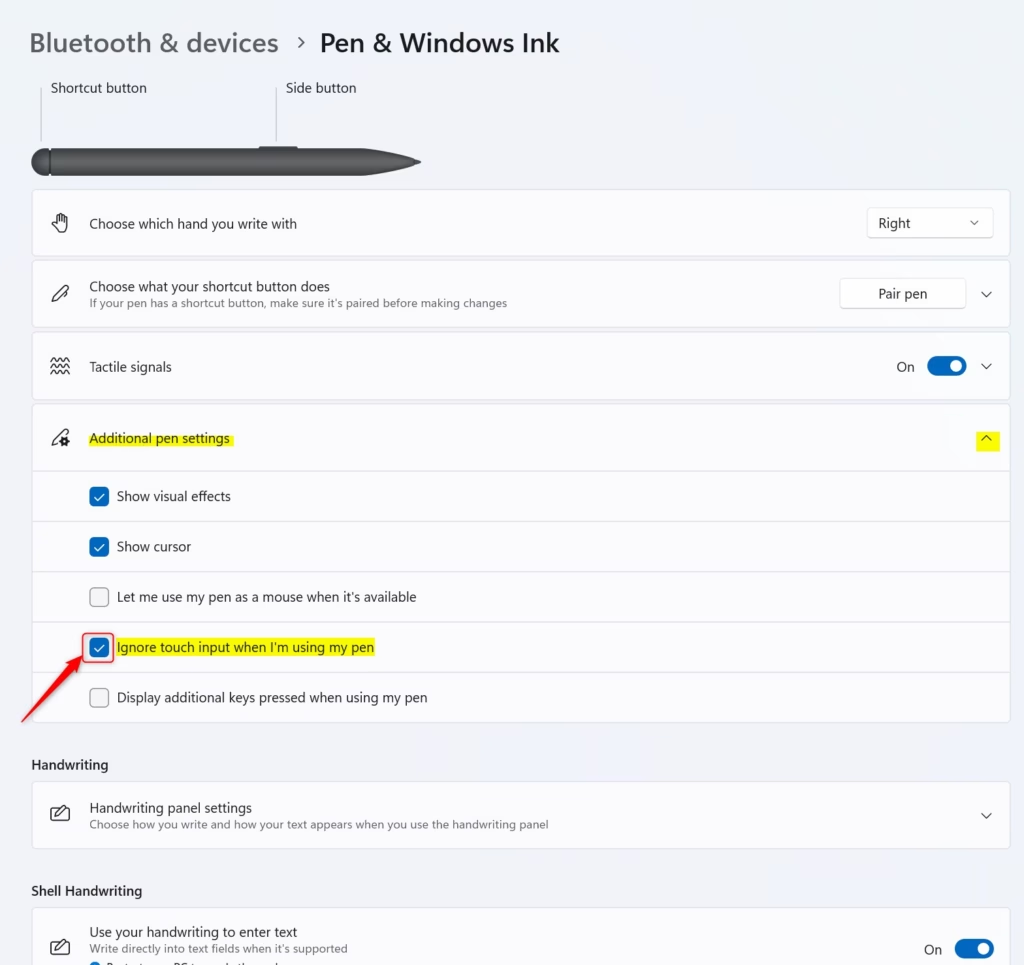
- Click on Additional pen settings to expand it.
- Check the box next to Ignore touch input when I’m using my pen to turn it on. Uncheck it to turn it off.
Close Settings when done.
Option Two: Use Registry
⚠️ REQUIRES ADMIN PRIVILEGES
Open the Terminal app as administrator and run the commands below.
Enable Ignore Touch Input when using Pen
reg add "HKEY_CURRENT_USER\Software\Microsoft\Windows NT\CurrentVersion\Windows\Pen" /v PenArbitrationType /t REG_DWORD /d 1 /f
Disable Ignore Touch Input when using Pen
This is the default setting.
reg add "HKEY_CURRENT_USER\Software\Microsoft\Windows NT\CurrentVersion\Windows\Pen" /v PenArbitrationType /t REG_DWORD /d 3 /f
Summary
You now know how to enable or disable the ignore touch input feature when using a pen in Windows 11. The easiest way is through Settings. If you prefer using commands, you can use the Registry method with admin access. Either method will let you stop accidental touch input while writing or drawing with your pen.

Leave a Reply Cancel reply