
This tutorial will show you how to turn Bluetooth Swift Pair on or off in Windows 11. You can do this for just your account or for all users on your computer.
What is Bluetooth?
Bluetooth is a wireless technology that lets devices talk to each other over short distances. You can connect many types of Bluetooth devices to your PC. Examples include phones, headsets, speakers, fitness trackers, mice, and keyboards.
What is Swift Pair?
Swift Pair Swift Pair in Windows 11 makes pairing Bluetooth devices quick and easy. When you have a supported Bluetooth device nearby and put it into pairing mode, your PC will send you a notification. You can then connect it with just a few clicks.

Option One: Use Settings
Turn Swift Pair On or Off for Your Account
- Open Settings by pressing
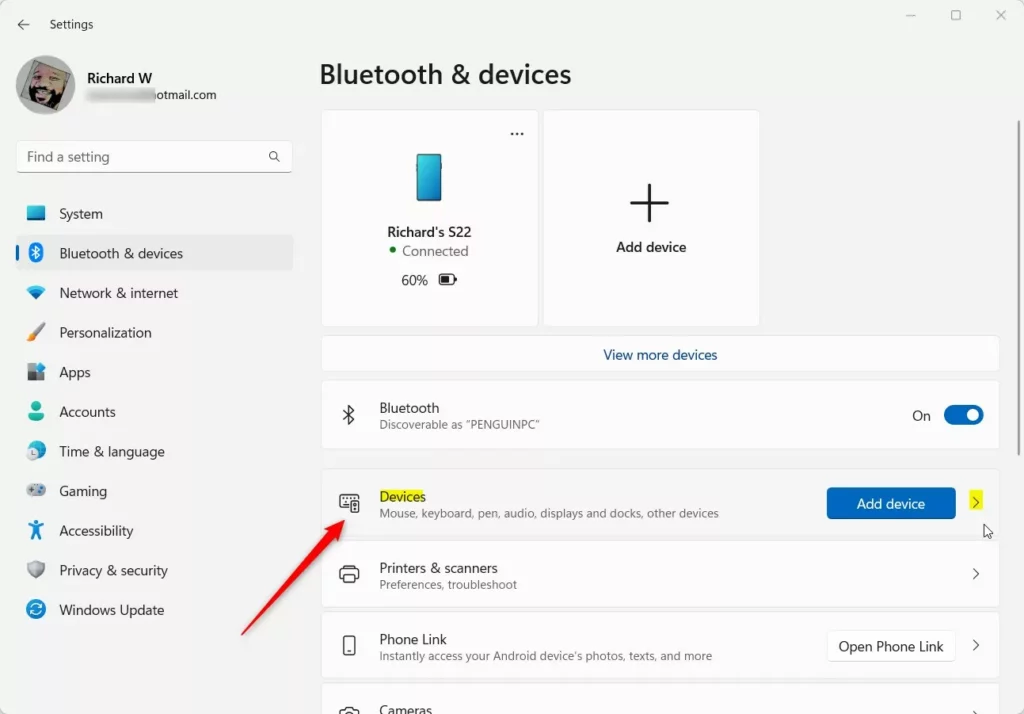
Win+Ion your keyboard. - Click Bluetooth & devices on the left side.
- Click Devices on the right side.
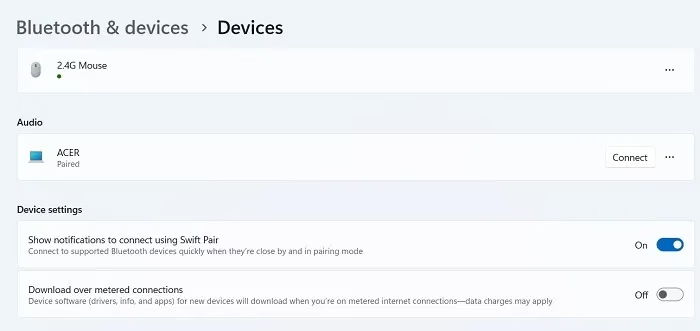
- Under Device settings, find the option that says Show notifications to connect using Swift Pair.
- Turn it On (this is the default) or Off depending on what you want.
- Close Settings when you’re done.
Option Two: Use Registry Editor for Your Account
Turn Swift Pair On
This is the default setting. Run the command below:
reg add "HKEY_CURRENT_USER\Software\Microsoft\Windows\CurrentVersion\Bluetooth" /v QuickPair /t REG_DWORD /d 1 /fTurn Swift Pair Off
Run the command below:
reg add "HKEY_CURRENT_USER\Software\Microsoft\Windows\CurrentVersion\Bluetooth" /v QuickPair /t REG_DWORD /d 0 /fOption Three: Use Registry Editor for All Users
⚠️ Admin Privileges Required: You must be signed in as an administrator to use this option.
Enable Swift Pair for All Users
Run the command below:
reg add "HKEY_LOCAL_MACHINE\SOFTWARE\Microsoft\PolicyManager\default\Bluetooth\AllowPromptedProximalConnections" /v value /t REG_DWORD /d 1 /fDisable Swift Pair for All Users
Run the command below:
reg add "HKEY_LOCAL_MACHINE\SOFTWARE\Microsoft\PolicyManager\default\Bluetooth\AllowPromptedProximalConnections" /v value /t REG_DWORD /d 0 /fThat’s it! Your Bluetooth Swift Pair settings are now changed.
Summary
You now know three ways to control Bluetooth Swift Pair in Windows 11. The easiest method is using Settings if you only want to change it for your own account. If you need to change it for all users on the computer, you’ll need to use the Registry Editor and have admin privileges. Swift Pair makes connecting Bluetooth devices faster and easier, so turn it on if you use wireless devices regularly.
Learn more: pair Pair a Bluetooth device in Windows – Microsoft Support Swift Pair Open Bluetooth & devices settings Bluetooth Policy CSP

Leave a Reply Cancel reply