How to Enable or Disable Animations in Ubuntu

You enable or disable desktop animations in Ubuntu to control visual effects and improve system responsiveness.
Desktop animations are visual flourishes that make windows open, close, and minimize smoothly, and menus slide in. Disabling them can significantly boost performance on older hardware or if you simply prefer a snappier interface.
For example, in Ubuntu 22.04 LTS, disabling animations can free up resources that might otherwise be used by these graphical effects.
This simple tweak lets you choose between a more polished, modern look or a faster, more utilitarian desktop experience.
Open Settings, navigate to Accessibility, and toggle the “Enable Animations” switch. Turn it on for visual effects or off for a snappier desktop.
Turn on or off desktop animations on Ubuntu Linux
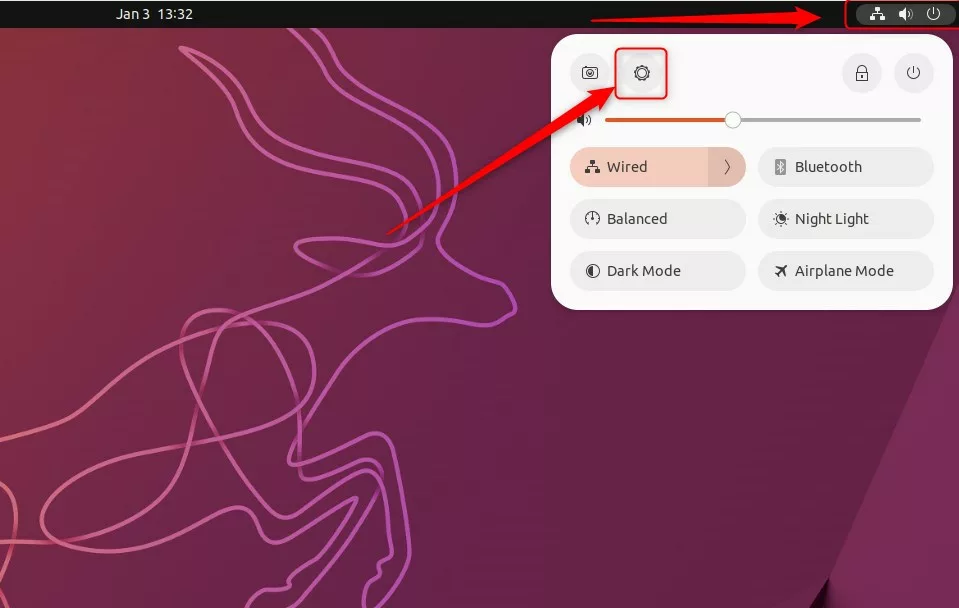
Ubuntu keeps most of its controls in one place called the Settings panel. To open it, click the top-right corner of your screen and select the Settings icon. You can also press the Super key (Windows key) and type “Settings” into the search bar.
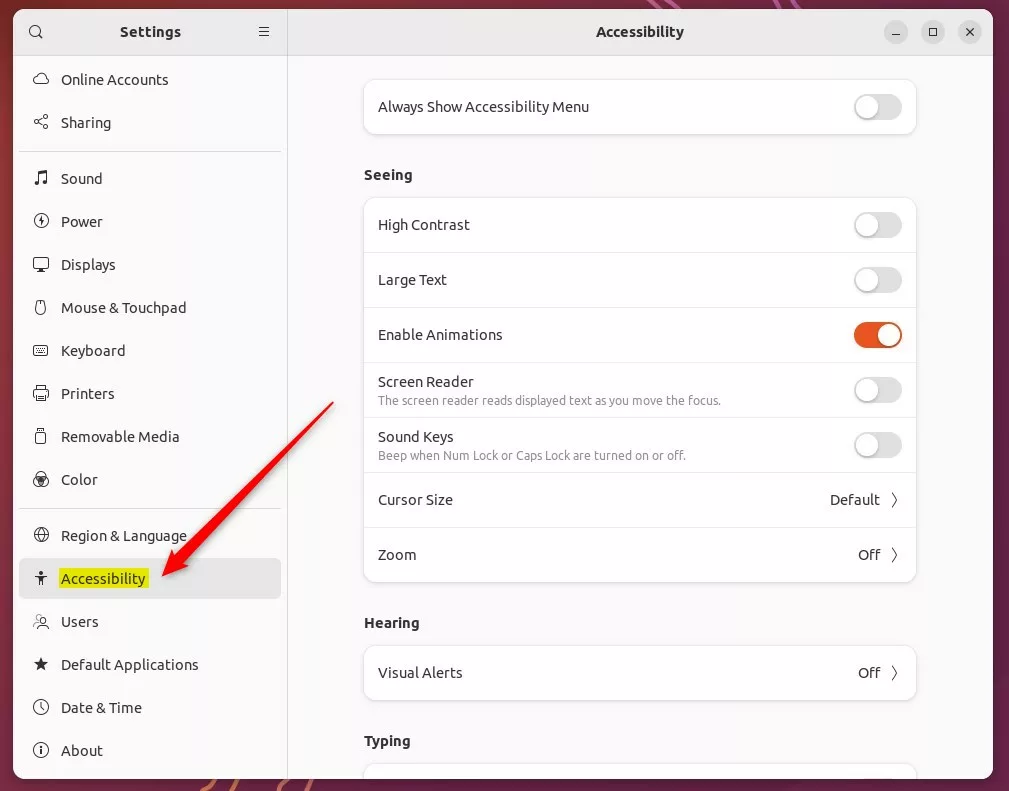
In the Settings window, look at the menu on the left side. In 2026, the “Enable Animations” toggle is found under the Accessibility tab. Once you click Accessibility, look for the Seeing section.
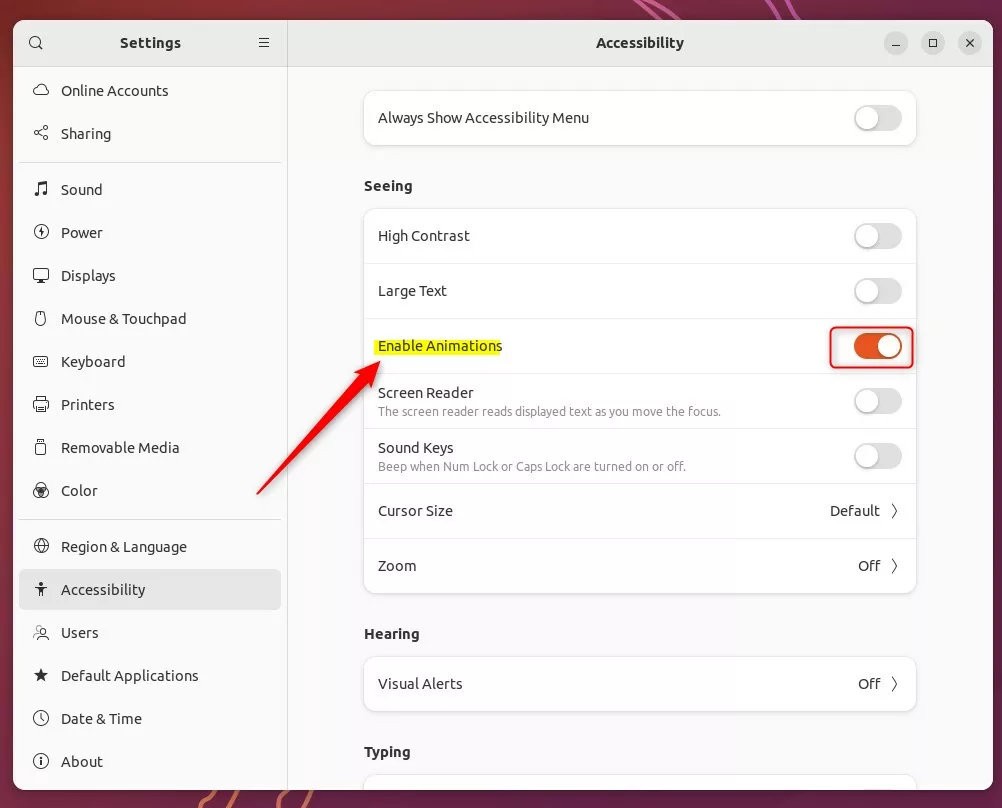
Here, you will see a switch for Enable Animations. Toggle the switch to “On” if you want the visual effects. Toggle it to “Off” if you want to remove them for a faster feel.
Advanced: Managing specific animations
If you do not want to turn off every single animation, you can use more advanced tools to pick and choose. The Extensions app %📂%LNK0%% allows you to install plugins that can disable specific effects, like window fading or workspace sliding, while keeping others active.
For power users, the dconf-editor %📂%LNK1%% tool offers deep control. You can navigate to the GNOME interface settings to adjust individual animation speeds or behaviors. Be careful, as changing these settings can affect how your desktop windows behave.
Conclusion
Changing your animation settings is a simple way to make Ubuntu feel exactly how you want it. Whether you prefer a flashy desktop or a bare-bones, high-speed interface, these settings give you full control. Just head to your Accessibility menu to toggle the global switch, or use the Extensions app to fine-tune your experience.
Was this guide helpful?

About the Author
Richard
Tech Writer, IT Professional
Richard, a writer for Geek Rewind, is a tech enthusiast who loves breaking down complex IT topics into simple, easy-to-understand ideas. With years of hands-on experience in system administration and enterprise IT operations, he’s developed a knack for offering practical tips and solutions. Richard aims to make technology more accessible and actionable. He's deeply committed to the Geek Rewind community, always ready to answer questions and engage in discussions.


No comments yet — be the first to share your thoughts!