

This post describes steps to turn on or off the alert Sound in Ubuntu Linux.
Your computer will play a simple alert sound for certain messages and events. These events could be notifications, clicking, and prompts.
You can choose different sound clips for alerts, set the alert volume independently of your system volume, or disable alert sounds entirely.
System alert sounds differ entirely from your moves, music, and audio and sound files. Therefore, changing or muting the alert Sound will not impact sounds from these files and formats.
By default, notifications in Ubuntu appear at the top bar, alerting you of significant system events. These will play the default sound you choose under Alert Sound.
If you have had enough of the System sounds and event tones, you can choose to disable or mute Sound entirely, and the steps below show you how to do that.
How to mute the alert Sound in Ubuntu Linux
As mentioned above, your computer will play a simple alert sound for certain messages and events. These events could be notifications, clicking, and prompts.
Below is how to enable or disable alert Sound in Ubuntu Linux
Ubuntu Linux has a centralized location for the majority of its settings. From system configurations to creating new users and updating, all can be done from the System Settings panel.

Alternatively, click on the System menu at the top-right corner of the top bar on your desktop.
On the System menu, select Settings, as highlighted below.

In the Settings app, click on a Sound tile to open the panel.
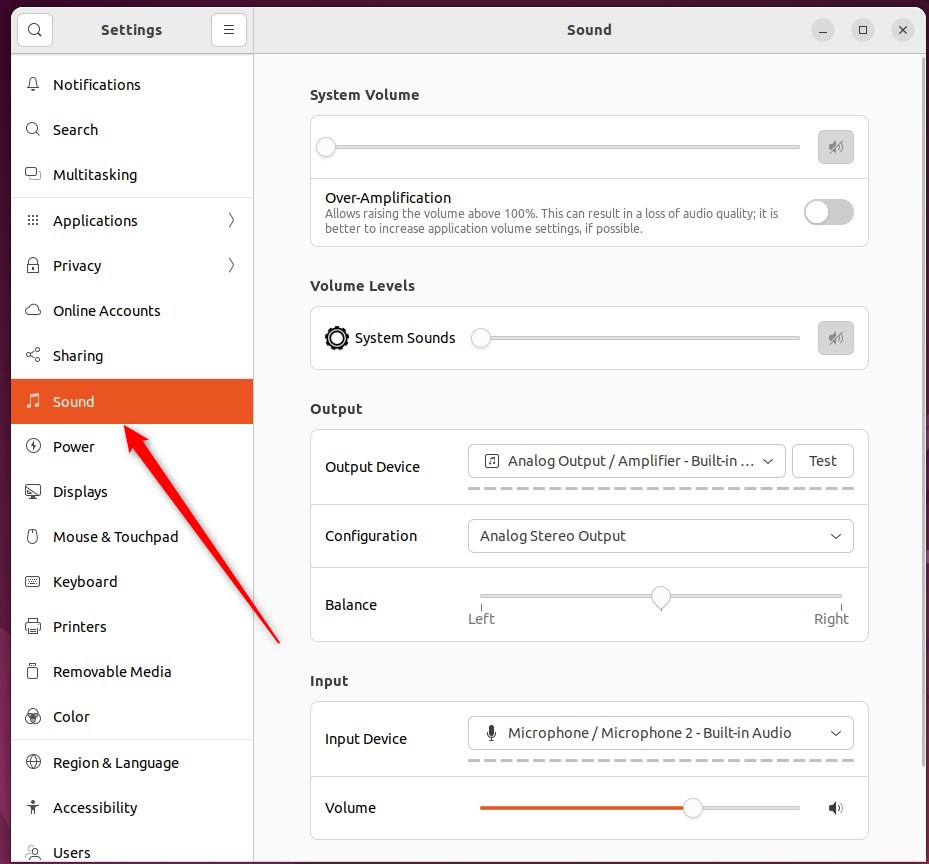
In the System Settings -> Sound panel, under Volume Levels, use the slider to change the volume for System Sounds.
If Alert Sound is not muted, select an alert sound that will play when you click on it to hear how it sounds.
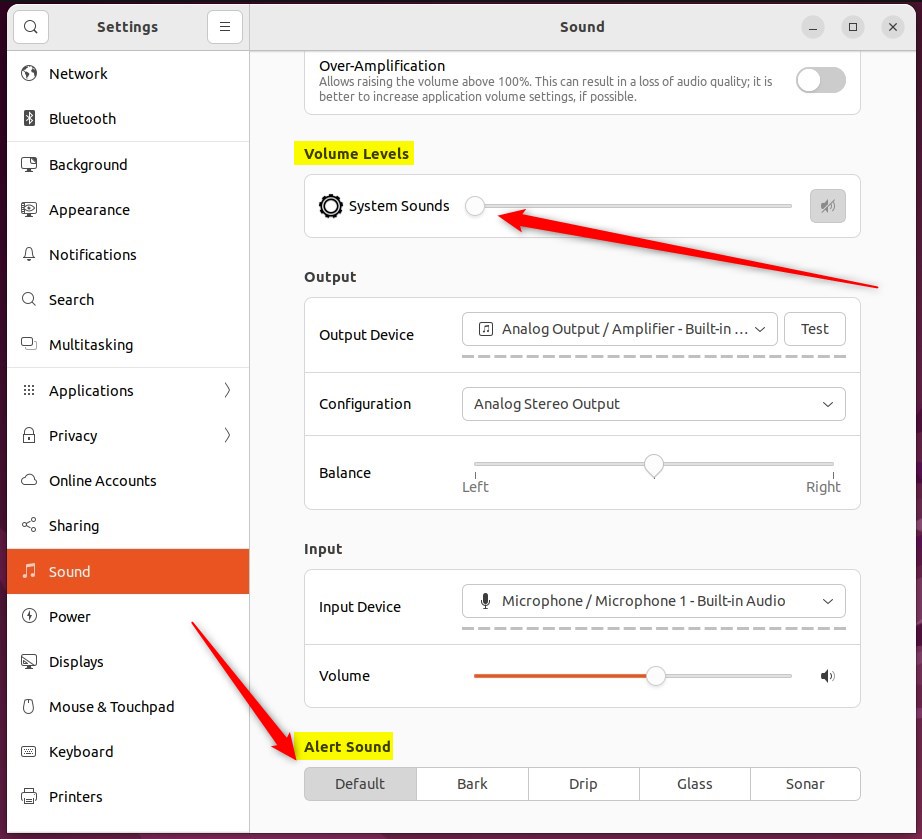
Again, changing the volume level or muting the System Sounds will not affect the volume of your music, movies, or other sound files.
That should do it!
Conclusion:
- Ubuntu Linux allows you to easily customize alert sounds for notifications and system events.
- You can independently adjust the volume for alert sounds in the System Settings panel.
- Disabling or muting the alert sound will not impact the volume of music, movies, or other sound files on your system.
Leave a Reply Cancel reply