If you use your computer in the evening, you might notice your eyes feel tired or you have trouble sleeping. This is often due to the blue light from your screen, which can make your eyes tired and make it harder to fall asleep.
Windows 11 has a special feature called Night Light. It changes the colors on your screen to warmer tones, which are easier on your eyes and can help you sleep better.
You can turn Night Light on anytime, and even set it to turn on and off automatically at night.
How to Turn On Night Light
Follow these simple steps to turn on Night Light:
- Click the Start button (the Windows icon) at the bottom-left corner of your screen.
- Click Settings (it looks like a gear).
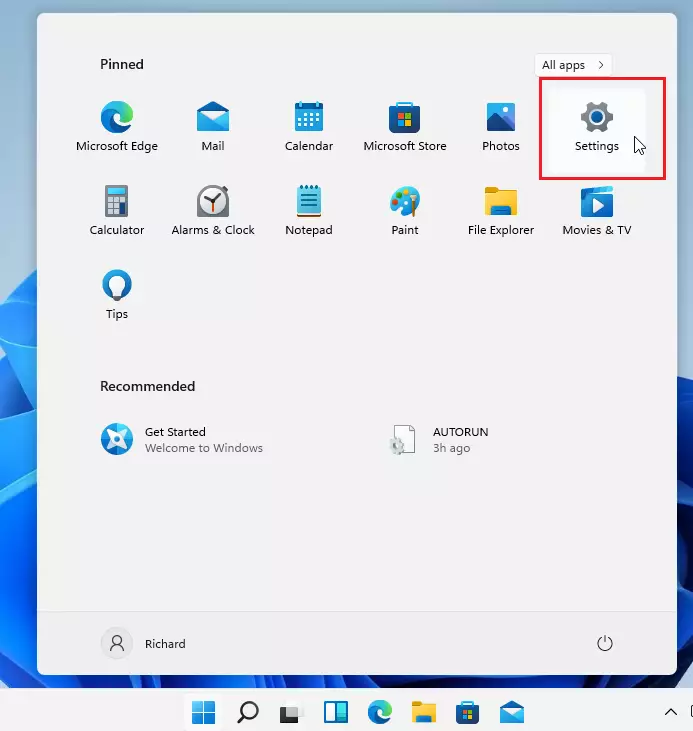
- In the Settings window, click System, then select Display.

- Find the Night light option and click the switch to turn it on.
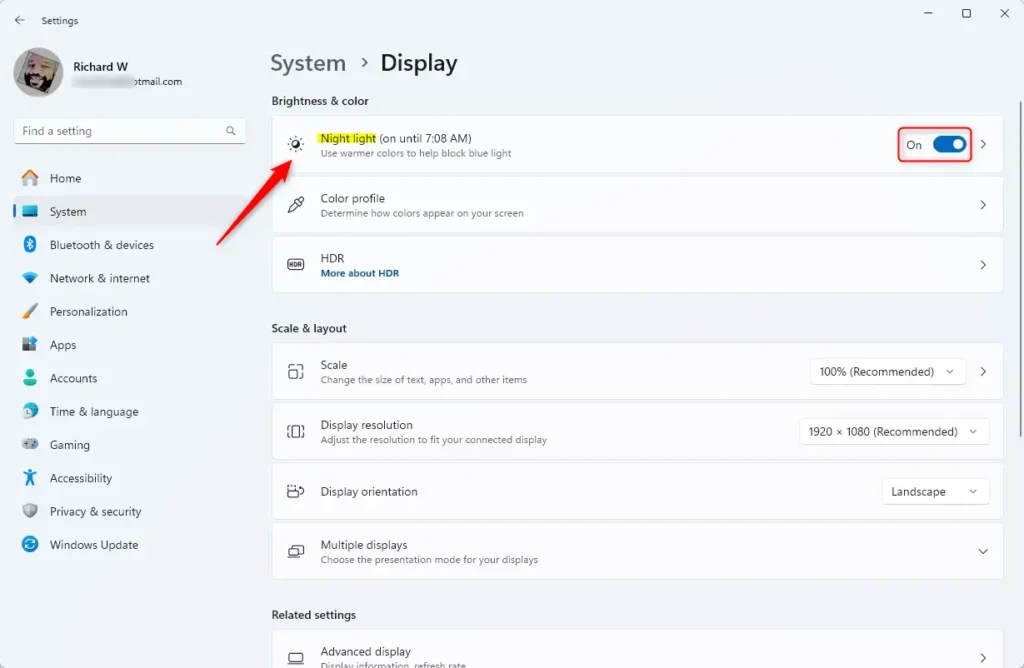
Your screen will now look warmer and softer, which helps reduce eye strain.
If the color looks too strong or too weak, you can adjust it:
- Click the arrow next to the Night Light switch to open more settings.
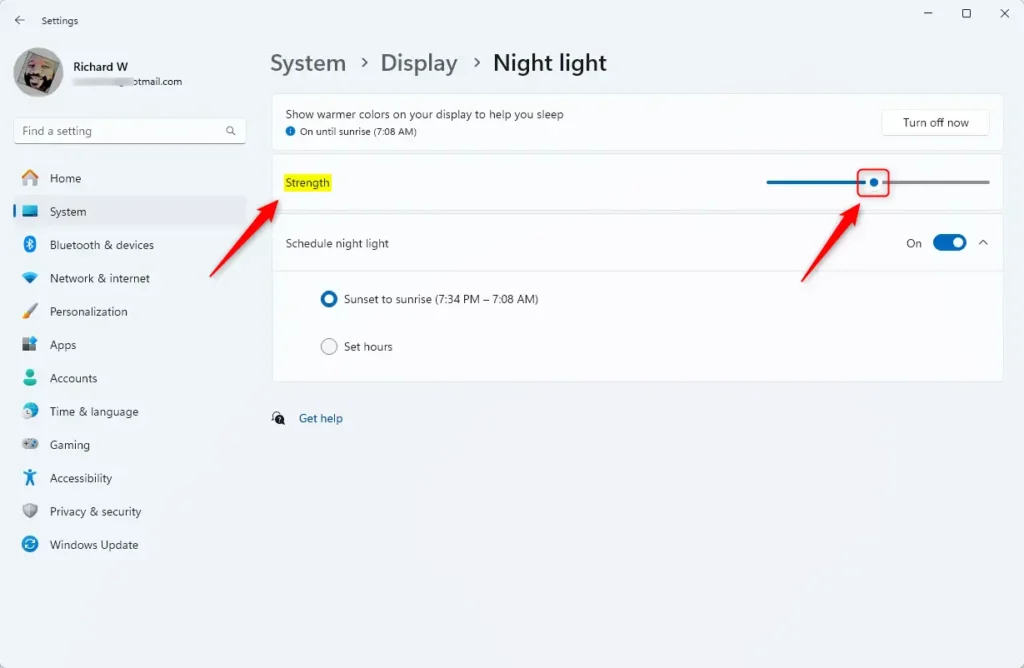
Move the slider to choose how warm you want the colors to be. Moving it closer to 100 makes the screen warmer.
How to Schedule Night Light
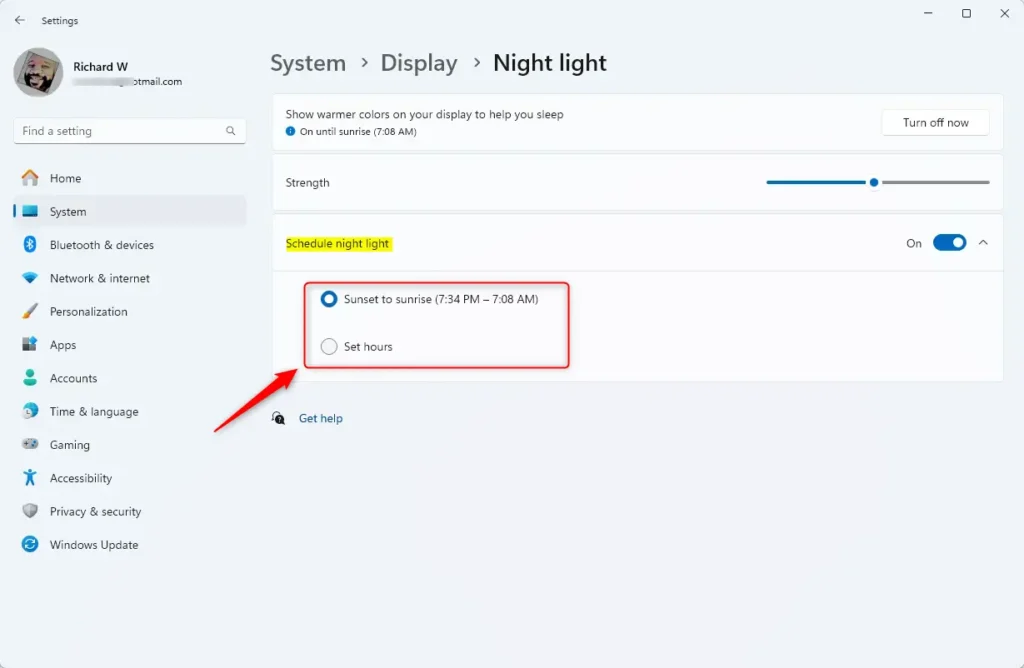
You can also set Night Light to turn on and off automatically at certain times, like from sunset to sunrise.
- In the same Night Light settings window, look for the Schedule night light section.
- Turn on the schedule option.
- Choose Sunset to sunrise to let Windows decide the times based on your location, or select Set hours to pick your own times.
This is useful if you work late or like your screen to be easier on your eyes at night.
Summary
- Night Light reduces blue light from your screen, which helps protect your eyes.
- You can make the screen colors warmer to reduce eye strain, especially at night.
- The color warmth can be adjusted to your comfort.
- Night Light can turn on and off on a schedule, like from sunset to sunrise.
- Using Night Light may also help you sleep better if you use your computer late.
Try turning on Night Light to make your computer easier on your eyes!
Leave a Reply Cancel reply