How to Delete System and Point-in-time Restore Points in Windows 11

System Restore points in Windows 11 allow you to go back to an earlier state of your PC if something goes wrong after a change.
Windows 11 uses two main kinds of these points: System Restore and Point-in-time restore. Both create saved snapshots of your system. System Restore focuses on system files and settings, automatically cleaning up older points when space is needed.
Point-in-time restore, on the other hand, saves your entire system, including personal files, and keeps points for about 72 hours by default. It uses reserved storage, which is a part of your disk specifically for system needs.
Deleting these restore points can free up valuable disk space. This is especially helpful if you have many saved points that have accumulated over time.
Delete System and Point-in-time Restore Points in Windows
Option 1Delete All Restore Points Using System Protection
You can delete all your Windows 11 restore points, including system and point-in-time ones, using the System Protection settings.
- Open the Settings app. You can do this by pressing the Windows key + I.
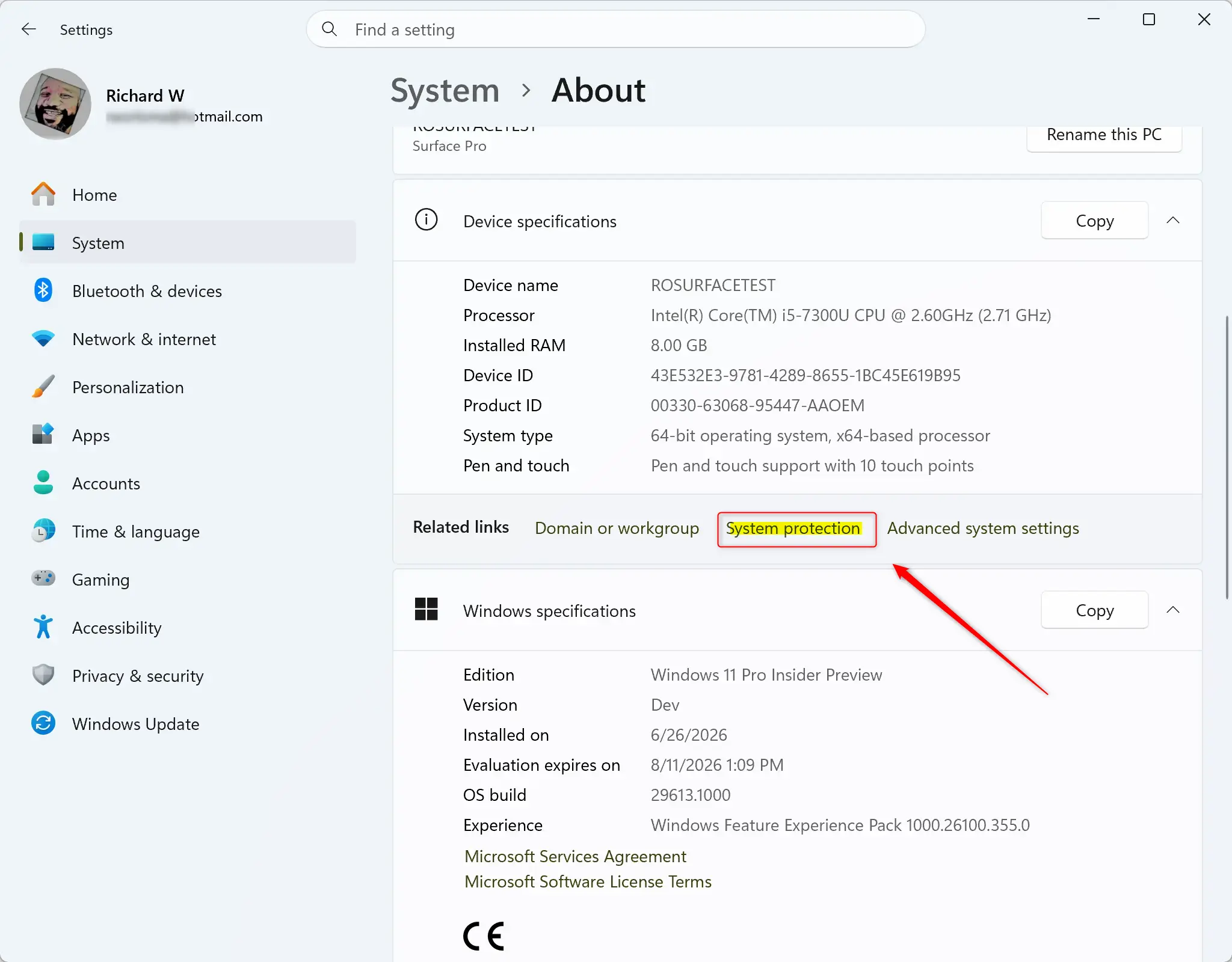
- Click on System in the menu on the left. Then, click on About on the right side.
- Click on the System protection link. This will open a new window. You can close the Settings app now if you wish.
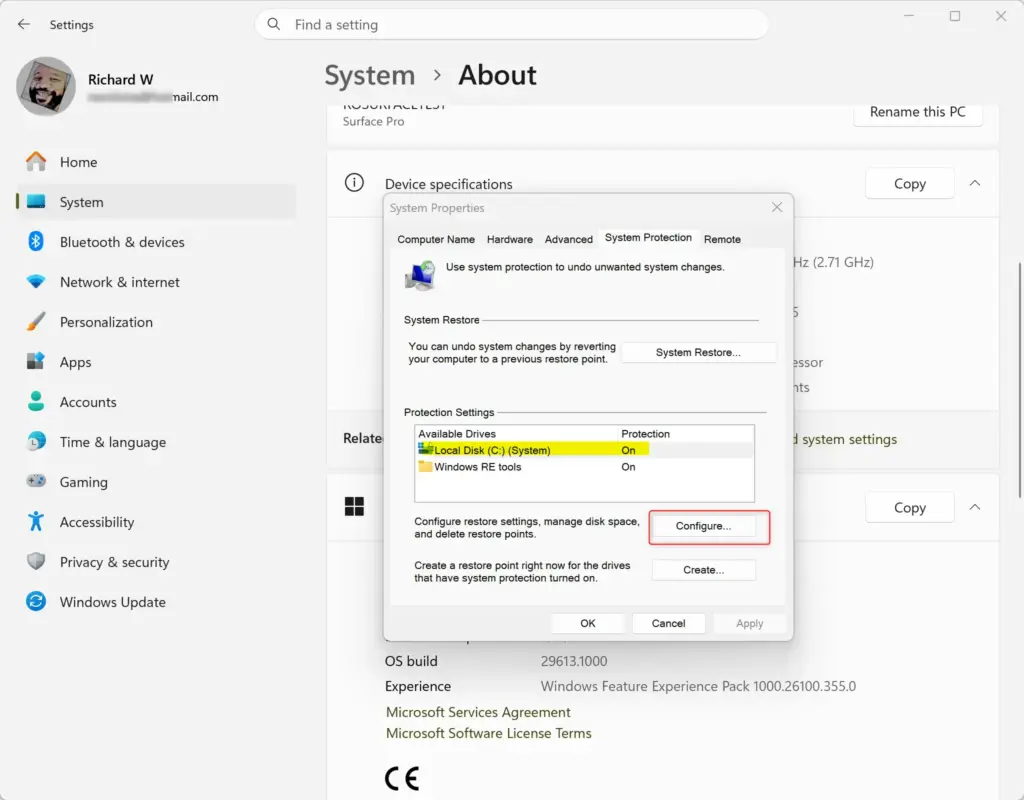
- Under Protection Settings, choose a drive that has protection turned on. This is the drive where you want to delete all restore points. Then, click the Configure button.
- Restore points from Point-in-time restore are only on your main system drive (C:).
- Restore points from System Restore can be on any drive that has protection turned on.
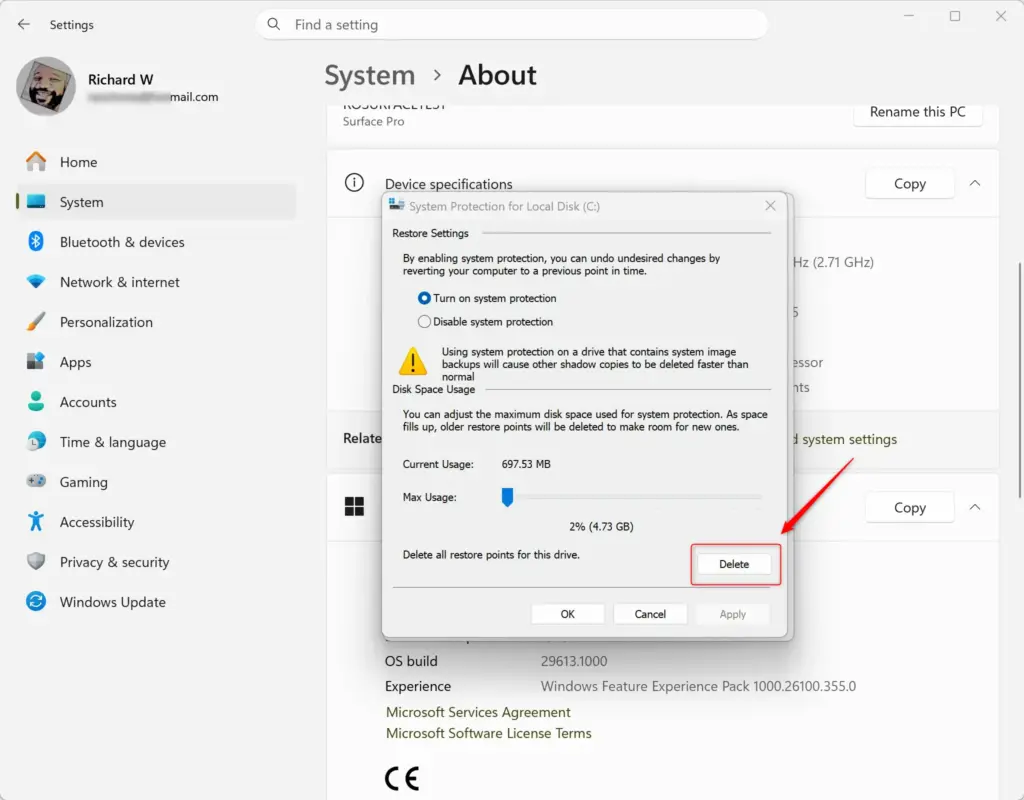
- Click the Delete button.
- Admin privilege required: Click Continue to confirm that you want to delete them.
- Click Close when the process is finished.
- Click OK.
- You will see that the “Current Usage” for the selected drive is now “0 bytes”. This means all restore points on that drive have been deleted.
- Click OK again.
Option 2Delete All Restore Points on All Drives Using Command Prompt
To remove every restore point on all your drives, including system and point-in-time ones, you can use a simple Command Prompt command.
- Admin privilege required: Open Windows Terminal (Admin). Then, choose Command Prompt from the menu.
- Copy and paste one of the commands below into Windows Terminal (Admin). Then, press the Enter key.
- This command will ask you to confirm before deleting:
- vssadmin delete shadows /all
- Or, this command will delete without asking for confirmation:
- vssadmin delete shadows /all /quiet
Option 3Delete All Restore Points on a Specific Drive Using Command Prompt
You can delete all restore points for a particular drive, whether they’re from System Restore or point-in-time backups, by using the Command Prompt.
- Admin privilege required: Open Windows Terminal (Admin). Then, choose Command Prompt from the menu.
- Type one of the commands below into Windows Terminal (Admin). Press the Enter key.
- This command will ask you to confirm before deleting:
- Or, this command will delete without asking for confirmation:
vssadmin delete shadows /For=(drive letter): /all
vssadmin delete shadows /For=(drive letter): /all /quietImportant: In the commands above, replace
(drive letter)with the actual letter of the drive (for example, “C”) where you want to delete restore points.- Restore points from Point-in-time restore are only on your main system drive (C:).
- Restore points from System Restore can be on any drive that has protection turned on.
For example, to delete all restore points on the C: drive:
vssadmin delete shadows /For=C: /all /quiet
Option 4Delete the Oldest Restore Point on a Specific Drive Using Command Prompt
If you need to free up space or troubleshoot, you can delete just the oldest restore point on a specific drive using Command Prompt.
- Admin privilege required: Open Windows Terminal (Admin). Then, choose Command Prompt from the menu.
- Type one of the commands below into Windows Terminal (Admin). Press the Enter key.
- This command will ask you to confirm before deleting:
- Or, this command will delete without asking for confirmation:
vssadmin delete shadows /For=(drive letter): /oldest
vssadmin delete shadows /For=(drive letter): /oldest /quiet
Important: In the commands above, replace
(drive letter)with the actual letter of the drive (for example, “C”) where you want to delete the oldest restore point.- Restore points from Point-in-time restore are only on your main system drive (C:).
- Restore points from System Restore can be on any drive that has protection turned on.
For example, to delete the oldest restore point on the C: drive:
vssadmin delete shadows /For=C: /oldest /quiet
Option 5Delete a Specific Restore Point Using Command Prompt
You can delete a single, specific restore point in Windows 11 using the Command Prompt, but you’ll need its unique Shadow Copy ID first.
- Admin privilege required: Open Windows Terminal (Admin). Then, choose Command Prompt from the menu.
- Copy and paste the command below into Terminal (Admin). Press the Enter key.
- vssadmin list shadows
- You will see a list of all available restore points, each with its own unique “Shadow Copy ID”.
- A “ClientAccessible” type means it’s a restore point from Point-in-time restore.
- A “ClientAccessibleWriters” type means it’s a restore point from System Restore.
- Write down the “Shadow Copy ID” of the restore point you want to delete. For example, it might look like
{c034d8e3-9e5b-47ed-8e56-fd50708045bd}. - Type one of the commands below into Windows Terminal (Admin). Press the Enter key.
- This command will ask you to confirm before deleting:
- Or, this command will delete without asking for confirmation:
vssadmin delete shadows /Shadow=<Shadow Copy ID>
vssadmin delete shadows /Shadow=<Shadow Copy ID> /quiet
Important: In the commands above, replace
<Shadow Copy ID>with the actual Shadow Copy ID you noted in step 4. Remember to include the curly braces{}.For example, if your Shadow Copy ID is
{c034d8e3-9e5b-47ed-8e56-fd50708045bd}, the command would be:
vssadmin delete shadows /Shadow={c034d8e3-9e5b-47ed-8e56-fd50708045bd} /quiet
Summary
Restore points are like saved snapshots of your computer. They help you fix problems by letting you go back to an
Was this guide helpful?

About the Author
Richard
Tech Writer, IT Professional
Richard, a writer for Geek Rewind, is a tech enthusiast who loves breaking down complex IT topics into simple, easy-to-understand ideas. With years of hands-on experience in system administration and enterprise IT operations, he’s developed a knack for offering practical tips and solutions. Richard aims to make technology more accessible and actionable. He's deeply committed to the Geek Rewind community, always ready to answer questions and engage in discussions.




No comments yet — be the first to share your thoughts!