How to Delete items from your Copilot conversation history

You can delete individual items or clear your entire Microsoft Copilot conversation history to manage your privacy and keep your chats organized.
Copilot, Microsoft’s AI assistant integrated into Windows and Edge, stores your past interactions to help you revisit previous queries and responses.
Clearing this history, especially if you use Copilot on a shared device, ensures that sensitive information is not accidentally revealed and helps streamline your future interactions by removing clutter. You can access and manage this history directly within the Copilot interface.
Delete individual Copilot conversations by finding the chat, clicking or right-clicking the three dots next to it, and selecting “Delete.” Confirm if prompted, as deleted conversations are permanently removed. You can also clear your entire history.
Why Delete Copilot Conversations?
You might want to delete Copilot conversations to keep your chat history tidy and private, especially after finishing a project or if you’re concerned about privacy.
How to Delete a Single Copilot Conversation
You can delete specific chats. The exact steps might look a little different depending on where you’re using Copilot:
Find the Conversation
First, head over to your conversation history. Scroll through the list until you find the chat you want to delete. Be careful not to delete the wrong one!
Start the Deletion
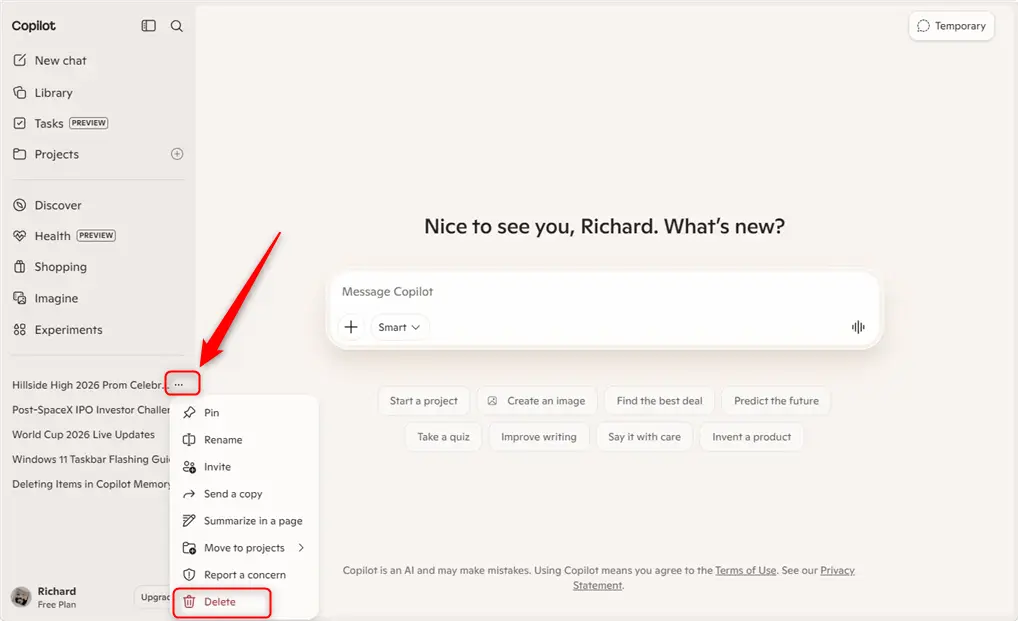
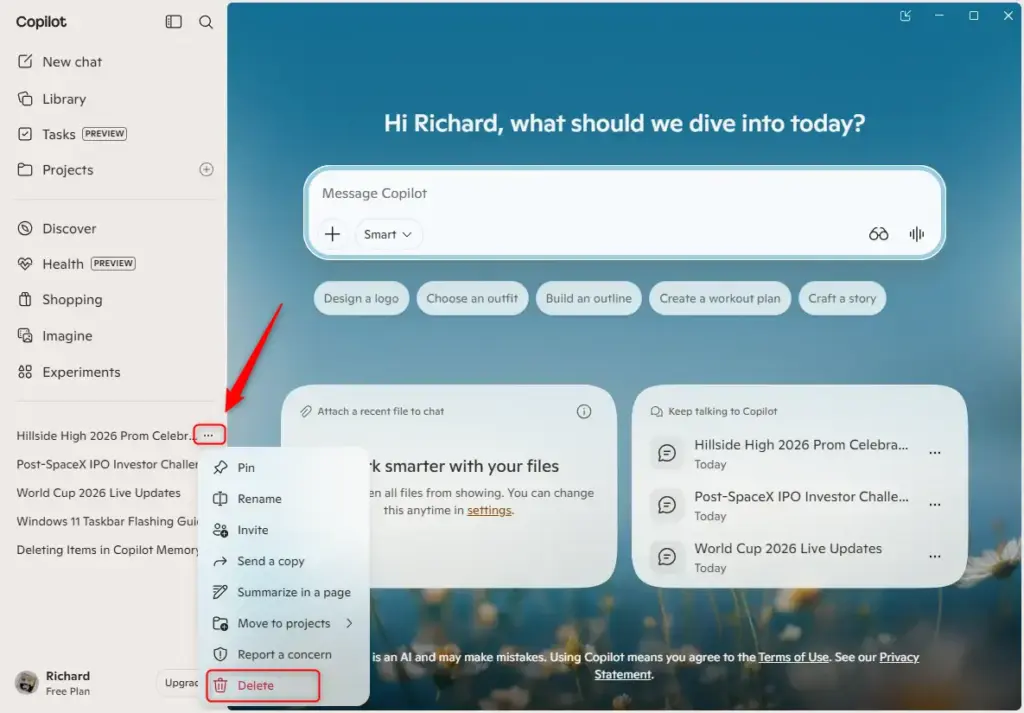
To delete a Copilot conversation, find the chat you want to remove and look for three small dots next to it.
- On copilot.com: Look for three small dots (an ellipsis) to the right of the conversation. Click these dots.
- In Copilot for Windows or macOS: Right-click on the conversation you want to remove. A menu will pop up.
- In the Copilot mobile app: Like the website, you will see three dots next to the conversation. Tap these dots.
Confirm Deletion
After selecting ‘Delete’ from the menu that appears, you might see a message asking you to confirm. This is to make sure you really want to delete the chat permanently.
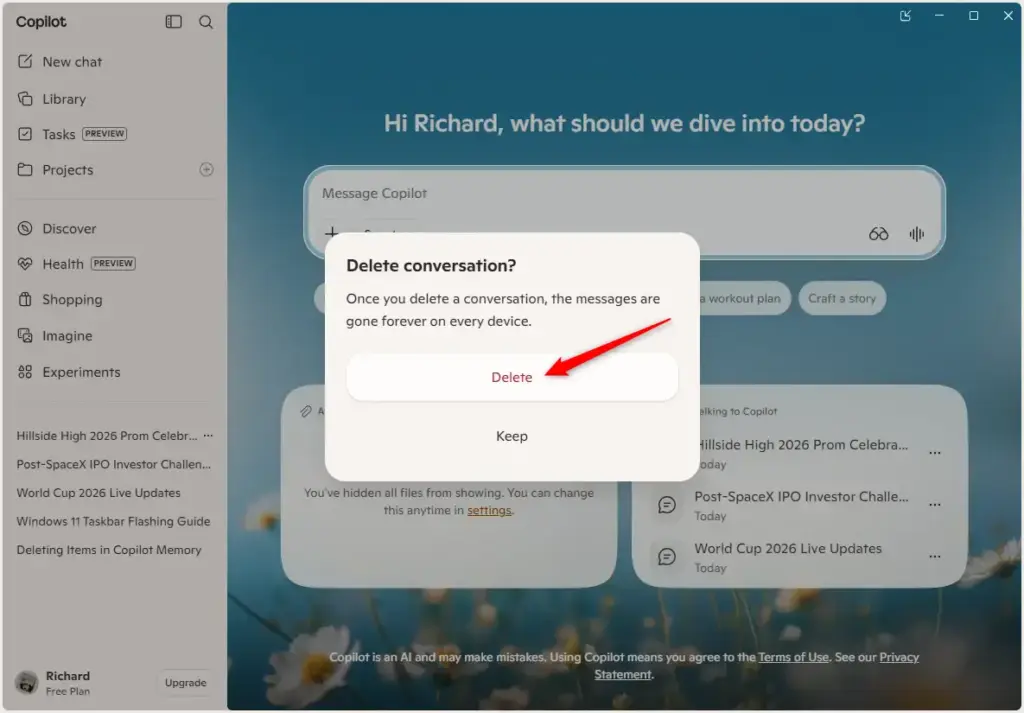
Warning: Deleting removes the chat permanently from your history. Remember, there’s no going back once you do! Make absolutely sure you want to delete it.
Reference:
https://support.microsoft.com/en-us/microsoft-copilot/conversation-history-in-microsoft-copilot
Summary
Deleting individual Copilot conversations is a straightforward way to keep your chat history clean and private, ensuring you can easily find what you need.
How do I clear previous conversations in Copilot?
Under “Copilot app activity history,” select Delete all activity history to delete all your Copilot conversation history.
Was this guide helpful?

About the Author
Richard
Tech Writer, IT Professional
Richard, a writer for Geek Rewind, is a tech enthusiast who loves breaking down complex IT topics into simple, easy-to-understand ideas. With years of hands-on experience in system administration and enterprise IT operations, he’s developed a knack for offering practical tips and solutions. Richard aims to make technology more accessible and actionable. He's deeply committed to the Geek Rewind community, always ready to answer questions and engage in discussions.


No comments yet — be the first to share your thoughts!