
This tutorial will show you how to choose where apps can be installed from for all users in Windows 11.
Why This Matters
To help protect your PC and keep it running smoothly, Microsoft recommends only installing apps from the Microsoft Store. The good news? You get to decide where you want to get your apps from. You can also choose whether you want to see app recommendations when you try to install an app from outside of the Microsoft Store.
What Are Your Options?
The Application Installation Control feature lets you choose from four options:
- Anywhere – Users can install both desktop and Store apps without getting any warning messages.
- Anywhere, but let me know if there’s a comparable app in the Microsoft Store – Users can install both desktop and Store apps. The system will suggest Store alternatives when available.
- Anywhere, but warn me before installing an app that’s not from the Microsoft Store – Users can install both desktop and Store apps. They will get a message when trying to install a desktop app saying “The app you’re trying to install isn’t a Microsoft-verified app.” Users can then decide if they want to visit the Store for more apps.
- The Microsoft Store only – Users can only install apps from the Store. If users try to install a desktop app, they will get a message saying “The app you’re trying to install isn’t a Microsoft-verified app.” This setting helps keep your PC safe and reliable. Users can still run desktop apps that were previously installed.
Reference: Change your app recommendation settings in Windows – Microsoft Support
Go to Settings > Apps > Installed apps or Apps & features to change whether you’re shown app recommendations when trying to install apps from outside the Store.
⚠️ Admin Required: You must be signed in as an administrator to change your app recommendation settings in Windows.
If you have Windows 11 in S mode edition installed, you will only be able to install apps from The Microsoft Store only until you switch out of S mode.
Option One
Choose where to get apps in Settings
- Open Settings by pressing Win+I on your keyboard.
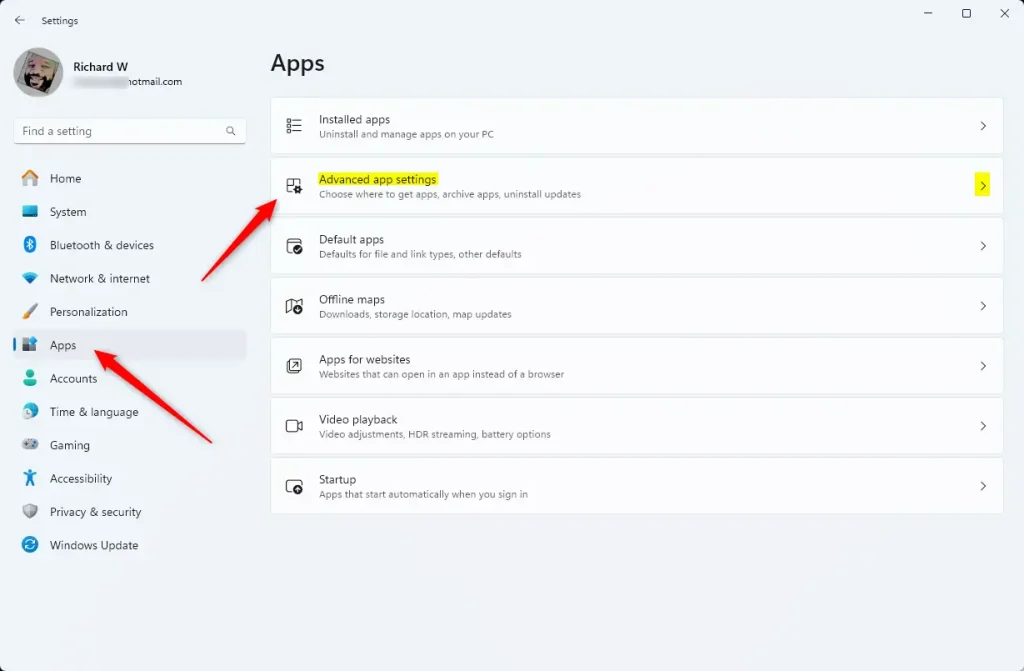
- Click on Apps on the left side. Then click on Advanced app settings or Apps & features > More settings on the right side. (see screenshot below)
- Open Advanced app settings
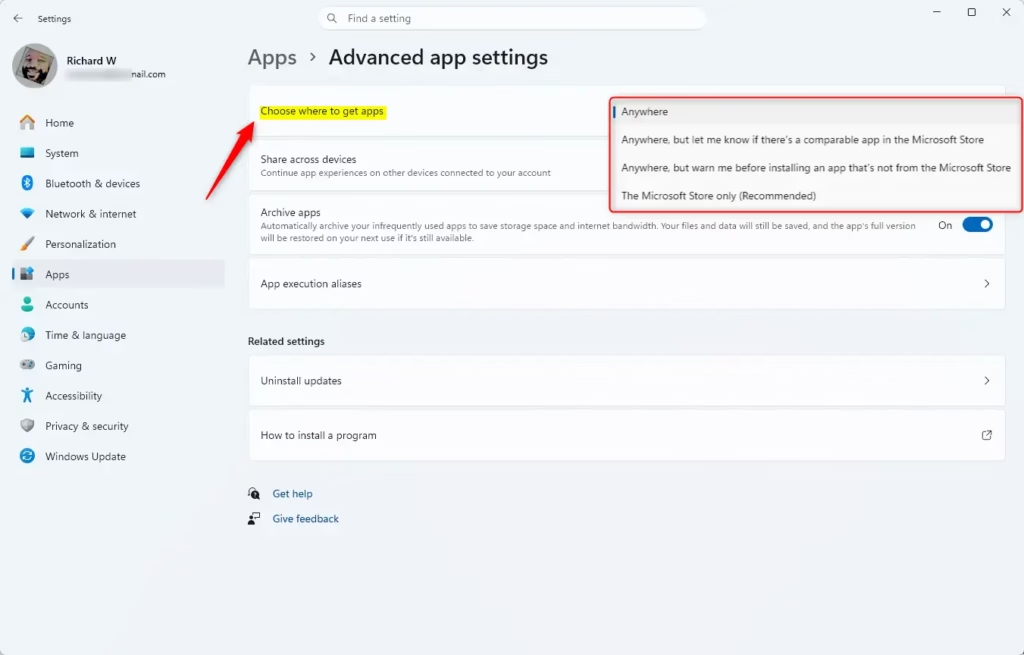
- Select one of these options from the Choose where to get apps drop down:
- Anywhere (default)
- Anywhere, but let me know if there’s a comparable app in the Microsoft Store
- Anywhere, but warn me before installing an app that’s not from the Microsoft Store
- The Microsoft Store only
- You can now close Settings if you like.
Option Two
Choose where to get apps using Registry
⚠️ Admin Required: This method requires administrator privileges.
Install apps from “Anywhere”
This is the default setting.
reg add "HKEY_LOCAL_MACHINE\SOFTWARE\Microsoft\Windows\CurrentVersion\Explorer" /v AicEnabled /t REG_SZ /d Anywhere /fInstall apps from “Anywhere, but let me know if there’s a comparable app in the Microsoft Store”
reg add "HKEY_LOCAL_MACHINE\SOFTWARE\Microsoft\Windows\CurrentVersion\Explorer" /v AicEnabled /t REG_SZ /d Recommendations /fInstall apps from “Anywhere, but warn me before installing an app that’s not from the Microsoft Store”
reg add "HKEY_LOCAL_MACHINE\SOFTWARE\Microsoft\Windows\CurrentVersion\Explorer" /v AicEnabled /t REG_SZ /d PreferStore /fInstall apps from “The Microsoft Store only”
reg add "HKEY_LOCAL_MACHINE\SOFTWARE\Microsoft\Windows\CurrentVersion\Explorer" /v AicEnabled /t REG_SZ /d StoreOnly /fSummary
Windows 11 lets you control where apps can be installed from. You have four options: Anywhere, Anywhere with Store recommendations, Anywhere with a warning, or Microsoft Store only. You can change this setting in the Settings app under Apps > Advanced app settings. You need to be an administrator to make these changes. You can also change this setting using the Registry Editor if you prefer. Choose the option that best fits your needs and security preferences.



Leave a Reply Cancel reply