How to Choose the Hand You Write with for Pen in Windows 11

This tutorial shows you how to pick which hand you write with. This changes where menus open on your Windows 11 screen.
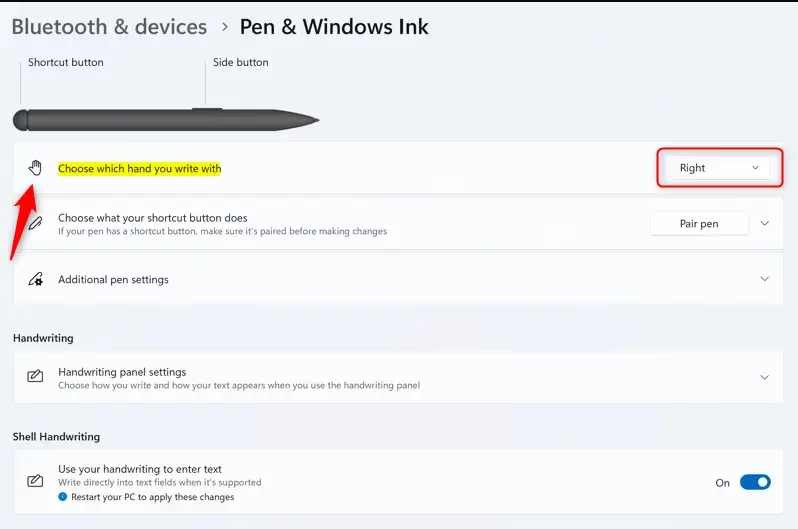
Open Settings by pressing ⊞ Win+I, then go to Bluetooth & devices, and select Pen & Windows Ink. Choose your preferred hand from the ‘Choose which hand you write with’ dropdown menu.
Why Would You Do This?
If you have a touch screen or use a pen on a tablet, this setting helps you. It moves menus so your hand doesn’t cover them while you work.
What Happens When You Change This?
Changing your writing hand in Windows 11 adjusts where menus appear, helping to keep them out of your way when you’re using a pen.
If you choose left hand, menus open to the right of your pointer.
If a menu opens near the edge of your screen and there’s no room, Windows automatically flips it to the other side.
Learn how to use a tablet pen with Windows for drawing, note-taking, and navigation. Discover pairing, settings, and productivity tips for an enhanced digital experience. Use a pen with Windows – Microsoft Support
Option 1Use Settings
You can easily change your writing hand for pen use in Windows 11 through the main Settings app.
- Open Settings by pressing
Win+I. - Click on Bluetooth & devices on the left side.
- Click on Pen & Windows Ink on the right side. Open Pen & Windows Ink settings
- Find the drop menu that says Choose which hand you write with.
- Select either Left or Right.
- Close Settings when you’re done.
Option 2Use Registry Editor
For those comfortable with advanced settings, you can change your Windows 11 pen hand preference using the Registry Editor.
Open Windows Terminal and run one of the commands below.
For left hand:
reg add "HKCU\Software\Microsoft\Windows NT\CurrentVersion\Windows" /v MenuDropAlignment /t REG_SZ /d 0 /f
For right hand:
reg add "HKCU\Software\Microsoft\Windows NT\CurrentVersion\Windows" /v MenuDropAlignment /t REG_SZ /d 1 /f
Summary
Adjusting your writing hand in Windows 11 helps menus appear on the side that won’t be covered by your hand, making pen and touch use smoother.
How to write with pen on 🪟 Windows 11?
To write with a pen in Windows 11, make sure your device supports active pen input. Then, touch the screen with your pen tip in apps like OneNote or Whiteboard. You can tweak your writing experience in Settings > Bluetooth & devices > Pen & Windows Ink.
How to activate handwriting on 🪟 Windows 11?
You can activate the handwriting panel in Windows 11 by simply tapping any text field with your pen.
How to activate pen and touch in 🪟 Windows 11?
Windows 11 automatically activates pen and touch input if your device supports it, allowing you to start using your pen right away.
How to adjust pen sensitivity in 🪟 Windows 11?
Adjust your pen sensitivity by opening the specific app provided by your pen manufacturer, such as the Surface app or Wacom Center. While Windows 11 handles basic pen settings, advanced pressure sensitivity and tilt calibration are typically managed through these dedicated manufacturer software tools installed on your Windows device.
Was this guide helpful?

About the Author
Richard
Tech Writer, IT Professional
Richard, a writer for Geek Rewind, is a tech enthusiast who loves breaking down complex IT topics into simple, easy-to-understand ideas. With years of hands-on experience in system administration and enterprise IT operations, he’s developed a knack for offering practical tips and solutions. Richard aims to make technology more accessible and actionable. He's deeply committed to the Geek Rewind community, always ready to answer questions and engage in discussions.




No comments yet — be the first to share your thoughts!