
If you want to see how much space is used and how much is left on your computer’s drive, this guide will help you check your storage in Windows 11. Knowing this helps you keep your computer running well and avoid problems like not having enough space to save files.
Why Check Drive Storage?
Your computer stores all your files, programs, and pictures on its drives (like the C: drive). If the drive gets full, you might not be able to save new files or even log into Windows properly. Checking storage helps you:
- See how much space you have left
- Figure out if you need to delete old files
- Decide if you need extra storage, like an external hard drive
How to Check Drive Storage in Windows 11
Here are two simple ways to check your storage: using File Explorer or the Settings app.
Method 1: Check Storage Using File Explorer
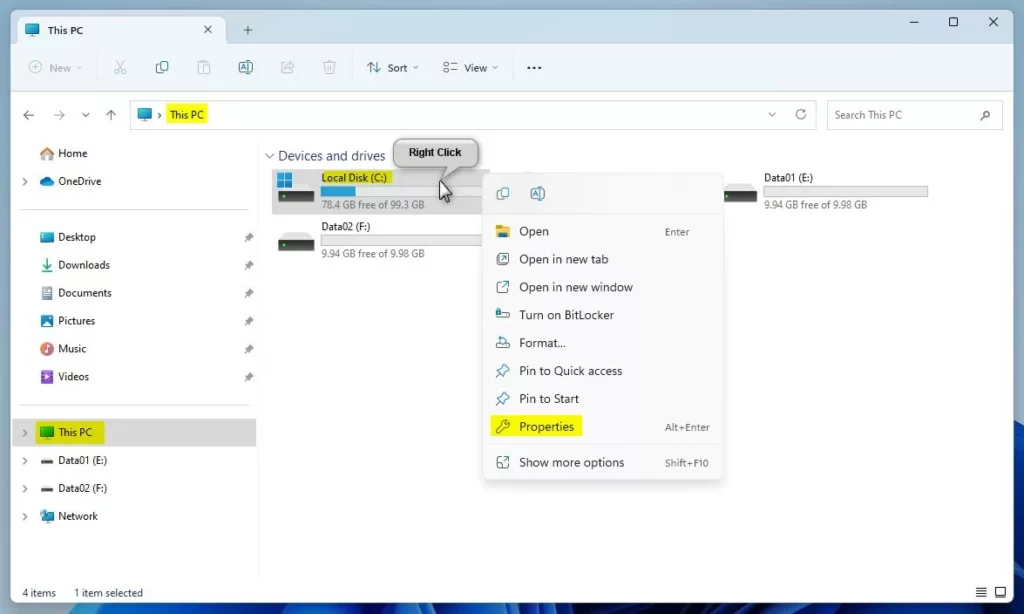
- Open File Explorer. The easiest way is to press Windows key + E on your keyboard.
Learn more about File Explorer - In File Explorer, click on This PC on the left side.
- Find your main drive, usually called Lock Disk (C:) or Local Disk (C:).
- Right-click on the drive and select Properties.
- A window will open. Click the Storage or Details button to see how your space is used.
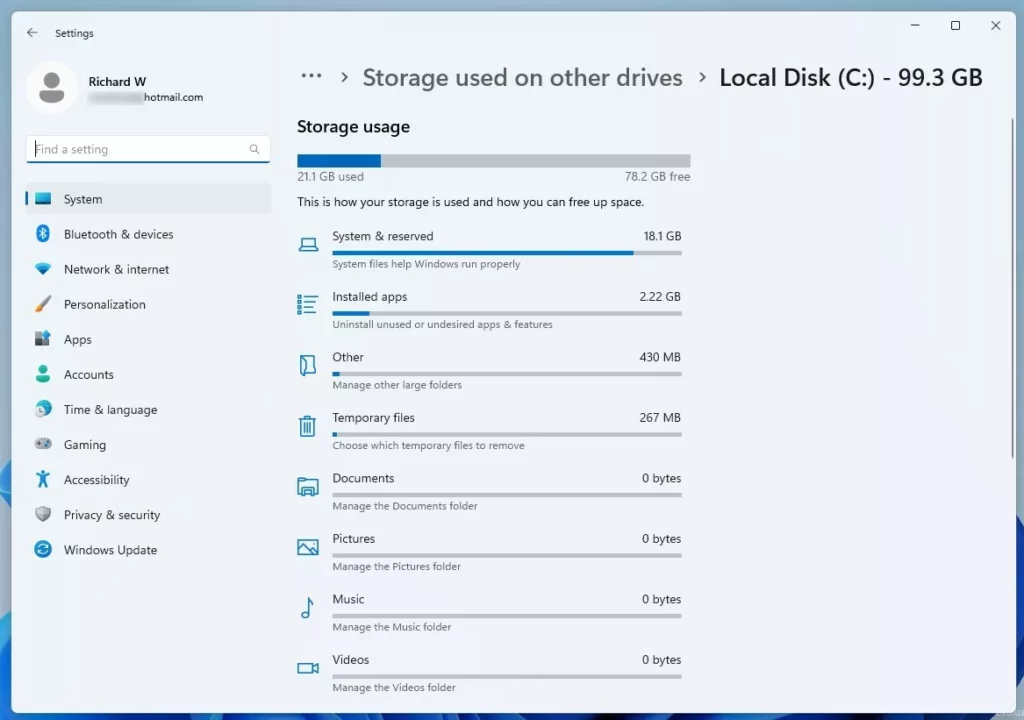
You can click on items like “Documents” or “Apps & features” to manage files and free up space.
Method 2: Check Storage Using Windows Settings
- Click the Start menu (Windows icon) at the bottom-left of your screen.
- Select Settings, or press Windows key + I to open Settings directly.

Open Windows Settings. - In Settings, click System from the left menu.
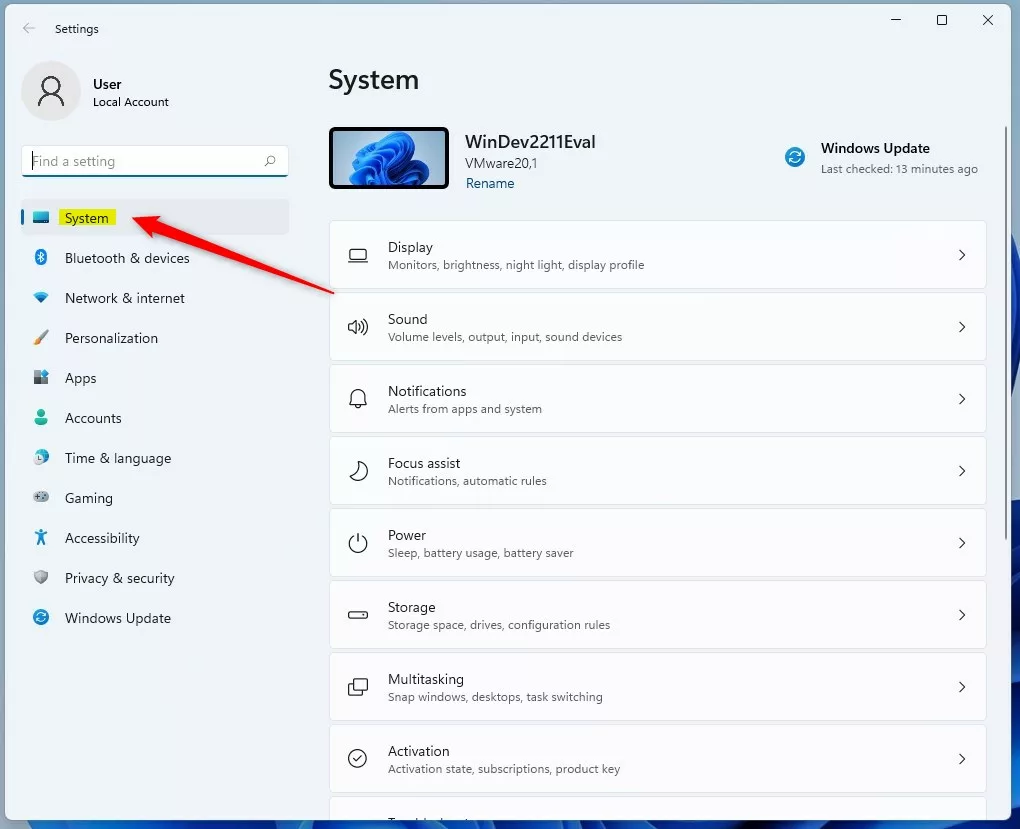
Click System in the Settings app. - Click on Storage on the right side.
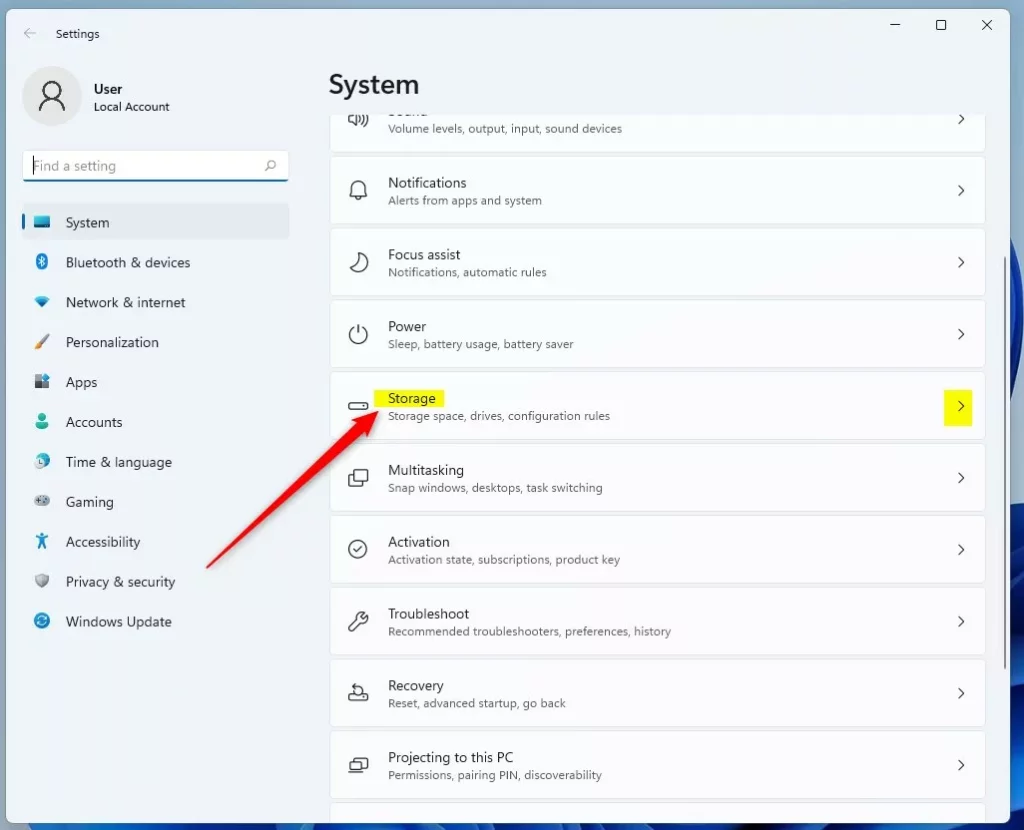
Open the Storage section. - Scroll down and click Advanced storage settings, then choose Storage used on other drives.
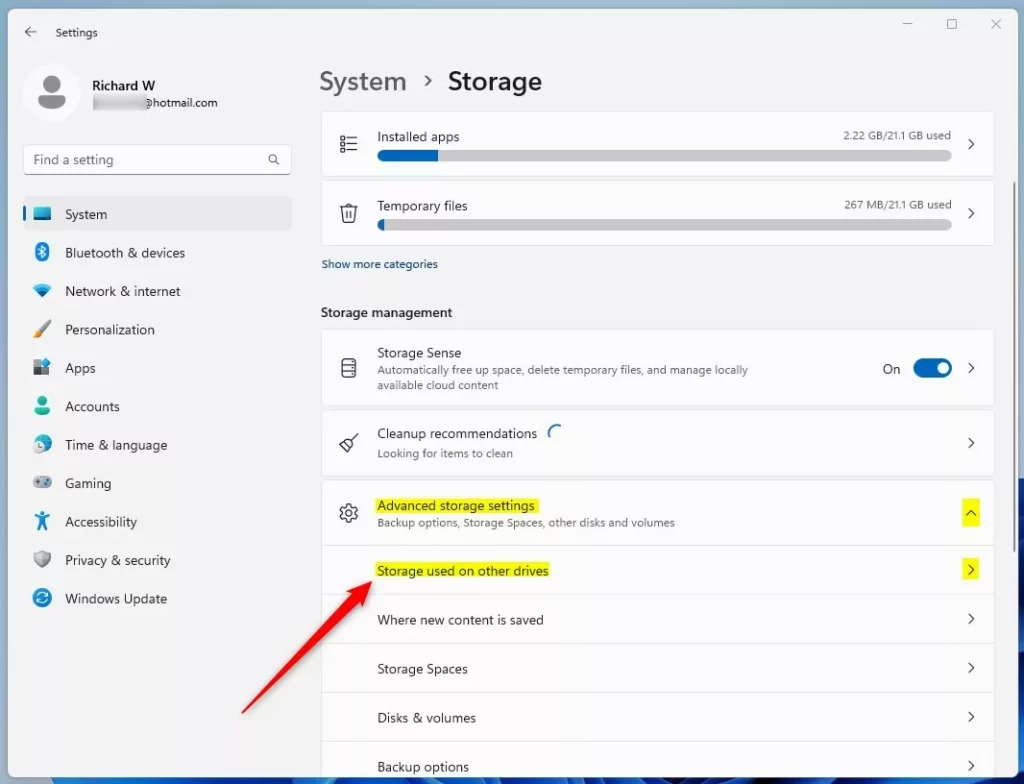
Advanced storage settings. - Select your drive (like Lock Disk (C:)) to see the storage details.
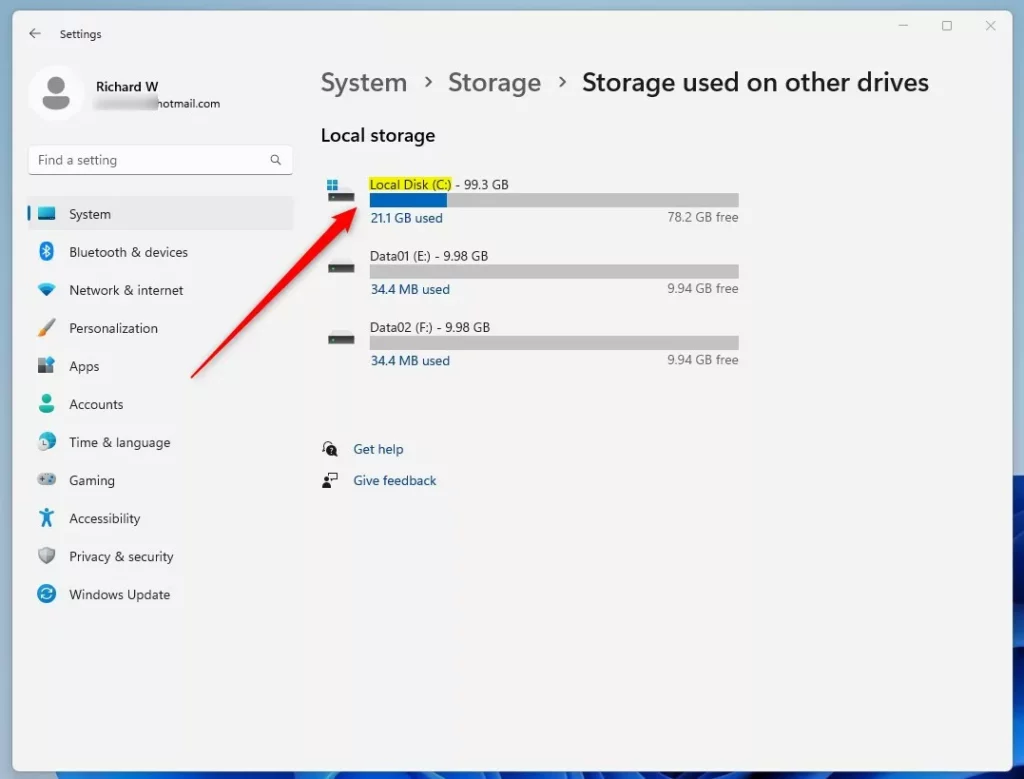
Storage details for your drive.
You will see a breakdown of what is taking up space on your drive. This helps you decide what to delete or move to free up space.
Summary
- Checking your storage helps keep your computer running smoothly.
- You can check storage using File Explorer or the Settings app.
- Knowing your storage usage helps you avoid problems like running out of space.
- Freeing up space regularly keeps your computer fast and responsive.
Now you know how to quickly check your drive’s storage on Windows 11!


Leave a Reply Cancel reply