

This tutorial will show you how to change the touchpad four-finger swipe gestures on your Windows 11 account.
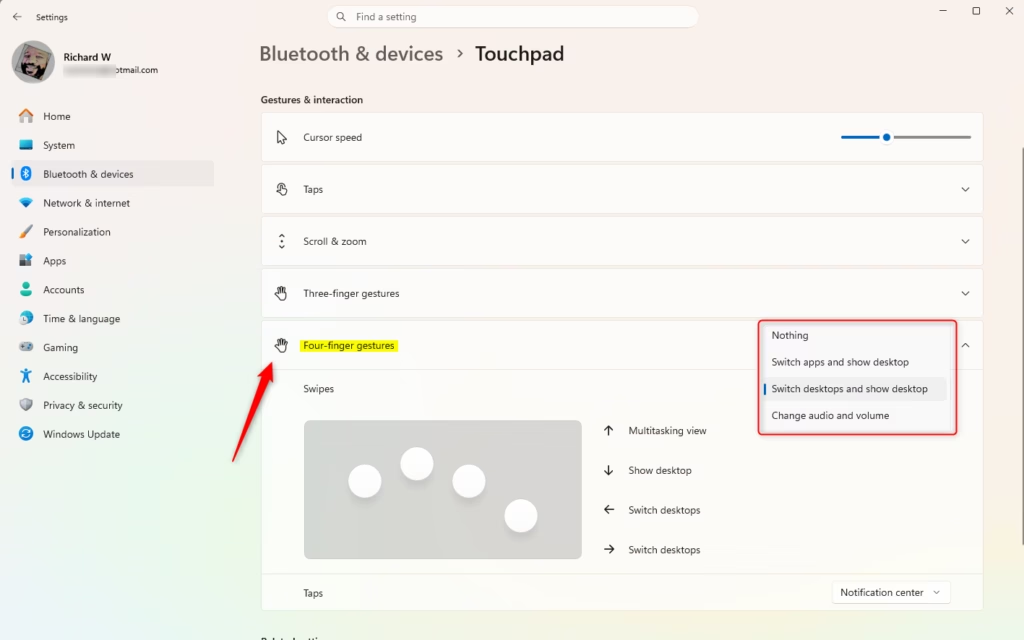
If your Windows 11 device (like a laptop) has a built-in precision touchpad, you can change the four-finger swipe gestures. You can set them to do nothing, switch apps and show desktop, switch desktops and show desktop, or change audio and volume.
Option One
Change Touchpad Four-finger Swipe Gestures in Settings
- Open Settings (Win+I).
- Click on Bluetooth & devices on the left side. Then click on Touchpad on the right side. (see screenshot below)
- Click on Four-finger gestures to expand it.
- Select one of these options in the Swipes drop menu:
- Nothing
- Switch apps and show desktop
- Switch desktops and show desktop (default)
- Change audio and volume
- You can now close Settings.
Option Two
Change Touchpad Four-finger Swipe Gestures Using Registry
⚠️ Requires admin privileges
Change Touchpad Four-finger Swipe Gestures to “Nothing”
reg add "HKEY_CURRENT_USER\Software\Microsoft\Windows\CurrentVersion\PrecisionTouchPad" /v FourFingerSlideEnabled /t REG_DWORD /d 0 /f
Change Touchpad Four-finger Swipe Gestures to “Switch apps and show desktop”
reg add "HKEY_CURRENT_USER\Software\Microsoft\Windows\CurrentVersion\PrecisionTouchPad" /v FourFingerSlideEnabled /t REG_DWORD /d 1 /f
Change Touchpad Four-finger Swipe Gestures to “Switch desktops and show desktop”
This is the default setting.
reg add "HKEY_CURRENT_USER\Software\Microsoft\Windows\CurrentVersion\PrecisionTouchPad" /v FourFingerSlideEnabled /t REG_DWORD /d 2 /f
Change Touchpad Four-finger Swipe Gestures to “Change audio and volume”
reg add "HKEY_CURRENT_USER\Software\Microsoft\Windows\CurrentVersion\PrecisionTouchPad" /v FourFingerSlideEnabled /t REG_DWORD /d 3 /f
Option Three
Change Touchpad Four-finger Advanced Swipe Gestures in Settings
- Open Settings (Win+I).
- Click on Bluetooth & devices on the left side. Then click on Touchpad on the right side.
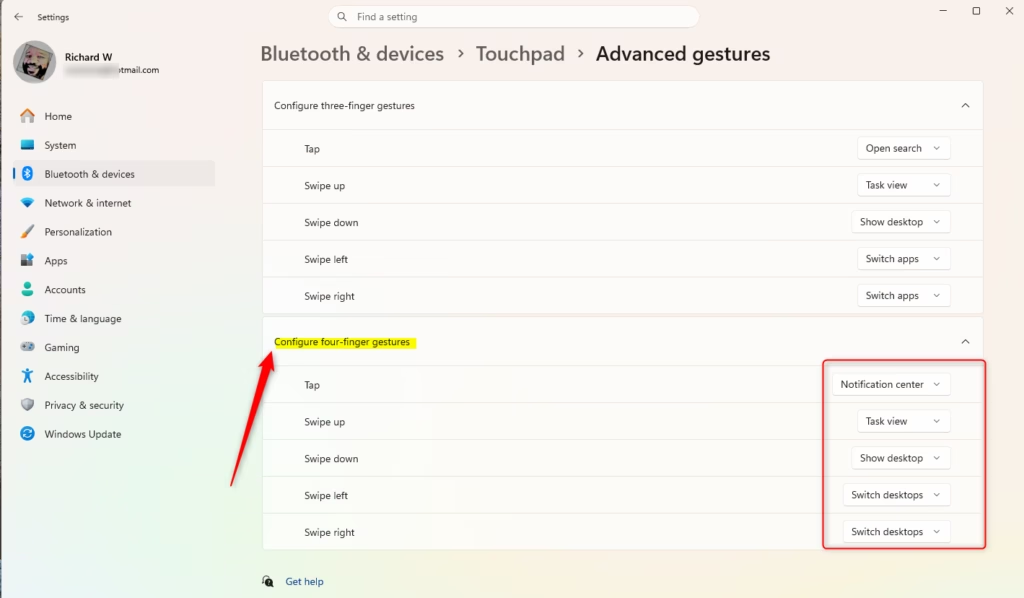
- Click on Advanced gestures.
- Under Configure four-finger gestures, select the action you want in each gesture drop menu.
- You can now close Settings.
Summary
You now know three ways to change your touchpad four-finger swipe gestures in Windows 11. The easiest way is using Settings. You can also use the Registry or Advanced gestures in Settings if you need more control over what each gesture does.


Leave a Reply Cancel reply