
This tutorial shows you how to change the double click speed on a Precision Haptic Touchpad for Microsoft Surface devices running Windows 11.
Why would you want to do this? The double click speed setting controls how fast you need to click twice on your touchpad for it to count as a double click. If your touchpad feels too sensitive (clicks register too fast) or not sensitive enough (you have to click too slowly), you can adjust it to work better for you.
Option One
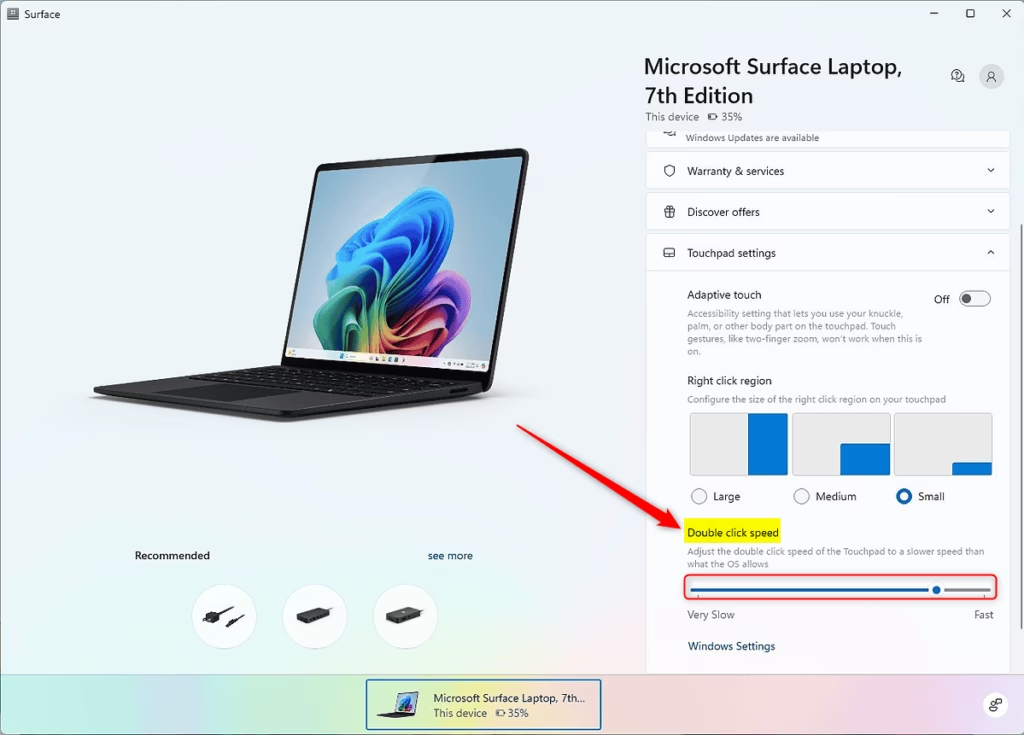
Change Touchpad Double Click Speed in Surface App
- Open the Surface app.
- Click or tap on Touchpad settings to open it.
- Move the Double click speed slider left (very slow) or right (fast) to find the speed you want.
- You can now close the Surface app if you like.
Option Two
Change Touchpad Double Click Speed in Control Panel
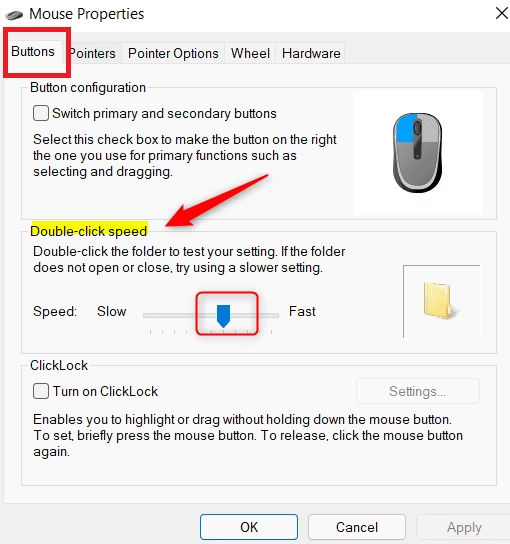
- Open the Control Panel in icons view, and click or tap on the Mouse icon.
- Click or tap on the Buttons tab.
- Move the Double-click speed slider left (slow) or right (fast) to the speed you want.
- Click or tap on OK.
- You can now close the Control Panel if you like.
Option Three
Change Touchpad Double Click Speed in Registry Editor
- [Requires admin privileges] Open Registry Editor by typing
regedit.exein the search box. - Navigate to the key below in the left pane of Registry Editor.
HKEY_CURRENT_USER\Control Panel\Mouse- In the right pane of the Mouse key, double click or tap on the DoubleClickSpeed string value (REG_SZ) to open it.
- Type a number between 200 (faster) to 2000 (slower) for the double click speed you want, and click or tap on OK. The default double click speed is 480.
- Close Registry Editor when finished.
- Either sign out and sign in, or restart your computer to apply the changes.
Summary
You now know three ways to adjust your touchpad’s double click speed on a Microsoft Surface device. The easiest method is using the Surface app. If you prefer the Control Panel, that works too. The Registry Editor method gives you more precise control but requires admin access. Pick whichever method feels most comfortable for you, and enjoy your touchpad at the speed that works best for your clicking style!

Leave a Reply Cancel reply