
When you first set up your Windows 11 computer, Windows saves the owner’s name and organization in its system settings. Usually, it uses your account name or email address as the owner, and leaves the organization blank.
Sometimes, programs on your PC might show this owner information, so it’s good to make sure it’s correct. If you want to change the owner or organization name, here’s an easy way to do it.
Step-by-Step: Change Owner and Organization Name
Important: Changing these settings involves editing the Windows Registry. Be careful and follow the steps exactly. It’s a good idea to back up your registry before you start.
- Open the Registry Editor:
- Click the Start button or press the Windows key.
- Type
regeditand press Enter. - If a security box pops up, click Yes.
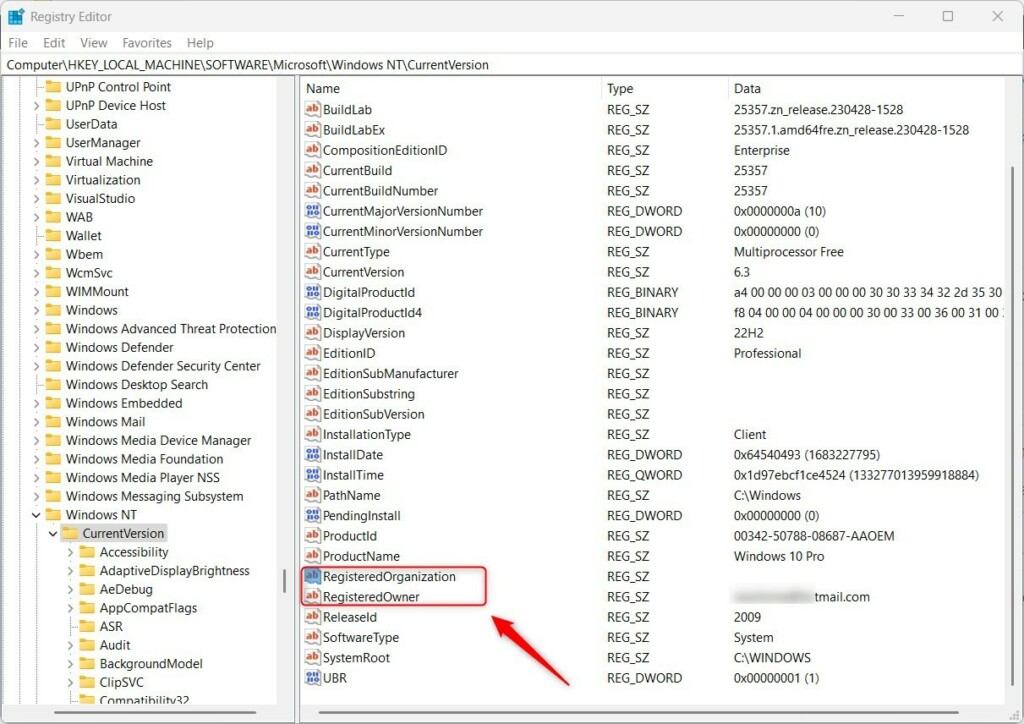
- Go to this folder inside the Registry Editor:
HKEY_LOCAL_MACHINE\SOFTWARE\Microsoft\Windows NT\CurrentVersion
- Find the owner and organization names:
- In the right-hand pane, look for
RegisteredOwnerandRegisteredOrganization. - If you don’t see
RegisteredOrganization, right-click on an empty space on the right, choose New → String Value, and name itRegisteredOrganization. - Do the same for
RegisteredOwnerif it’s missing.
- In the right-hand pane, look for
- Change the names:
- Double-click on
RegisteredOwner, enter the new owner name you want, and click OK. - Double-click on
RegisteredOrganization, enter the organization name or leave it blank, then click OK.
- Double-click on
- Close the Registry Editor.
- Check your changes:
- Press Windows + R to open the Run box.
- Type
winverand press Enter. - A window will pop up showing the Windows version along with the registered owner and organization names.
And that’s it! You’ve successfully changed the registered owner and organization names on your Windows 11 PC.
Why Change This Information?
- Some apps use this info to show who owns the PC.
- It helps keep your computer details accurate, especially if you’re using it at work or in a company.
- It can be useful when troubleshooting or managing licenses for software.
If you want to learn more about how to use the Registry Editor safely, check out this simple guide.
Remember: Always be careful when editing the registry. Making changes to the wrong settings can cause problems with your PC.

Leave a Reply Cancel reply