

If you use the Touch keyboard on Windows 11, you can make the letters on the keys bigger or smaller to help you see them better. This guide will show you simple steps to change the key text size.
What is the Touch Keyboard?
The Touch keyboard is a virtual keyboard that appears on your screen. It’s useful if your device has a touchscreen, or if you want to type without a physical keyboard.
You can open it by tapping the keyboard icon on the taskbar or by tapping any place where you can type, like a search box or a text message.
Why Change the Key Text Size?
If you find the letters on the keyboard too small or hard to read, changing the key text size can help. Bigger letters make it easier to see and type, especially if you have vision troubles or just want a clearer view.
Steps to Change Key Text Size on Windows 11 Touch Keyboard
- Open Windows Settings:
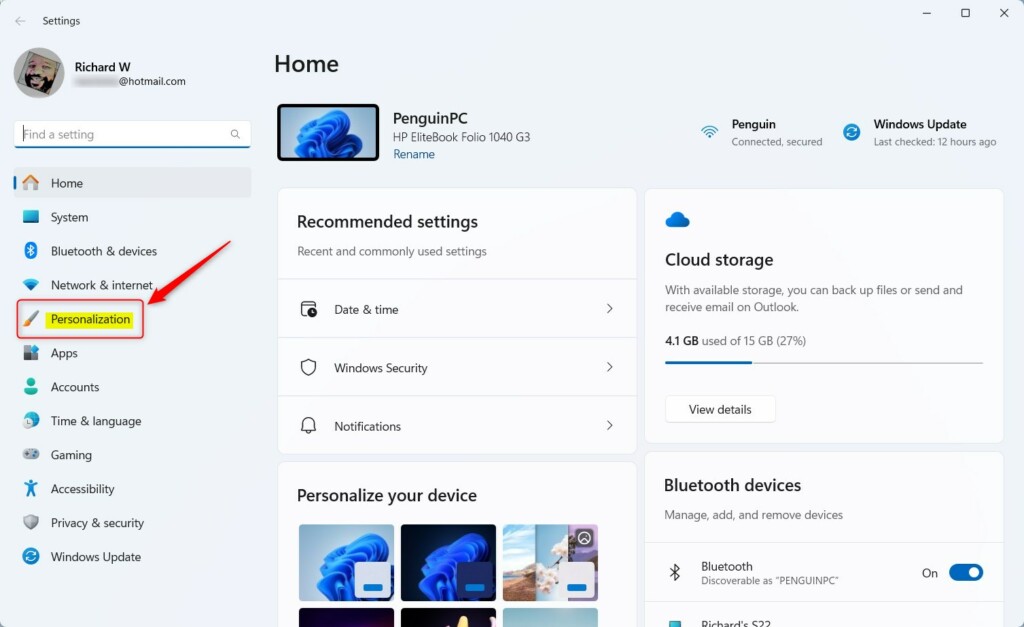
Click the Start menu button and select Settings, or press Windows key + I on your keyboard. - Go to Personalization:
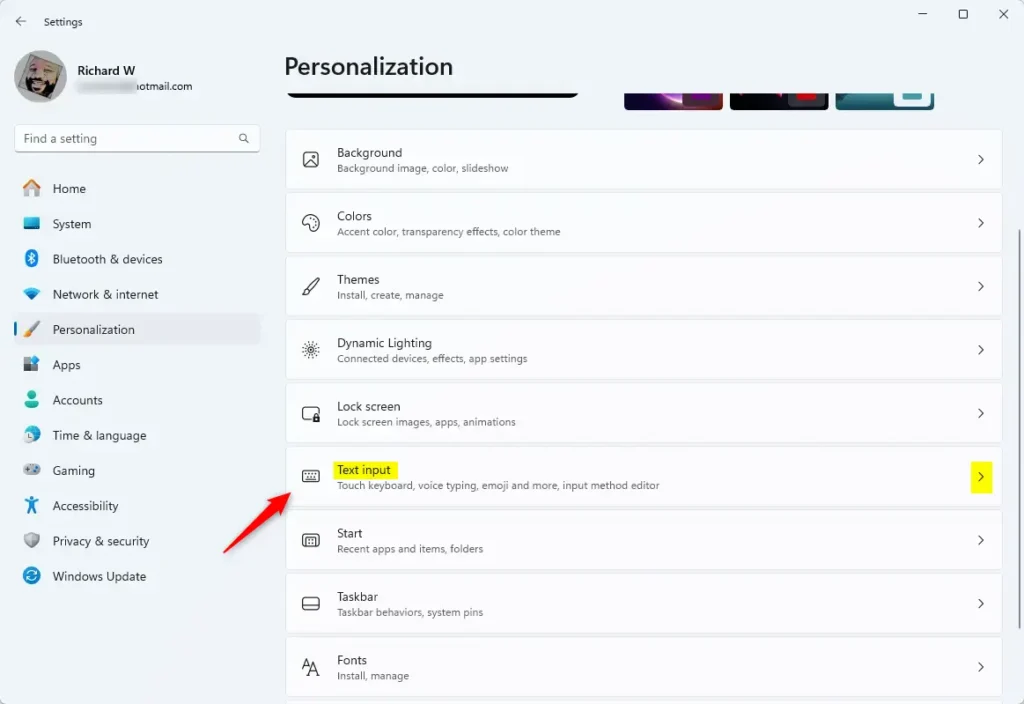
In the Settings window, click on Personalization on the left side. - Select Text input:
On the right side, find and click the Text input option to open more settings. - Open Touch keyboard settings:
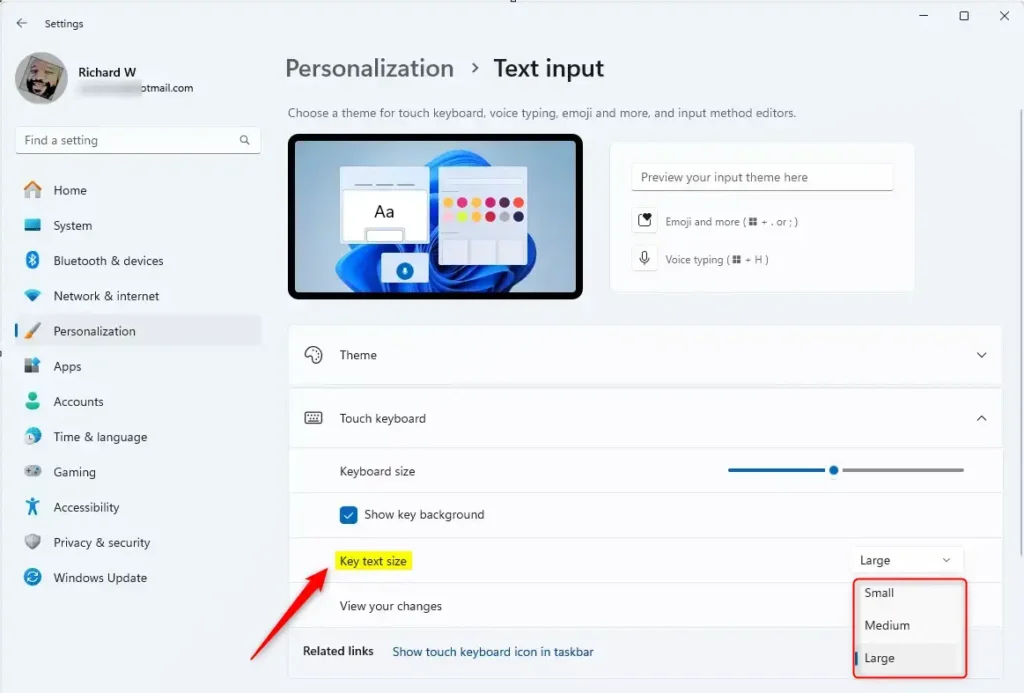
Click on the Touch keyboard section to see keyboard options. - Change Key text size:
You will see a drop-down menu for Key text size. Click it and choose:- Small (default)
- Medium
- Large
Pick the size that feels best for you.
- Close Settings:
When you’re done, just close the Settings window.
Here are some pictures to help you find the right settings:
Summary
- Making the key text bigger helps you see the letters more clearly on the Touch keyboard.
- Windows 11 lets you customize many keyboard settings to fit your needs.
- Changing the key text size is easy and only takes a few clicks.
- Try different sizes until you find the one that’s most comfortable for you.
For more tips on using the Touch keyboard, check out this guide on using the Windows 11 Touch keyboard.

Leave a Reply Cancel reply