
If you want to control how Windows 11 shows notifications when new apps start automatically, this guide will help you. You can set how important these notifications are and where they appear on your screen.
What is Startup App Notification?
Windows 11 can tell you when a new app sets itself to start automatically when your PC turns on. This notification is off by default, but you can turn it on if you want to be notified.
Besides turning it on or off, you can also choose how important these notifications are. There are three levels:
- Normal: Shows below High priority notifications.
- High: Shows above Normal priority notifications.
- Top: Always shows at the very top in the Notification Center.
Here’s how you can change the priority of Startup App Notifications:
Steps to Change Startup App Notification Priority in Windows 11
Open Settings by pressing Windows key + I on your keyboard.
 Press Windows key + I or click Start > Settings
In the Settings window, click on System from the left menu.
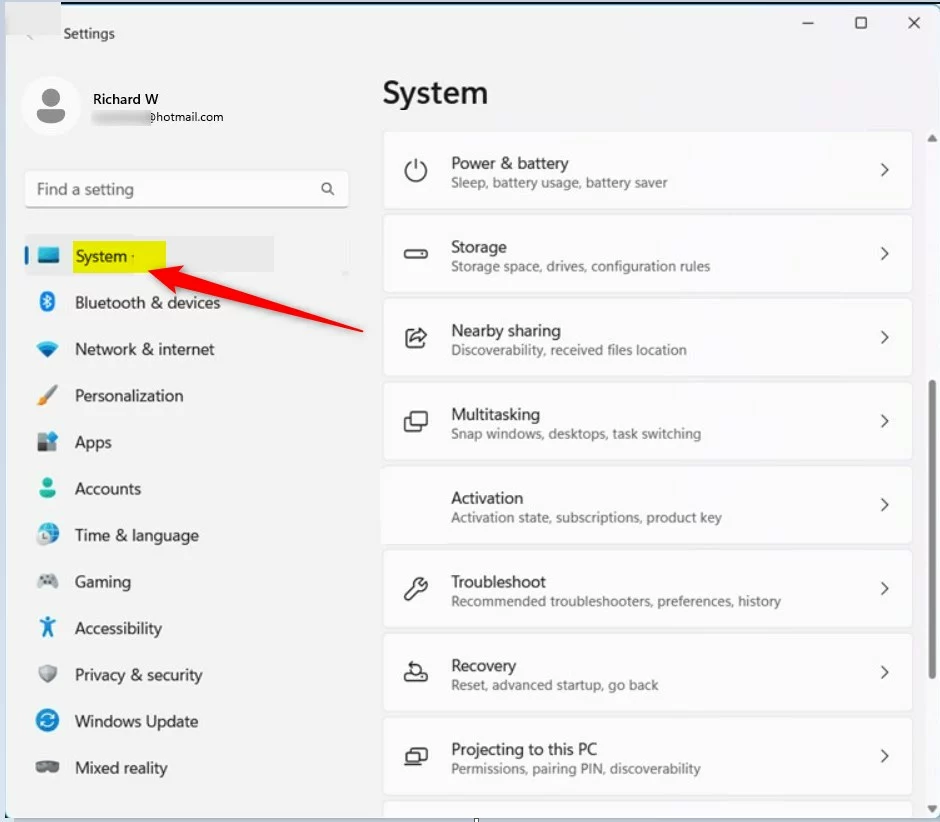
Click System in Settings On the right side, find and click on Notifications.
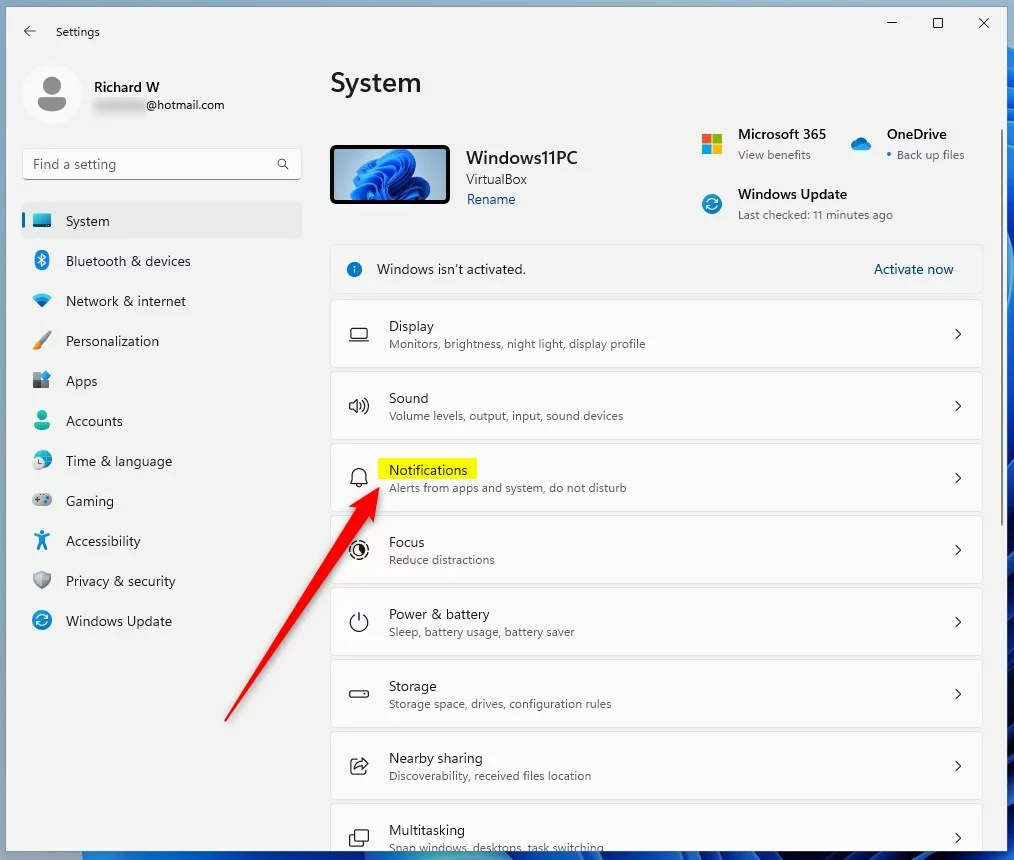
Click Notifications Scroll down to Notifications from apps and other senders and click on Startup App Notification to open its settings.
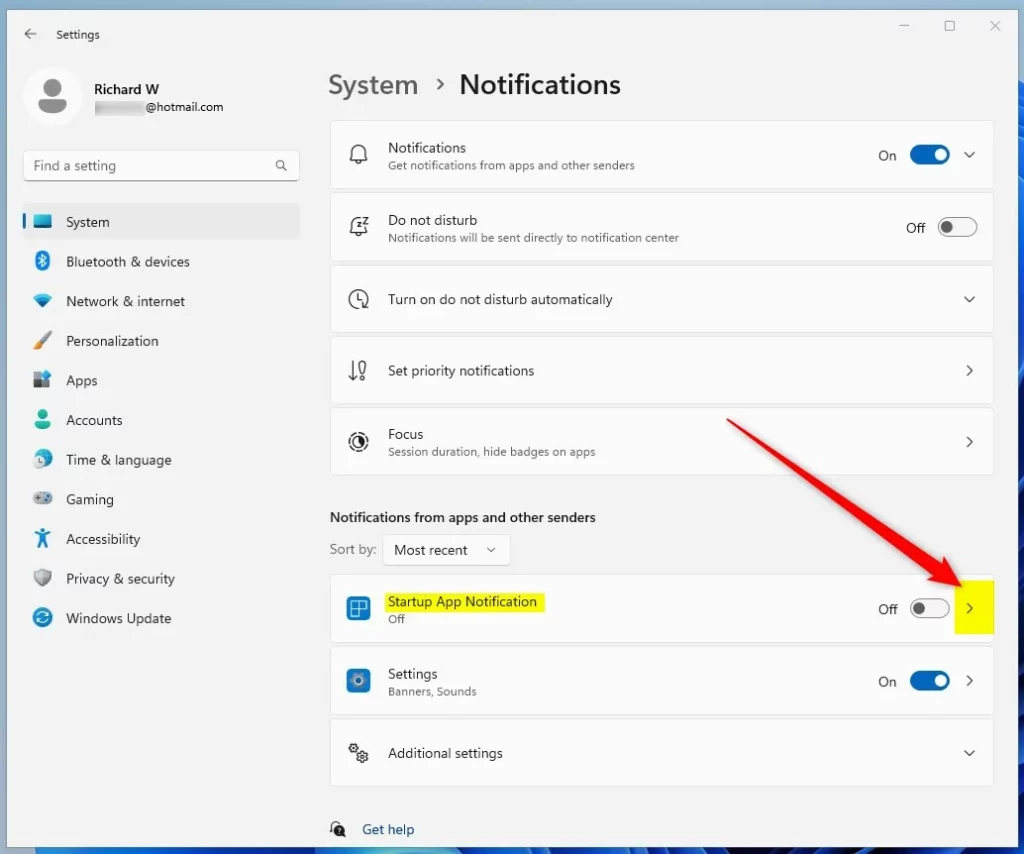
Open Startup App Notification options Turn on the notification by clicking the switch at the top.
Choose the priority level you want:
- Top: Notifications appear at the very top.
- High: Notifications appear above normal priority.
- Normal: Notifications appear below high priority.
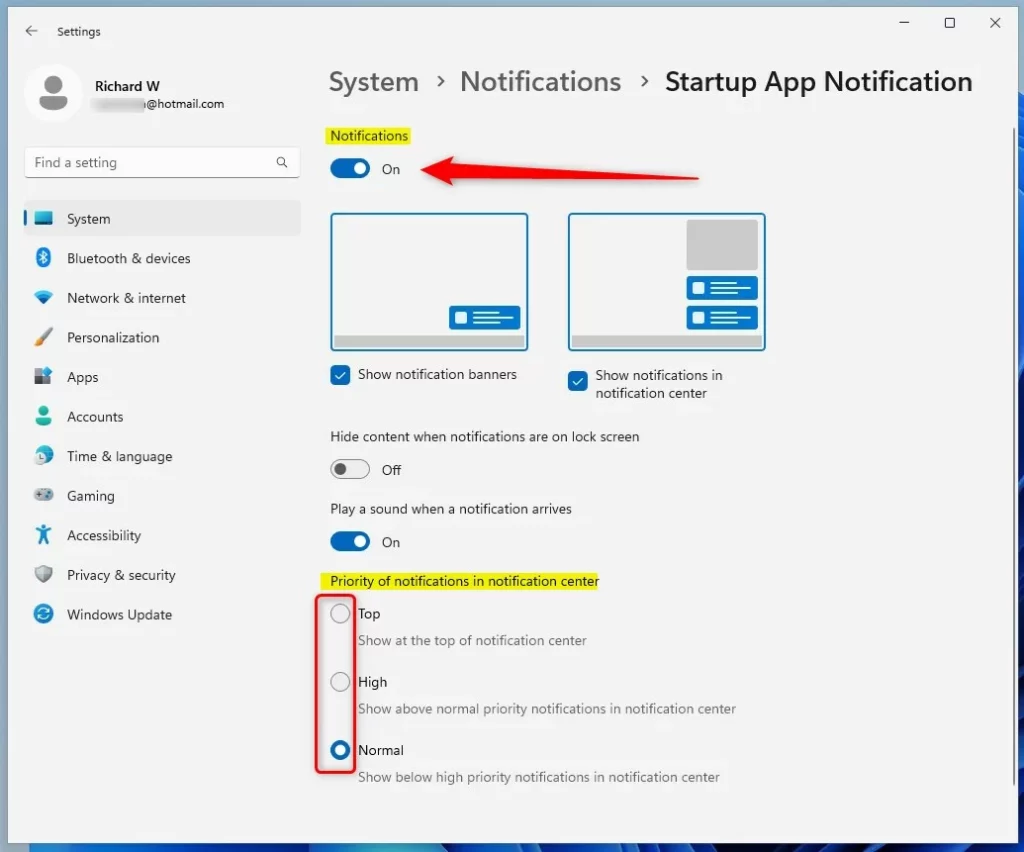
Select your desired notification priority When done, you can simply close the Settings window. Your changes will be saved automatically.
Want to learn more? Check out how to enable or disable Startup App Notification in Windows 11.
Summary
- You can control how Windows 11 shows notifications when apps start automatically.
- Set the notification priority to Top, High, or Normal to decide where they appear.
- Changing this is easy and done through the System Settings.
- Use the steps above to make notifications work best for you.
That’s it! Now you know how to change the priority of Startup App Notifications in Windows 11.
Leave a Reply Cancel reply