

This guide shows you how to change the Smart Charging mode on your Microsoft Surface device.
Smart charging is a helpful feature. It protects your Surface battery from damage. It stops conditions that can wear out your battery or cause it to swell. Smart charging works automatically when your device stays plugged in for a long time or gets too hot.
What Does Smart Charging Do?
When smart charging is on, your battery stops charging at 80%. You’ll see a heart icon over the battery icon in the system tray. This shows smart charging is working. You might notice your battery doesn’t last as long.
Smart charging automatically pauses when your battery drops below 20% or when you use it often. This lets your device charge all the way to 100%. If you need a full battery, you can manually pause smart charging in the Surface app. Smart charging turns back on by itself when your battery use patterns suggest it should.
Why Would You Pause Smart Charging?
Smart charging stays on all the time. It’s recommended to keep it on. But there are times when you might want to pause it for a full battery charge:
- While traveling on a long flight
- During long meetings
- At a coffee shop or restaurant
- Any time you think you’ll need your full battery and no outlet will be nearby
When you pause smart charging, your battery charges to 100%. Smart charging turns back on by itself when needed based on your habits. It may take several days before this happens. You can check your battery status anytime in the Surface app.
Tip: Pause smart charging a few hours before you need a full battery. If you pause it too early, it might turn back on automatically.
More Battery Help:
Smart charging on Surface | Microsoft Support Learn how Smart charging protects your Surface battery.
Caring for your Surface battery | Microsoft Support Review tips on caring for your Surface battery. Find out how to keep your Surface battery healthy and working longer.
Surface battery won’t charge or Surface won’t run on battery – Microsoft Support Follow these steps if your Surface is plugged in but not charging. Also use this if it turns off right away when you unplug the power supply.
When Battery Smart Charging turns on and your Surface device is running Windows 11, a battery with a heart icon appears in the notification area.
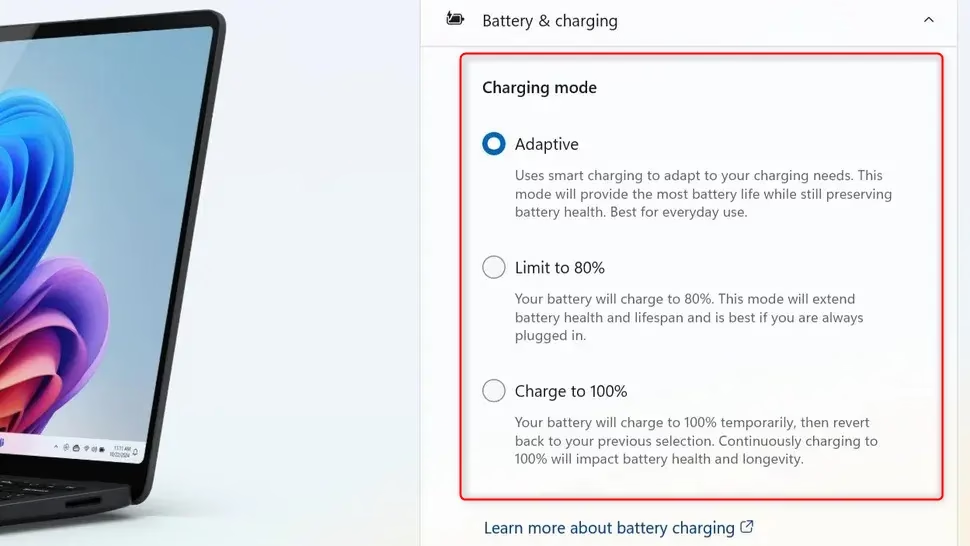
Here’s How to Change Smart Charging Mode:
- Open the Surface app.
- Click or tap on Battery & charging to expand it. (see screenshot below)
- Select one of these options:
- Adaptive (default)
- Limit to 80%
- Charge to 100%
- If you picked Charge to 100%, choose 1 day or 1 week from the drop menu. This tells your Surface how long to charge fully.
That’s it! You’re done.
Summary
Smart Charging is a battery protection feature on Microsoft Surface devices. It limits your battery to 80% charge when plugged in for long periods or during hot temperatures. This helps your battery last longer. You can pause Smart Charging anytime through the Surface app if you need a full charge for travel or meetings. The process takes just a few clicks in the Battery & charging settings. Remember to pause it a few hours before you need your full battery to make sure it stays paused.
Leave a Reply Cancel reply