
Do you think the scrollbars on your Windows 11 computer are too thin or too thick? Good news! You can make them exactly the size you want. This guide shows you how to change scrollbar size in just a few simple steps.
What You Need to Know
Changing scrollbar size will only affect some parts of Windows. You’ll see changes in File Explorer and desktop apps. However, it won’t change scrollbars inside Microsoft Store apps or newer Windows features like the Settings app or Start menu. Some apps may have their own scrollbar style that won’t change either.
Step-by-Step: Change Scrollbar Size
Step 1: Open Registry Editor
Press Windows + R keys on your keyboard. This opens the Run box. Type regedit and press Enter.
You might see a prompt asking for permission. Click Yes to continue.
Step 2: Go to the Scrollbar Settings
In Registry Editor, look at the left side. Find this folder:
HKEY_CURRENT_USER\Control Panel\Desktop\WindowMetrics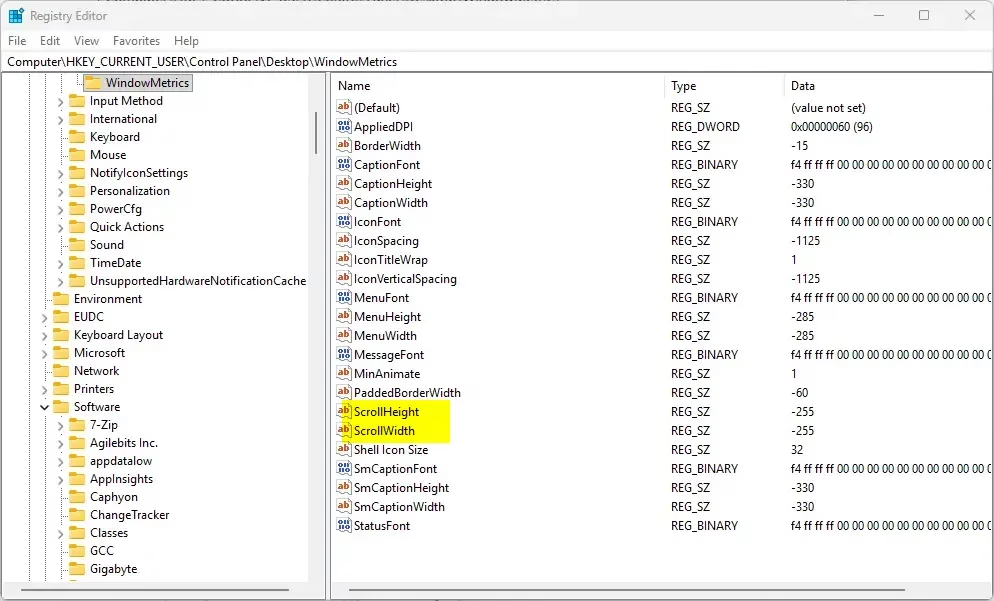
Step 3: Change Scrollbar Height
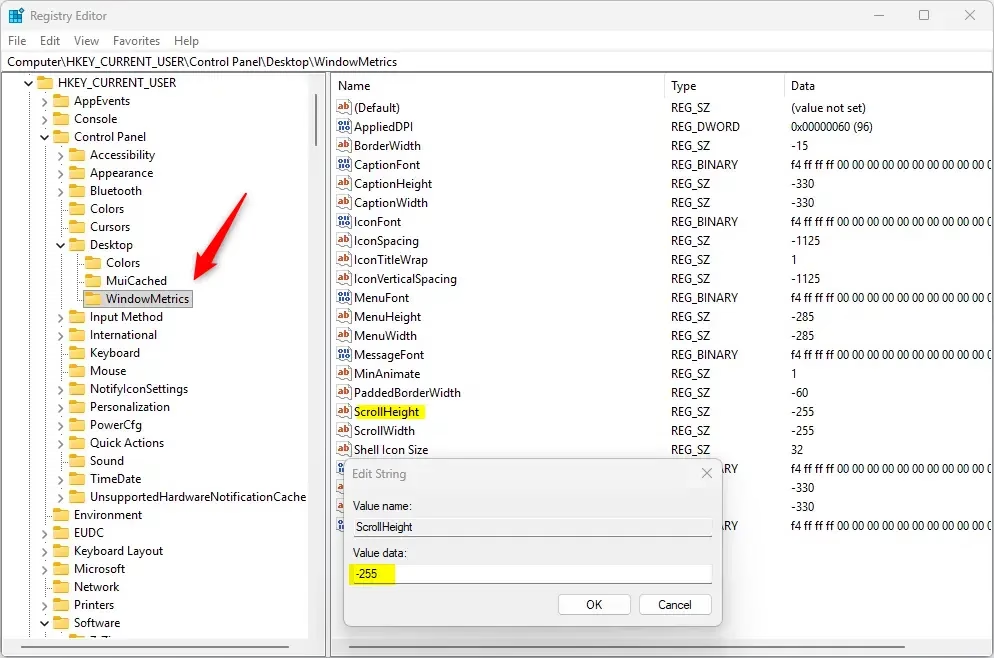
On the right side, find ScrollHeight and double-click it.
A box will open. Type a new number for scrollbar height:
- Use a value between -120 (smaller) and -1500 (larger)
- The default is -255
- To pick a size, use this formula: -15 × (height in pixels)
- For example, if you want 17 pixels tall, enter -255 (because -15 × 17 = -255)
Step 4: Change Scrollbar Width
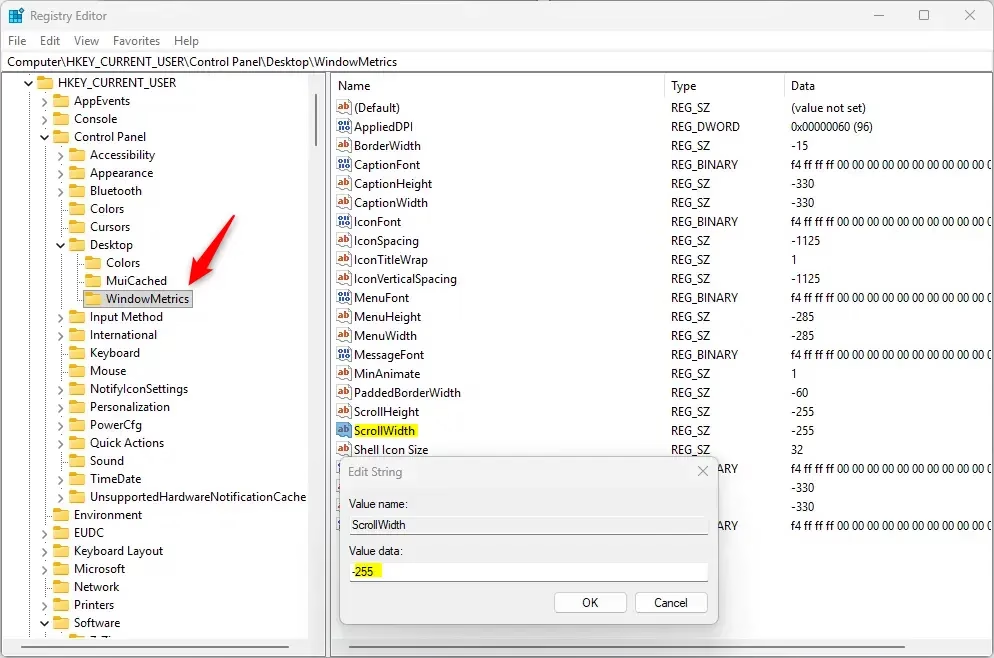
Next, find ScrollWidth on the right side and double-click it.
Type a new number for scrollbar width using the same range and formula as height:
- Between -120 (thinner) and -1500 (thicker)
- Default is -255
- Formula: -15 × (width in pixels)
- Example: For 17 pixels wide, enter -255
Step 5: Save and Exit
Click OK after entering each value. When you’re done, close Registry Editor.
Step 6: Apply the Changes
To see your new scrollbar sizes, you need to restart Windows Explorer or your computer. Try one of these options:
- Press Ctrl + Shift + Esc to open Task Manager. Find Windows Explorer in the list. Right-click it and choose Restart.
- Or simply sign out and sign back in
- Or restart your PC
Summary
- You can make scrollbars thicker or thinner to match your preference
- These changes affect most traditional Windows apps but not all modern apps
- Default scrollbar size is set to -255 for both height and width
- Remember to restart Explorer or your computer to see the new sizes
- Be careful when changing Registry settings. Always double-check your changes before saving



Leave a Reply Cancel reply