
This guide will help you easily change the Purchase sign-in settings in the Microsoft Store app on Windows 11. You can decide whether to enter your password every time you buy something, or skip the password prompt for quicker purchases.
The Microsoft Store is already installed on your Windows computer. It lets you find and download apps, games, movies, and even special deals, like discounts for Xbox Game Pass members.
By default, Microsoft Store asks for your password when you buy something. This helps keep your account safe from accidental or unauthorized purchases.
If you want to buy apps or other items without typing your password every time, you can turn off the password prompt by changing the Purchase sign-in setting.
Remember, this setting only affects the device you are currently using. Other devices won’t change automatically.
How to Turn On or Off Purchase Sign-in on Microsoft Store
Follow these simple steps to change your purchase sign-in settings:
- Open Microsoft Store on your Windows 11 PC. You can find it by typing Microsoft Store in the Start menu search.
- Click on your Profile icon at the top right, next to the search box.
- From the menu, select Settings.
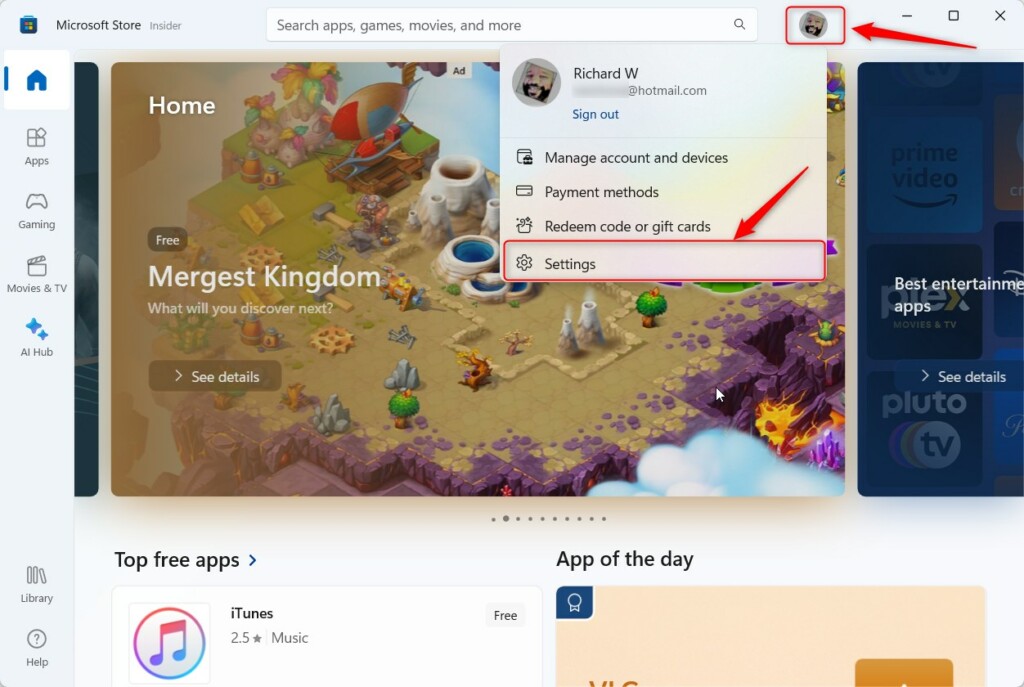
4. In the Settings panel, find and click on Purchase sign-in.
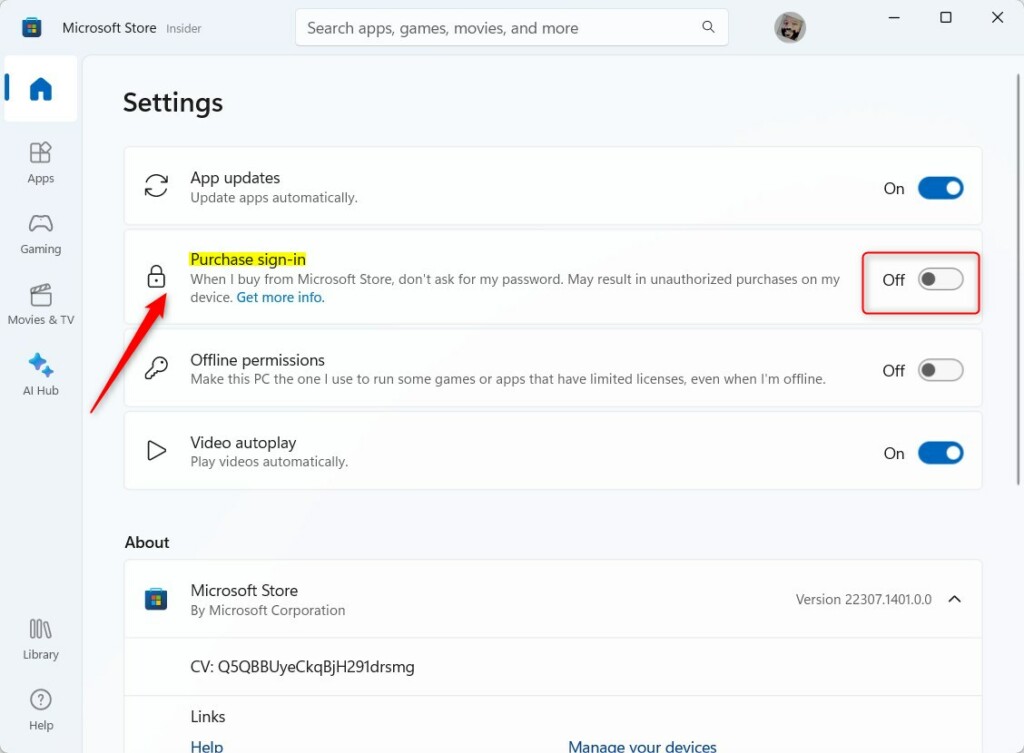
5. Use the switch to turn On (to require password for purchases) or Off (to skip password prompts).
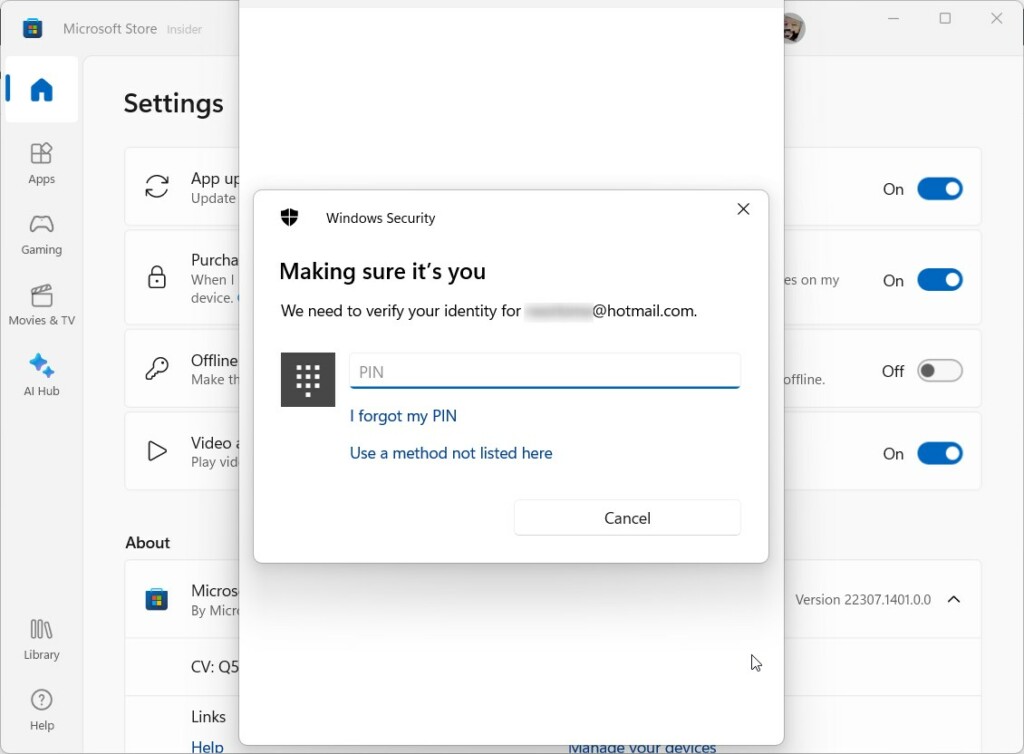
When you change this setting, Windows may ask you to enter your PIN or password to confirm it.
Note: If you turn the Purchase sign-in Off, you can buy from the Microsoft Store without typing your password on that device only.
To turn the password prompt back On, just go back to the same setting and switch it on again.
And that’s it! You’ve changed your purchase sign-in settings.
More Help and Information
If you want to learn more or need official support, visit the Microsoft Support page about changing purchase sign-in settings.
Summary
- You can choose whether Microsoft Store asks for your password when buying items.
- Changing this setting only affects the device you’re using.
- Follow easy steps inside the Microsoft Store app to turn this feature on or off.
- Always keep your device secure, especially if you turn off the password prompt.
If you found this useful, feel free to share your thoughts or questions below!


Leave a Reply Cancel reply