How to Change Power Modes in Windows 11

This guide explains how to change your computer’s power mode in Windows 11.
What are 🪟 Windows 11 power modes?
Power modes let you control how your computer uses energy. By changing these settings, you can decide if your PC should focus on speed or saving battery life. Why do this? It helps you manage your carbon footprint and keeps your device running efficiently based on your current tasks.
The Three Power Modes Explained
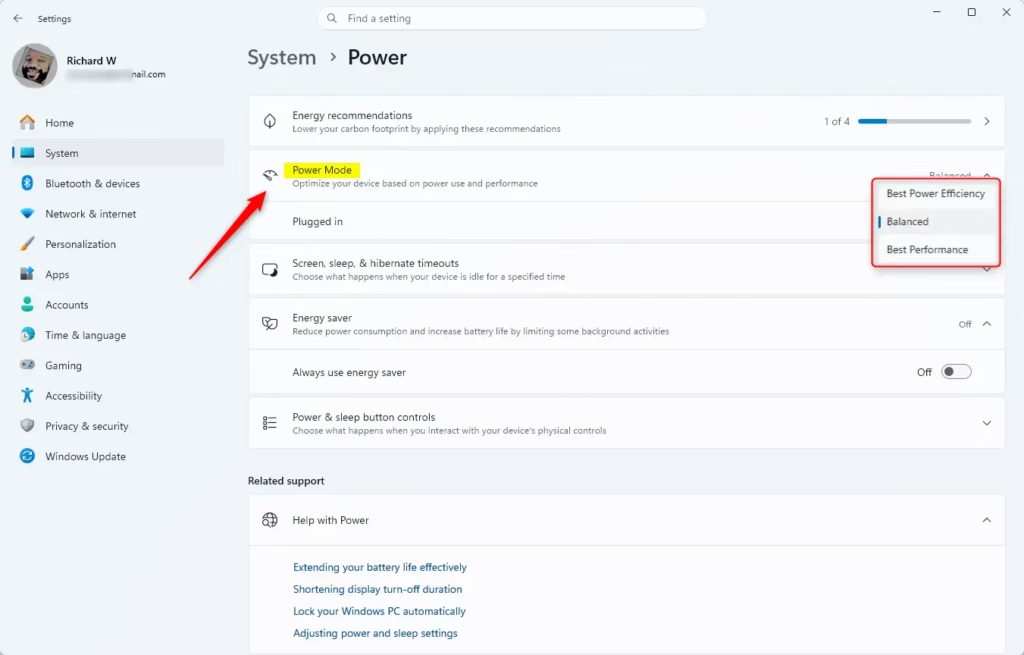
Windows 11 offers three main settings to balance performance and energy efficiency:
- Best Power Efficiency: This mode limits background activity and slows down the processor to save energy. It is perfect for light tasks like reading or browsing.
- Balanced: This is the default setting. It automatically adjusts your PC’s speed based on what you are doing. It is the best choice for most daily work.
- Best Performance: This mode uses more power to keep your PC running at top speed. It is ideal for gaming or heavy video editing, but it will drain your battery faster.
How to Change Your Power Mode
- Open Settings by pressing
Win+Ion your keyboard. - Go to System and click Power & battery.
- Click the Power mode dropdown menu.
- Select your preferred mode for Plugged in or On battery.
Sustainability and Energy Efficiency
Choosing the right power mode helps reduce your carbon emissions. By using Best Power Efficiency, you lower the power consumption of your hardware. This reduces the heat your PC generates and helps your battery last longer over the life of the device. You can also use the PC Manager app to find more ways to save energy.
Check Your Battery Usage
If your battery is draining too fast, you can see which apps are the culprits. Go to Settings > System > Power & battery > Battery usage. Here, you can identify performance-intensive apps that might be wasting energy in the background.
Screen and Sleep Integration
Your screen brightness and sleep settings are tied to your power mode. To save more energy, go to Settings > System > Power & battery > Screen and sleep. Setting your screen to turn off sooner when not in use is a great way to improve energy efficiency.
Registry Location
Advanced users can find these settings in the registry. Note: Modifying the registry can be risky. Admin privileges are required.
HKEY_LOCAL_MACHINE\SYSTEM\CurrentControlSet\Control\Power\User\PowerSchemesSummary
Windows 11 power modes allow you to balance performance with energy efficiency. By choosing the right mode, you can reduce your carbon footprint and extend your battery life. Remember to check your battery usage settings to see which apps consume the most power. For more tips, check out our guide on how to extend battery life in Windows 11.
Does changing power modes affect my PC’s lifespan?
Yes, it can. Using ‘Best Performance’ mode constantly keeps your components running at higher temperatures, which may cause faster wear over time. Using ‘Best Power Efficiency’ keeps your system cooler and reduces the number of charge cycles your battery needs, which helps maintain your hardware’s health for a longer period.
Why is my power mode option missing or greyed out?
If the option is missing, your PC manufacturer may have locked the power plans to their own custom settings. Additionally, some modes are unavailable if you are currently using ‘Game Mode’ or if your device is a desktop that does not have a battery. Check the ‘Get Help’ app for specific troubleshooting.
Was this guide helpful?

About the Author
Richard
Tech Writer, IT Professional
Richard, a writer for Geek Rewind, is a tech enthusiast who loves breaking down complex IT topics into simple, easy-to-understand ideas. With years of hands-on experience in system administration and enterprise IT operations, he’s developed a knack for offering practical tips and solutions. Richard aims to make technology more accessible and actionable. He's deeply committed to the Geek Rewind community, always ready to answer questions and engage in discussions.

So, there is no easy way anymore. It used to be “click on battery icon. Drag the bar”.
I came here looking for a quicker way than going through an entire settings menu.