

This tutorial will show you how to change how many recent tabs from apps show up when you snap windows or press Alt+Tab in Windows 11. You can do this for just your account, specific users, or everyone on the computer.
Why would you want to do this? When you press Alt+Tab or snap windows together, Windows can show you recent tabs from apps like Microsoft Edge. Some people want to see more tabs, fewer tabs, or no tabs at all.
What happens when you do this? Your Alt+Tab switcher and snap assist will show the number of recent app tabs you choose.
You can press Alt+Tab or Ctrl+Alt+Tab to switch between open windows in Windows 11.
Starting with Windows 11 build 22563, Microsoft Edge tabs now appear in snap assist and Alt+Tab.
Starting with Windows 11 build 22621.1928, “All tabs” was replaced with “20 most recent tabs” to keep things cleaner.
Reference: Multitasking Policy CSP
Option One
Change Number of Tabs from Apps to Show when Snapping or Alt+Tab for Your Account Using Settings
- Open Settings by pressing Win+I.
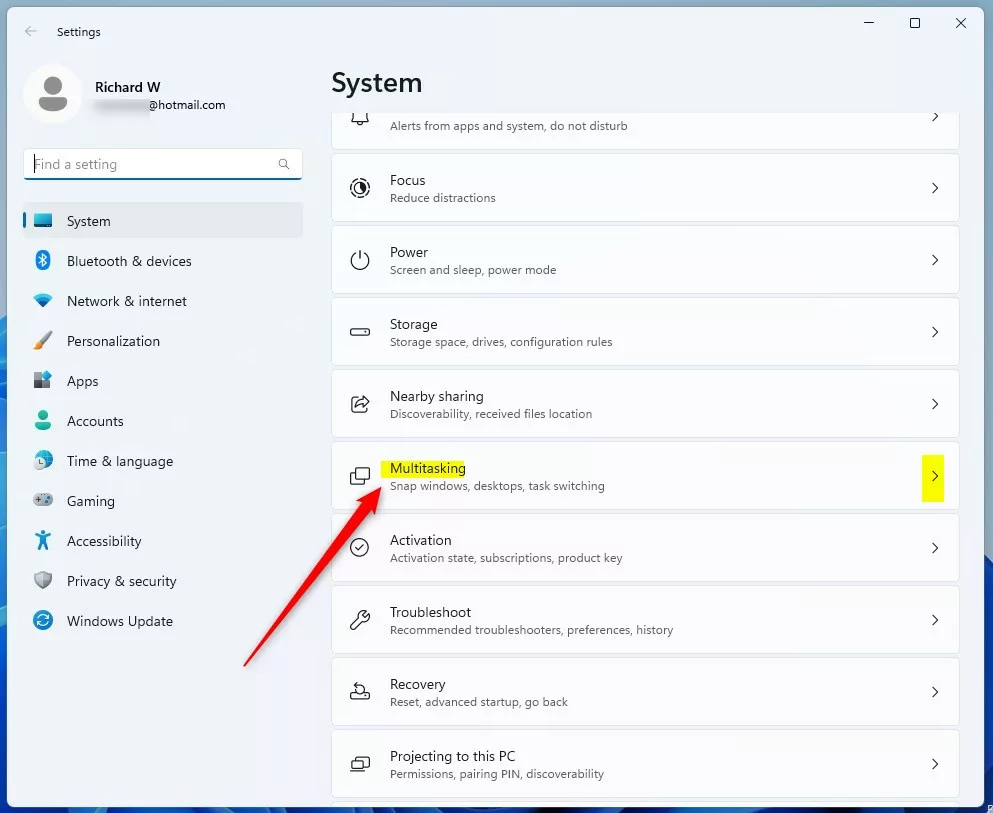
- Click System on the left side, then click Multitasking on the right side.
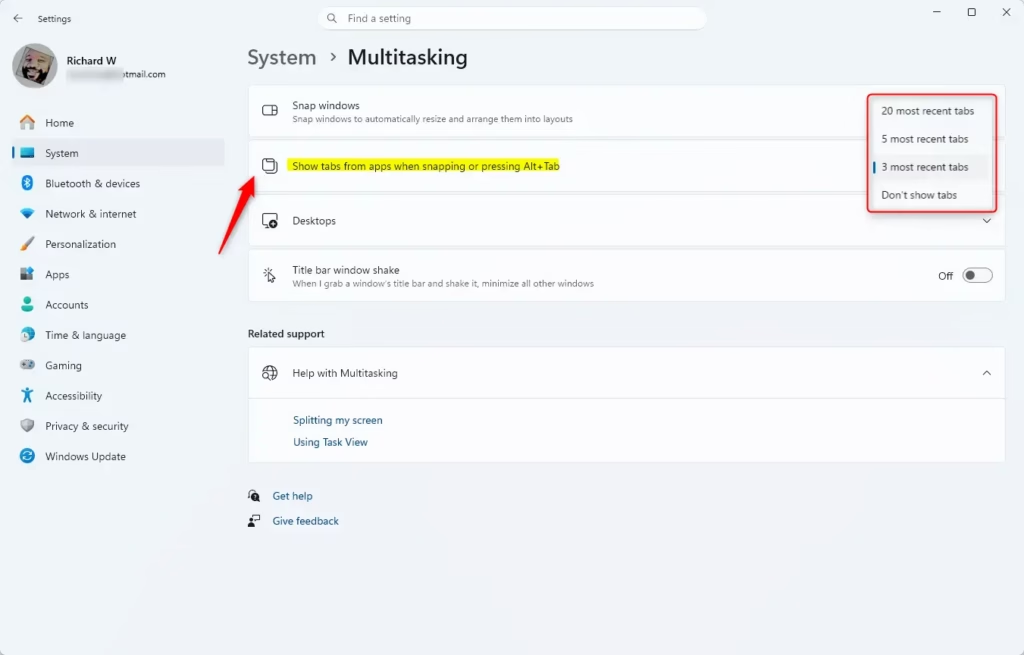
- Click Desktops on the right side to expand it.
- Select what you want from the Show tabs from apps when snapping or pressing Alt+Tab drop menu:
- 20 most recent tabs
- 5 most recent tabs
- 3 most recent tabs (default)
- Don’t show tabs
- You can now close Settings.
Option Two
Change Number of Tabs from Apps to Show when Snapping or Alt+Tab for Your Account Using Registry
This option will not work when Administrator protection is turned on.
Show 20 most recent tabs from apps when snapping or Alt+Tab
reg add "HKEY_CURRENT_USER\SOFTWARE\Microsoft\Windows\CurrentVersion\Explorer\Advanced" /v MultiTaskingAltTabFilter /t REG_DWORD /d 0 /f
Show 5 most recent tabs from apps when snapping or Alt+Tab
reg add "HKEY_CURRENT_USER\SOFTWARE\Microsoft\Windows\CurrentVersion\Explorer\Advanced" /v MultiTaskingAltTabFilter /t REG_DWORD /d 1 /f
Show 3 most recent tabs from apps when snapping or Alt+Tab
This is the default setting.
reg add "HKEY_CURRENT_USER\SOFTWARE\Microsoft\Windows\CurrentVersion\Explorer\Advanced" /v MultiTaskingAltTabFilter /t REG_DWORD /d 2 /f
Don’t show tabs from apps when snapping or Alt+Tab
reg add "HKEY_CURRENT_USER\SOFTWARE\Microsoft\Windows\CurrentVersion\Explorer\Advanced" /v MultiTaskingAltTabFilter /t REG_DWORD /d 3 /f
Option Three
Change Number of Tabs from Apps to Show when Snapping or Alt+Tab for All or Specific Users Using Local Group Policy Editor
⚠️ ADMIN REQUIRED: You must be signed in as an administrator to use this option. The Local Group Policy Editor is only available in Windows 11 Pro, Enterprise, and Education editions. All editions can use Option Four to set the same policy.
- Open the Local Group Policy Editor for all users, specific users or groups, or all users except administrators, depending on how you want this policy applied.
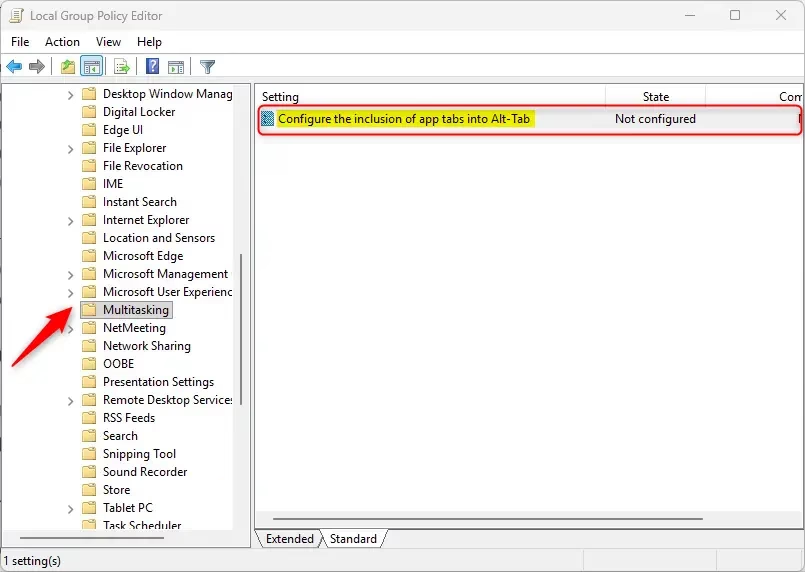
- Navigate to this location in the left pane:
User Configuration > Administrative Templates > Windows Components > Multitasking
- In the right pane, double-click the Configure the inclusion of app tabs into Alt-Tab policy to edit it.
- To show tabs:
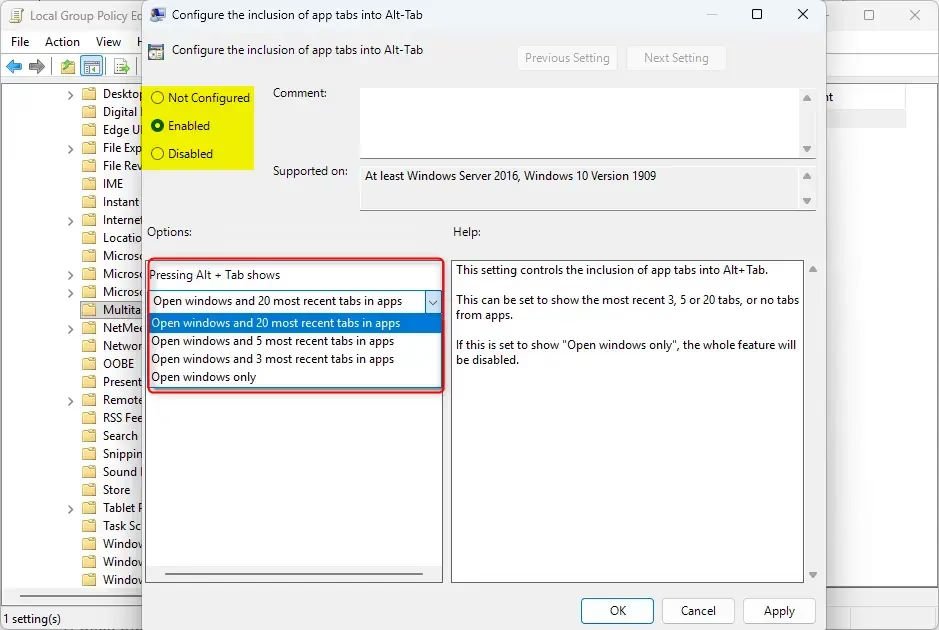
- Select Enabled.
- In the Pressing Alt+Tab shows drop menu, select one of these options:
- Open windows and 20 most recent tabs in apps
- Open windows and 5 most recent tabs in apps
- Open windows and 3 most recent tabs in apps
- Open windows only
- Click OK.
- To use the default user-choice setting:
- Select Not Configured.
- Click OK.
- You can now close the Local Group Policy Editor.
Option Four
Change Number of Tabs from Apps to Show when Snapping or Alt+Tab for All Users Using Registry
⚠️ ADMIN REQUIRED: You must be signed in as an administrator to use this option.
- Click the Download button below to download the registry file you want to use.
Show 20 most recent tabs from apps when snapping or Alt+Tab for all users
reg add "[HKEY_LOCAL_MACHINE\SOFTWARE\Policies\Microsoft\Windows\Explorer" /v MultiTaskingAltTabFilter /t REG_DWORD /d 1 /fShow 5 most recent tabs from apps when snapping or Alt+Tab for all users
reg add "[HKEY_LOCAL_MACHINE\SOFTWARE\Policies\Microsoft\Windows\Explorer" /v MultiTaskingAltTabFilter /t REG_DWORD /d 2 /fShow 3 most recent tabs from apps when snapping or Alt+Tab for all users
reg add "[HKEY_LOCAL_MACHINE\SOFTWARE\Policies\Microsoft\Windows\Explorer" /v MultiTaskingAltTabFilter /t REG_DWORD /d 3 /fDon’t show tabs from apps when snapping or Alt+Tab for all users
reg add "[HKEY_LOCAL_MACHINE\SOFTWARE\Policies\Microsoft\Windows\Explorer" /v MultiTaskingAltTabFilter /t REG_DWORD /d 4 /fDefault user-choice number of tabs from apps to show when snapping or Alt+Tab
reg delete "HKEY_LOCAL_MACHINE\SOFTWARE\Policies\Microsoft\Windows\Explorer" /v MultiTaskingAltTabFilter /f
Summary
You now know how to control how many app tabs show up in Alt+Tab and Snap Assist in Windows 11. You have four options: use Settings (easiest), edit the registry as your user, use Group Policy (Windows 11 Pro and higher), or use a registry file for all users on the computer. Choose the option that works best for you and your needs.


Leave a Reply Cancel reply