

This post describes the steps to choose the default application for file type and other formats in Ubuntu Linux.
By default, Ubuntu Linux will open the default program associated with a file type automatically. The default program will always be selected if multiple programs exist for a particular file type.
You can change the default application to open files of a given type. This will allow you always to open your preferred application when you double-click to open a file. For example, you might want your favorite music player to open when you double-click an MP3 file.
Below is how to change or choose a different default program in Ubuntu Linux.
How to change the default program for file types in Ubuntu Linux
As mentioned above, you can change the default application used to open files of a given type in Ubuntu Linux.
Below is how to do that.
Ubuntu Linux has a centralized location for the majority of its settings. From system configurations to creating new users and updating, all can be done from the System Settings panel.

Alternatively, click on the System menu at the top-right corner of the top bar on your desktop.
On the System menu, select Settings, as highlighted below.

Click on the Default Applications tile in the Settings app to open the panel.
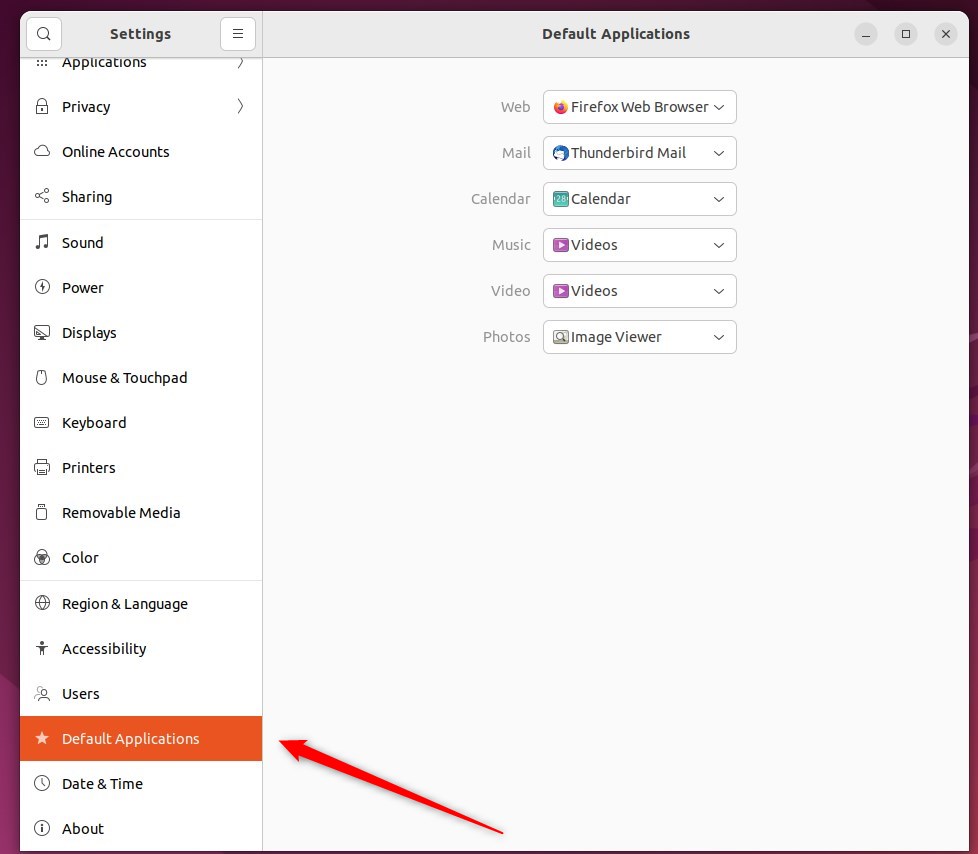
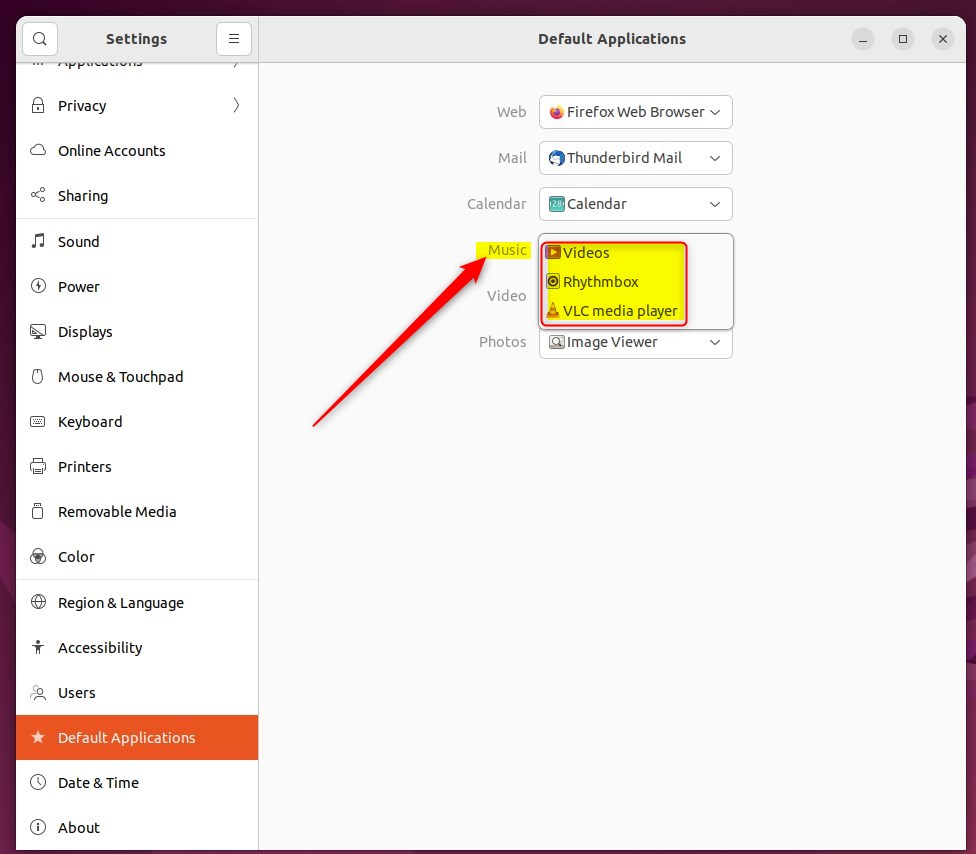
On the System Settings -> Default Applications setting pane, use the dropdown caret to select the default program you want to associate with a file type.
As stated, some file types will have multiple programs that can open them. Choosing the application for a file type from below will make that program the default.
Alternatively, browse to the file you want to change its default association. First, Right-click on the file, then select Properties.

Select the Open With tab.
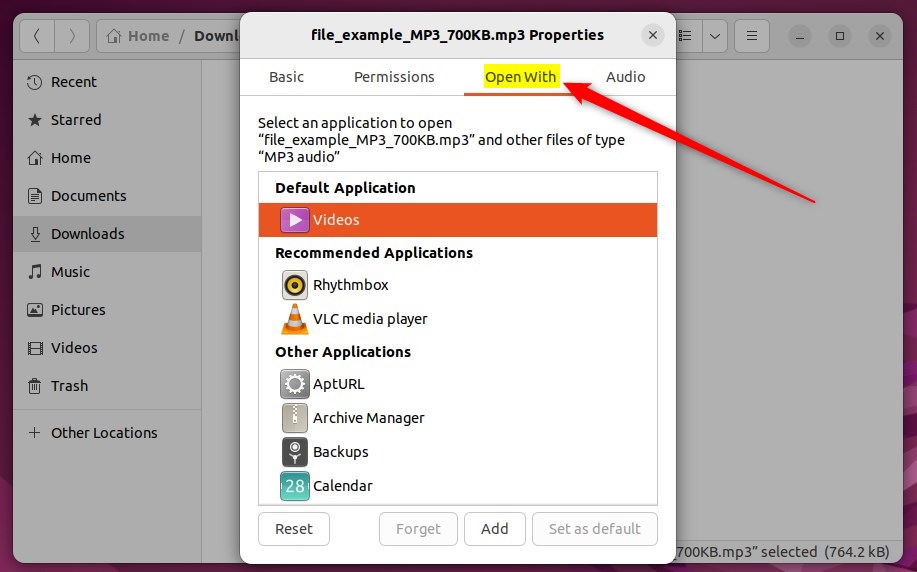
Select the application you want and click Set as default.
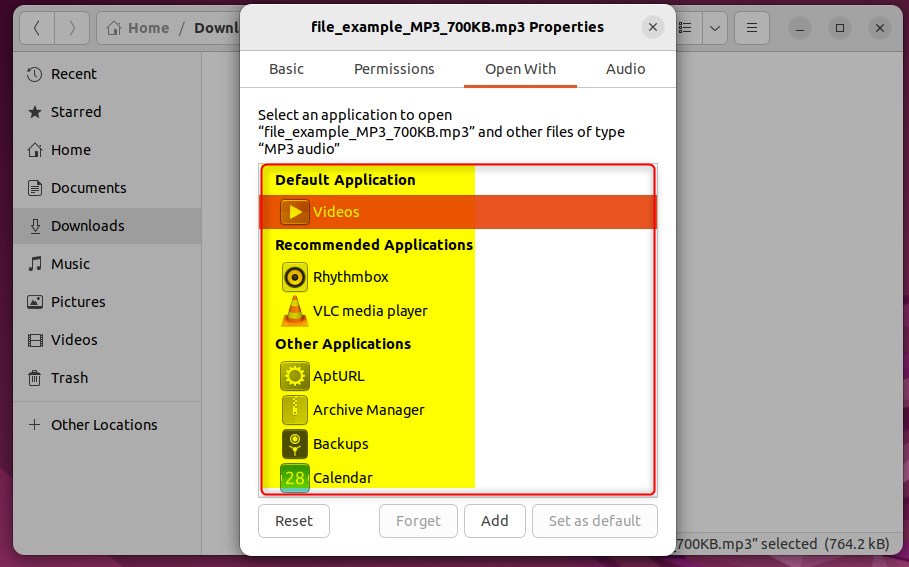
If Other Applications contains an application you sometimes want to use but do not want to make the default, select that application and click Add.
This will add it to Recommended Applications.
That should do it!
Conclusion:
- Changing the default application for file types in Ubuntu Linux can help streamline your workflow and improve productivity.
- Whether you prefer a specific music player for MP3 files or a particular application for text documents, customizing default programs can enhance your user experience.
- Use the detailed steps in this post to effortlessly modify and manage default applications on your Ubuntu Linux system.



Leave a Reply Cancel reply