
Your Windows Firewall is like a security guard for your computer. It controls what information can enter or leave your device. This stops hackers and bad programs from getting in.
In Windows 11, you can easily view and change your firewall settings. You can also save your firewall settings as a backup. This is helpful when you get a new computer or need to fix problems.
Why Back Up Your Firewall Settings?
Backing up your firewall keeps your security settings safe. If something goes wrong, you can restore them quickly. You won’t have to set up everything again from scratch.
Method 1: Using Windows Security App
This is the easiest way. Follow these simple steps:
- Click the Start button (Windows icon), then click Settings.

- Click Privacy & security on the left side, then click Windows Security.
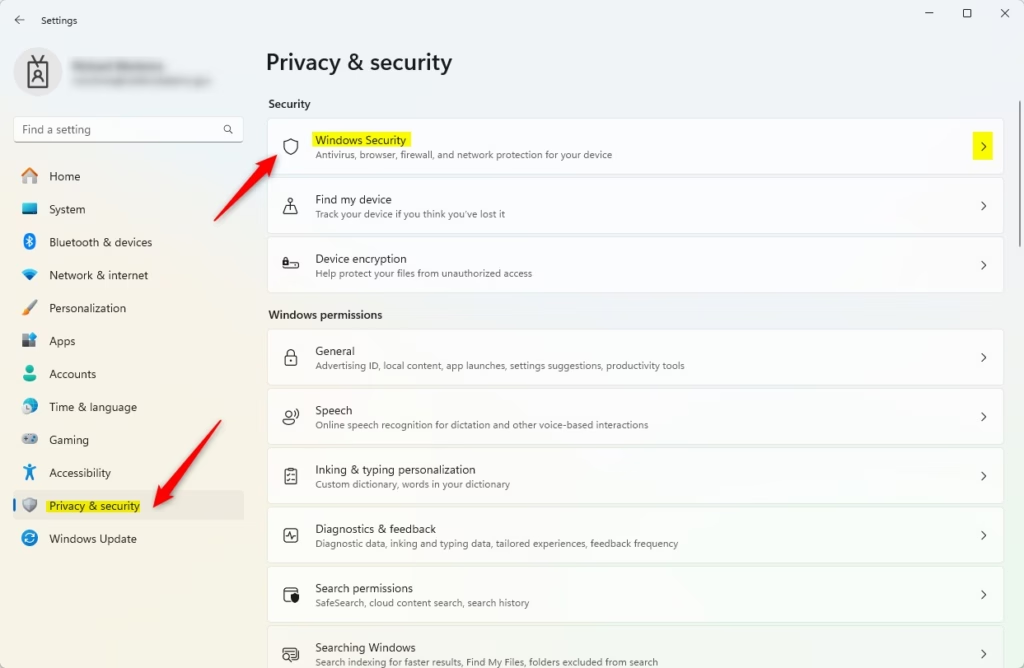
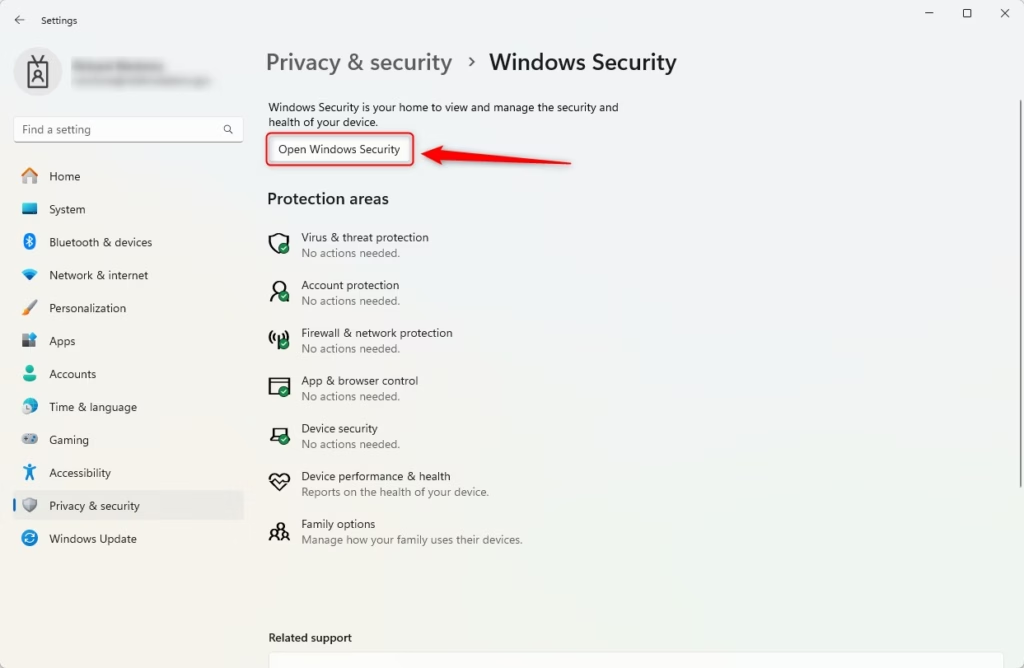
- Click the Open Windows Security button.
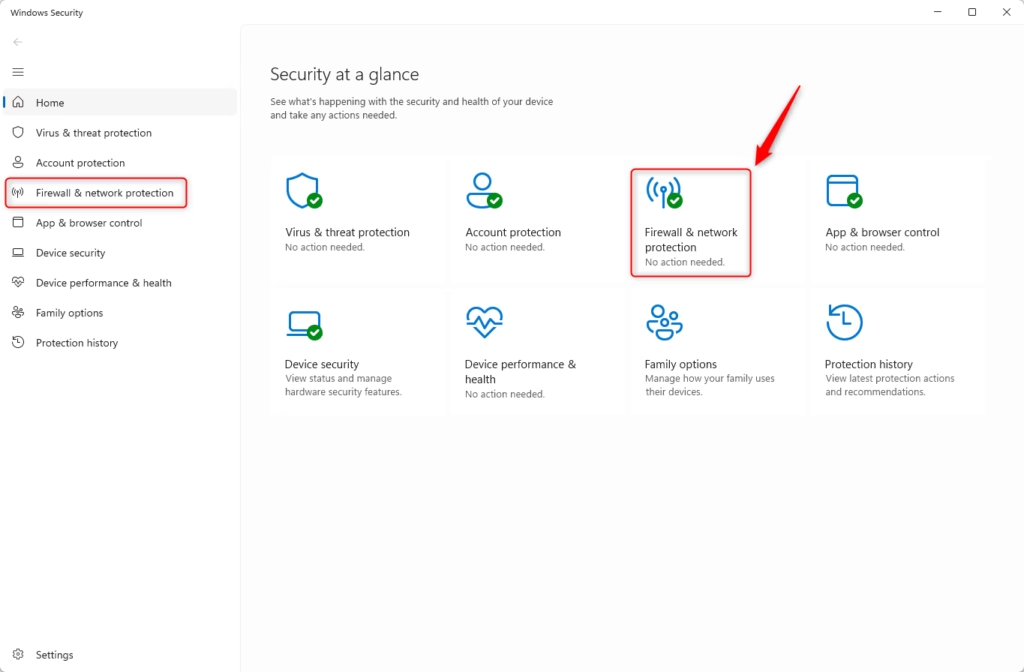
- In the Windows Security app, click Firewall & network protection. You can also open it with this link: Firewall & network protection.
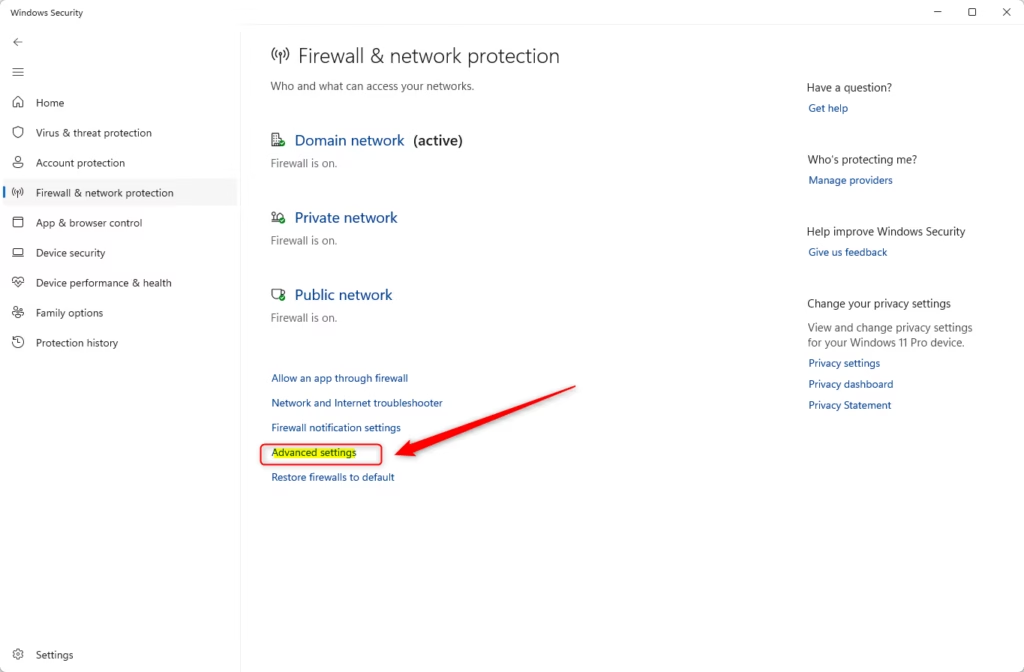
- Scroll down and click Advanced settings.
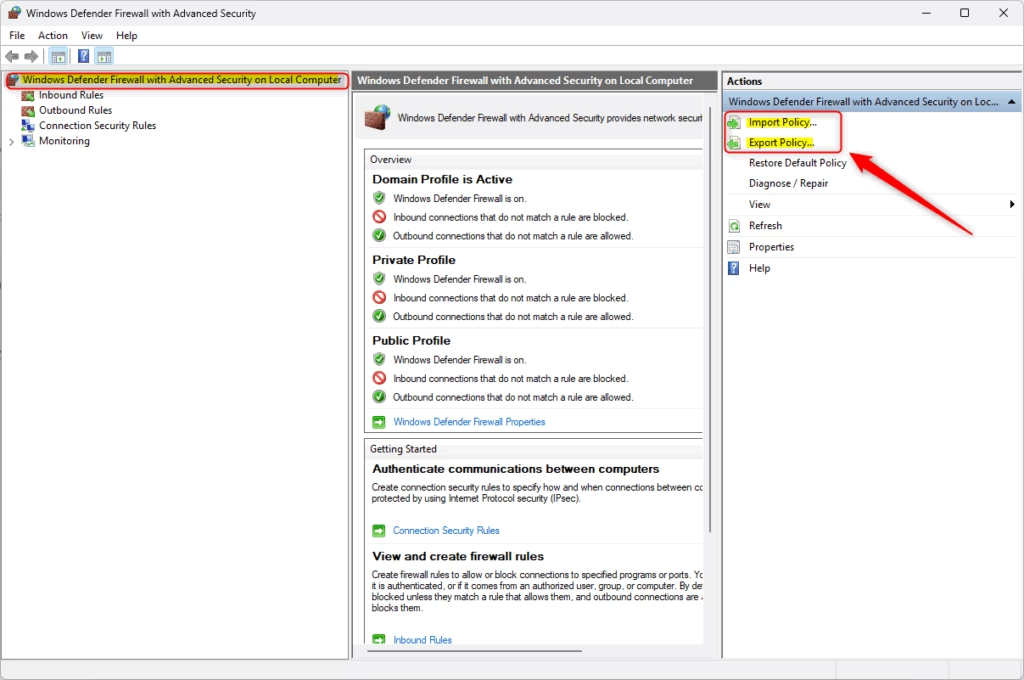
- A new window called Windows Defender Firewall with Advanced Security will open. On the right side, click Export Policy to save your settings.
- Choose where you want to save the file (like your Desktop). Type a name like
FirewallBackup.wfw. Click Save.
What Happens After You Export?
Your firewall settings are now saved in a file. You can keep this file safe and use it later if you need to.
How to Restore Your Settings
Go back to the Windows Defender Firewall with Advanced Security window. Click Import Policy. Select your saved backup file. Your firewall settings will be restored.
Method 2: Using Command Prompt
If you like typing commands, you can use this method instead.
- [ADMIN REQUIRED] Open Windows Terminal as administrator. Click Start, type
Windows Terminal, right-click it, and choose Run as administrator. - Make sure you are in the Command Prompt or PowerShell tab.
To Backup Your Firewall Settings
Type this command and press Enter:
netsh advfirewall export "%userprofile%\Desktop\FirewallBackup.wfw"This saves your backup file on your Desktop.
To Restore Your Firewall Settings
Type this command and press Enter (change the path if your file is somewhere else):
netsh advfirewall import "%userprofile%\Desktop\FirewallBackup.wfw"Your firewall settings are now restored.
Summary
- Backing up your firewall settings protects your computer and saves time if you need to fix problems.
- You can use the easy Windows Security app or type commands to back up and restore.
- Keep your backup files in a safe place so no one else can access your firewall settings.
- Learning both methods gives you more control over your computer’s security.
Leave a Reply Cancel reply