

This post describes the steps to add or remove the power button on the sign-in screen in Windows 11.
The power button on the sign-in screen allows users to put the computer to sleep, hibernate, shut down, or restart without logging on to Windows.
By default, the power button is available on the sign-in screen when you install Windows. However, an administrator can remove the power button from the sign-in screen using Windows policies.
If you disable this setting, the Shut Down option is removed from the screen.
Below is how to add or remove the power button on the sign-in screen in Windows 11.
How to add or remove the power button on the sign-in screen in Windows 11
An administrator can remove the power button from the sign-in screen using Windows policies as described above.
Below is how to do that in Windows 11.
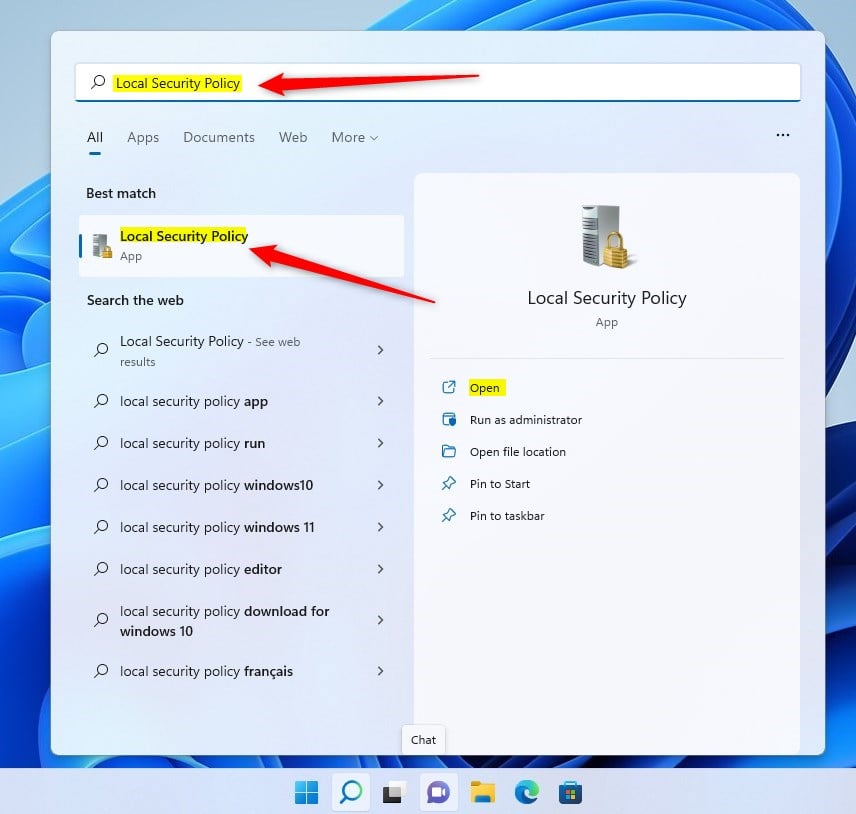
To do that, open Local Security Policy (secpol. msc) by clicking on the Start Menu and searching for Edit group policy, as highlighted below.
Under Best match, select Local Security Policy to launch Local Security Policy Editor.
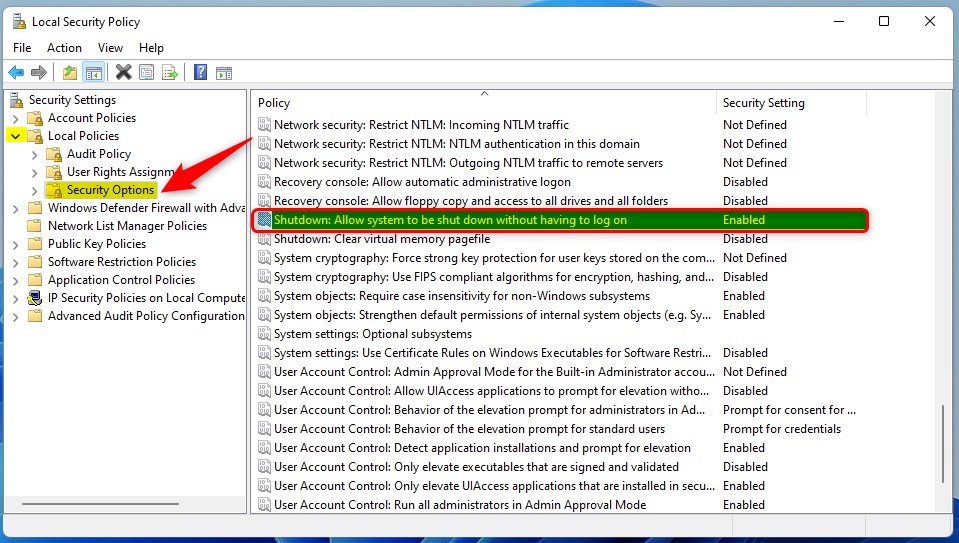
In the left pane of Local Security Policy Editor, expand the tree:
Local Policy -> Security Options
Then, in the Security Options details pane on the right, locate and double-click the setting Shutdown: Allow the system to be shut down without having to log on.
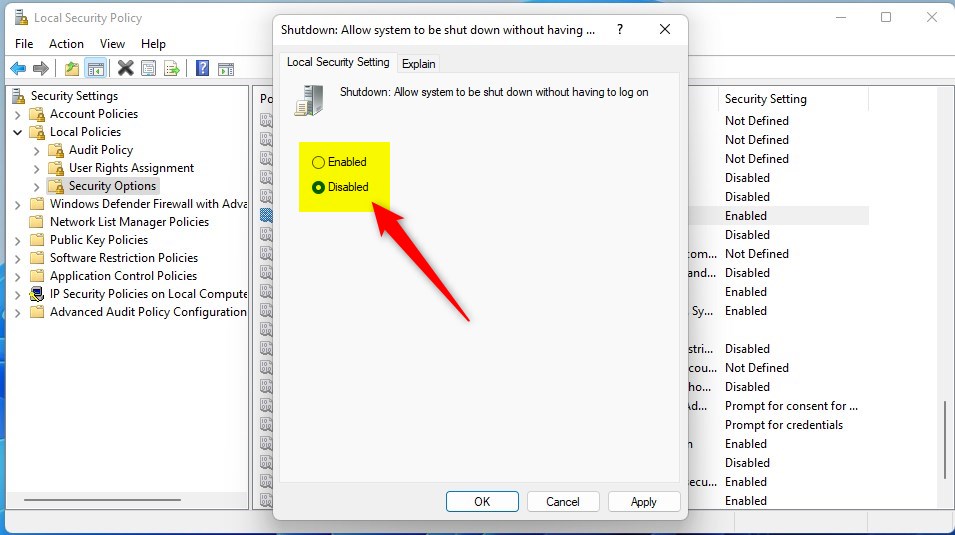
On the Shutdown: Allow the system to be shut down without having to log on policy Properties window, select Enabled (add – default) or Disabled (remove), and click OK.
Local Security Policy is only available in the Windows 11 Pro, Enterprise, and Education editions.
If you run Windows Home and don’t have the Local Security Policy editor, open the Windows Registry editor to configure it there.
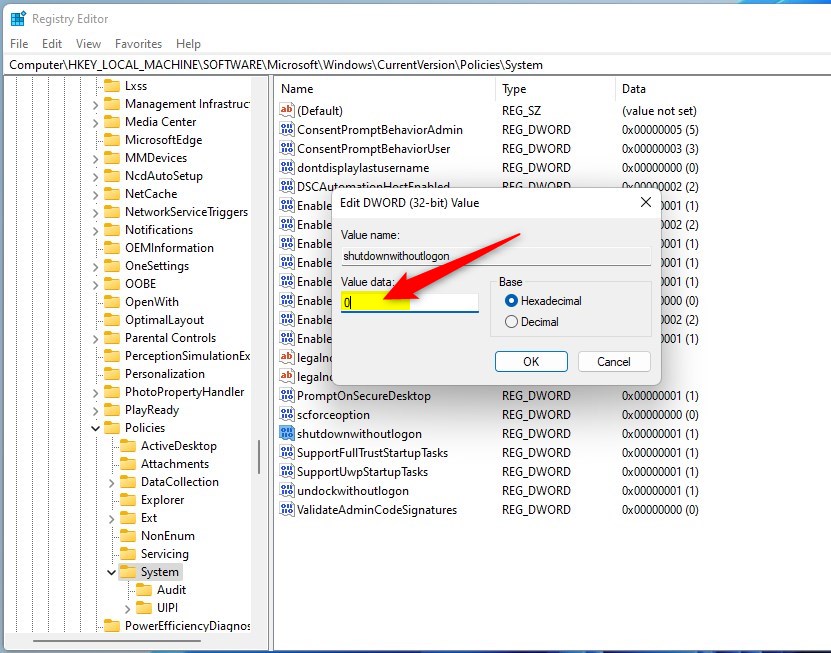
When Windows Registry opens, navigate to the tree path below:
HKEY_LOCAL_MACHINESOFTWAREMicrosoftWindowsCurrentVersionPoliciesSystem
Then, in the right pane of the System key, double click on shutdown-without logon REG_DWORD data to open.
Note: If you don’t see data for shutdownwithoutlogon, right-click in a blank area of the window, select New, choose DWORD (32-bit) Value, and type shutdownwithoutlogon for the name to create one.
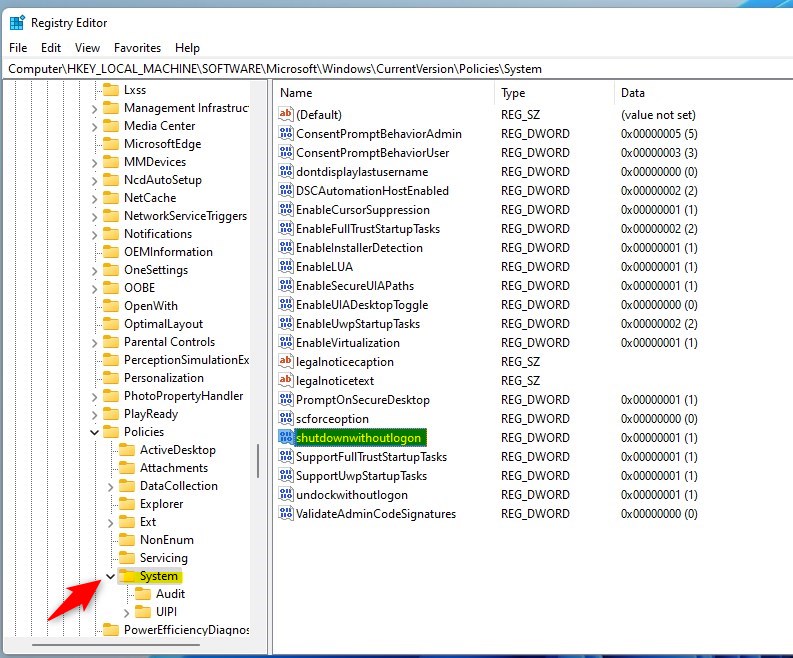
In the DWORD (32-bit) Value field, enter 1 to add or 0 to remove the power button on the sign-in screen.
That should do it!
Conclusion:
- Windows 11 allows administrators to add or remove the power button on the sign-in screen using the Local Security Policy or the Windows Registry.
- The specific steps for both methods have been explained with clear instructions and images for reference.
- Users can now easily customize the power button availability based on their preferences and system requirements.


Leave a Reply Cancel reply