
Want to keep your files safe and get more storage space on your computer? You can add extra drives to a Storage Pool in Windows 11. This feature lets you combine several drives into one big virtual drive. It makes storing and protecting your data much easier.
What is Storage Spaces?
Storage Spaces is a Windows 11 tool that groups multiple hard drives or SSDs into one storage pool. Here’s what it does for you:
- Get more storage space by combining drives together.
- Protect your files with redundancy (backup copies of your data).
- Speed up storage by using multiple drives at the same time.
You can add more drives to your storage pool anytime. This increases your space and keeps your data safer.
How to Add a Drive to Your Storage Pool
Follow these simple steps to add a new drive to your existing Storage Pool:
- Open Windows Settings. Click the Start menu and select Settings. Or press Windows key + I on your keyboard.
- Go to System Settings. In the Settings window, click System on the left side.

- Open Storage Settings. On the right side, click Storage to open the storage options.

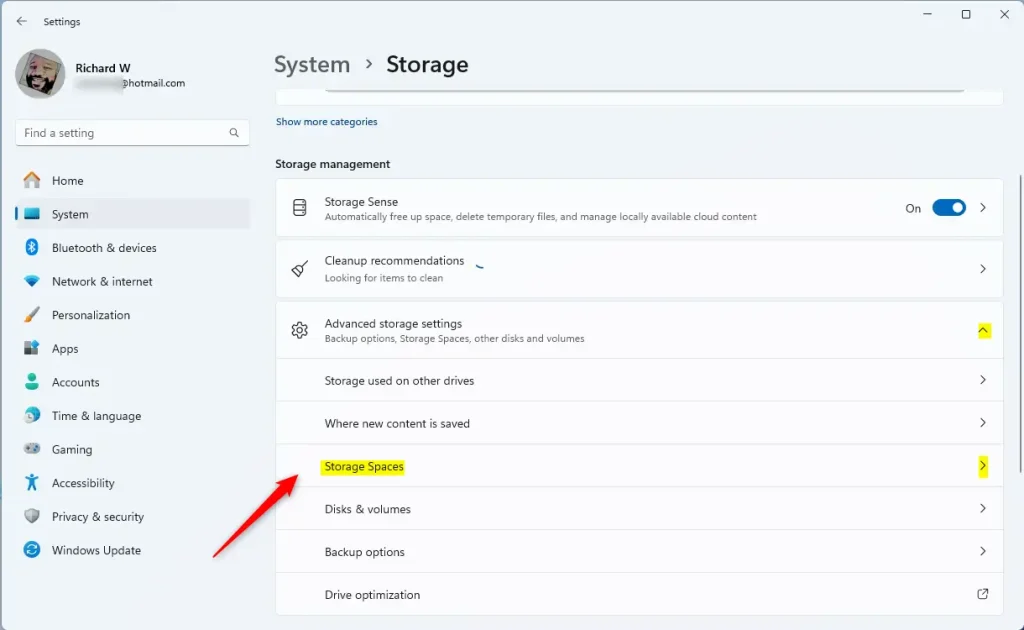
- Find Storage Spaces. Scroll down and click Advanced storage settings to expand it. Then click Storage Spaces.
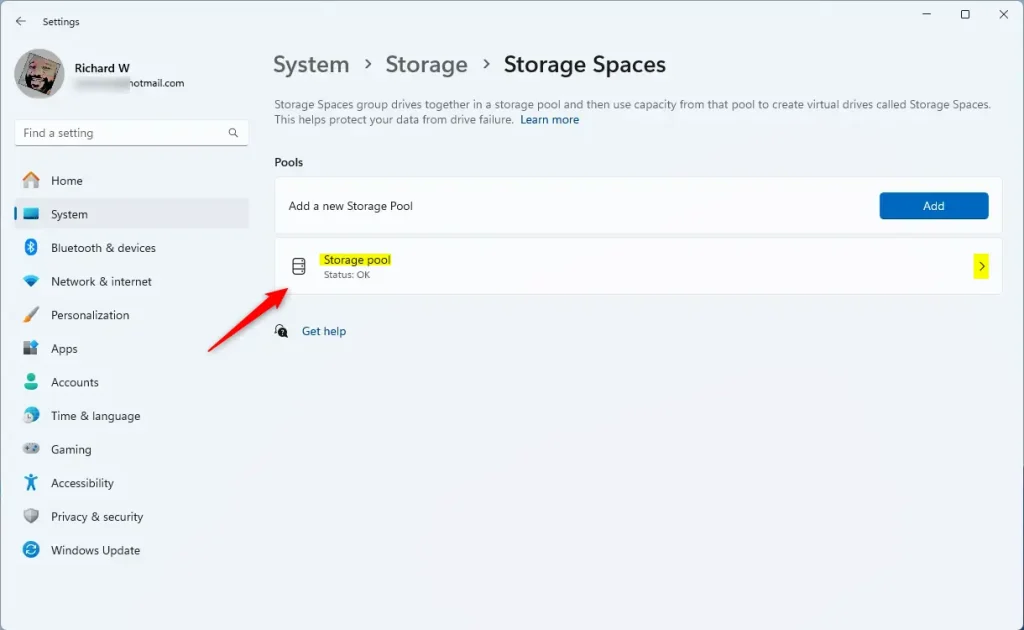
- Open Your Storage Pool. Click on your existing Storage pool to see its details.
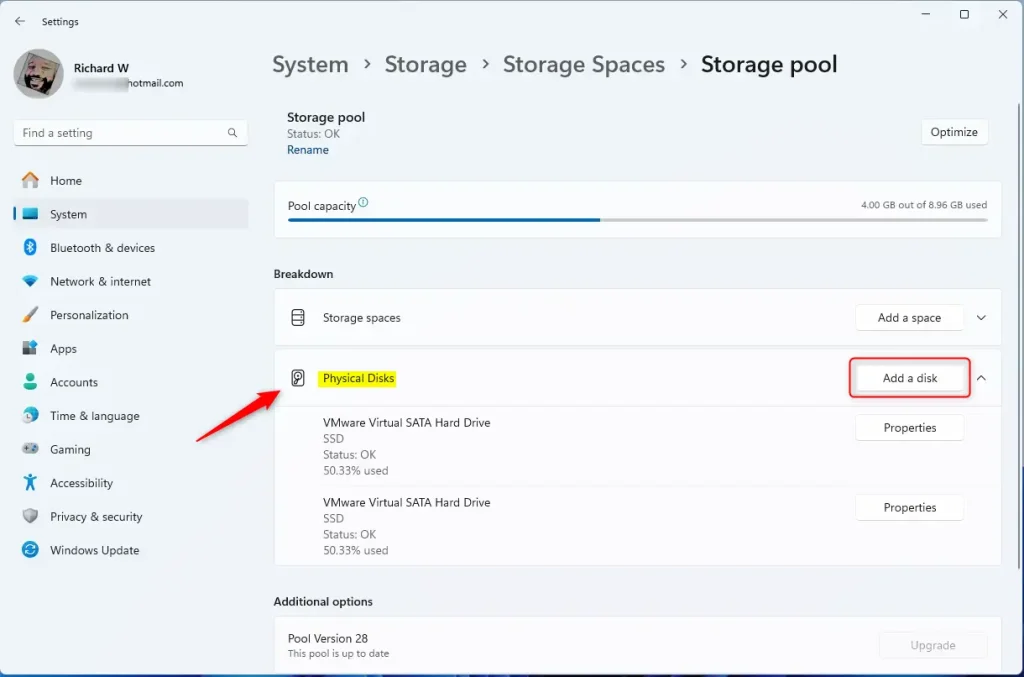
- Add a New Drive. Click on the Physical Disks section. Then press the Add a disk button. ⚠️ Admin privileges required
- Select the Drive. Choose the new drive you want to add and click Add. Important: This drive will be formatted (all data erased) before joining the pool. Make sure you have backed up any important files first.
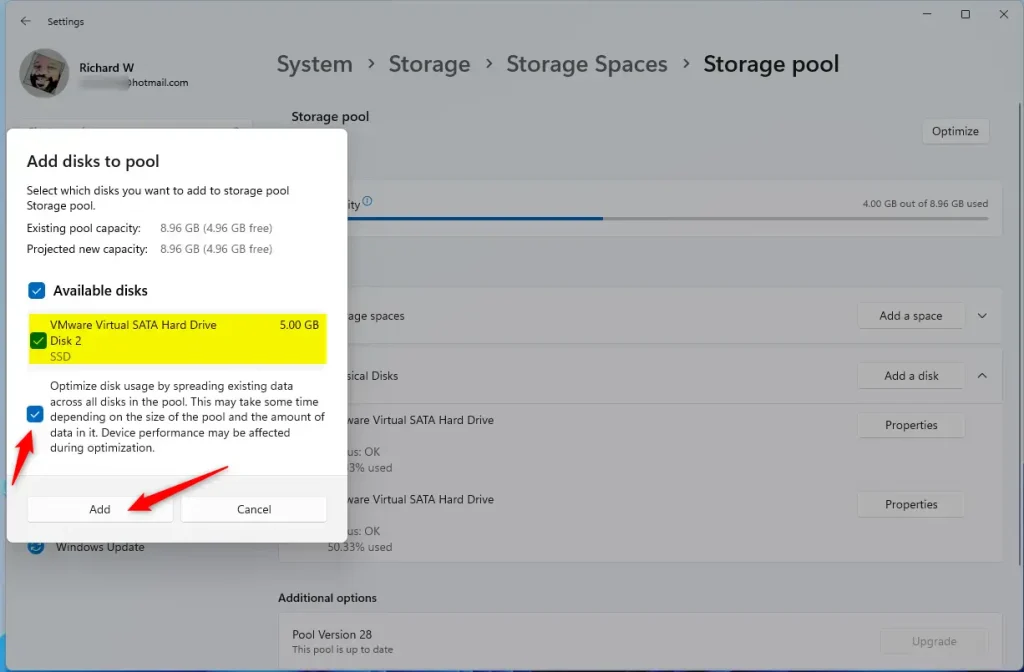
After the process finishes, your new drive will be part of the Storage Pool!
You can now close the Settings app.
Why Add Drives to a Storage Pool?
More Space: Combine drives to get a bigger storage area.
Better Protection: Keep copies of your data. If one drive fails, you don’t lose your files.
Improved Speed: Multiple drives can work together to read and write files faster.
Adding drives to Storage Spaces helps you keep your data safe. It also gives you more room to store your files.
For more details about creating and managing Storage Pools, check out this guide: How to Create a New Storage Pool with Storage Spaces in Windows 11
Summary
Storage Spaces in Windows 11 lets you combine multiple drives into one storage pool. This gives you more space, better data protection, and faster performance. To add a drive, open Settings, go to System, then Storage, and find Storage Spaces. Click on your pool, select Physical Disks, and click Add a disk. Choose your new drive and click Add. The drive will be formatted before joining the pool, so back up any files first. Once complete, your new drive becomes part of your Storage Pool.



Leave a Reply Cancel reply