
The Taskbar is the bar at the bottom of your Windows 11 screen. It shows your open apps, shortcuts, and system icons like the clock and volume.
You can set the Taskbar to hide itself when you’re not using it. This gives you more space on your screen. This is especially helpful if your screen is small or if you want a cleaner look.
Why Hide the Taskbar?
Hiding the Taskbar automatically frees up valuable screen space. You’ll see more of your desktop and your open windows without the bar taking up room at the bottom.
How to Automatically Hide the Taskbar
Follow these simple steps to make your Taskbar hide automatically:
- Open Settings. Click the Start menu (the Windows icon at the bottom left) and then click the Settings gear icon. Or, press
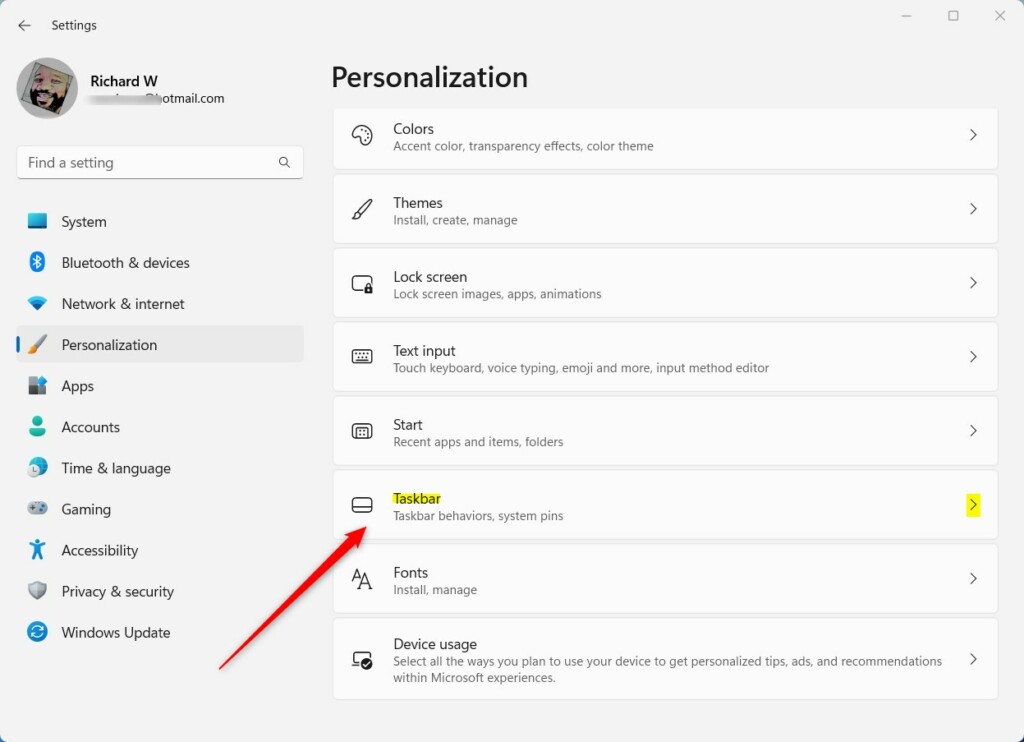
Windows key + Ion your keyboard to open Settings quickly. - In Settings, click on Personalization on the left side menu.
- Next, click on Taskbar on the right side.
- Scroll down and click on Taskbar behaviors to open more options.
- Check the box next to Automatically hide the taskbar.
Here’s what it looks like:
What Happens When You Turn This On?
After you turn this on, the Taskbar will disappear when you’re not using it. To see the Taskbar again, just move your mouse cursor to the bottom of the screen, and it will pop back up.
Hide or Show the Taskbar Using Commands
If you like using commands, you can also hide or show the Taskbar using the Command Prompt.
⚙️ Admin privileges required
To hide the Taskbar automatically, copy and paste this command:
powershell -command "&{$p='HKCU:\SOFTWARE\Microsoft\Windows\CurrentVersion\Explorer\StuckRects3';$v=(Get-ItemProperty -Path $p).Settings;$v[8]=3;&Set-ItemProperty -Path $p -Name Settings -Value $v;&Stop-Process -f -ProcessName explorer}"To stop hiding the Taskbar automatically, copy and paste this command:
powershell -command "&{$p= 'HKCU:\SOFTWARE\Microsoft\Windows\CurrentVersion\Explorer\StuckRects3' ;$v=(Get-ItemProperty -Path $p).Settings;$v[8]=2;&Set-ItemProperty -Path $p -Name Settings -Value $v;&Stop-Process -f -ProcessName explorer}"To open the Command Prompt inside Windows Terminal, press Windows key + X and choose Windows Terminal, then click the Command Prompt tab.
Summary
- Hiding the Taskbar automatically gives you more space on your screen.
- This is especially helpful on smaller screens.
- You can turn this on or off easily in the Settings app.
- You can also use the Command Prompt if you prefer using commands.
- To bring the Taskbar back, just move your mouse to the bottom of the screen.
- Try it out to see if it makes your computer use easier and your desktop cleaner.



Leave a Reply Cancel reply