
This article shows how to enable or disable the automatic creation of desktop shortcuts after installing Microsoft Store apps on Windows 11.
The Microsoft Store app is preinstalled on Windows computers. It is a digital distribution platform that allows users to browse, download, and install various applications and games on their Windows devices.
The latest Microsoft Store update lets you choose whether to automatically create a desktop shortcut whenever you install a new app.
The steps below show you how to enable or disable this feature.
Here’s how to do it.
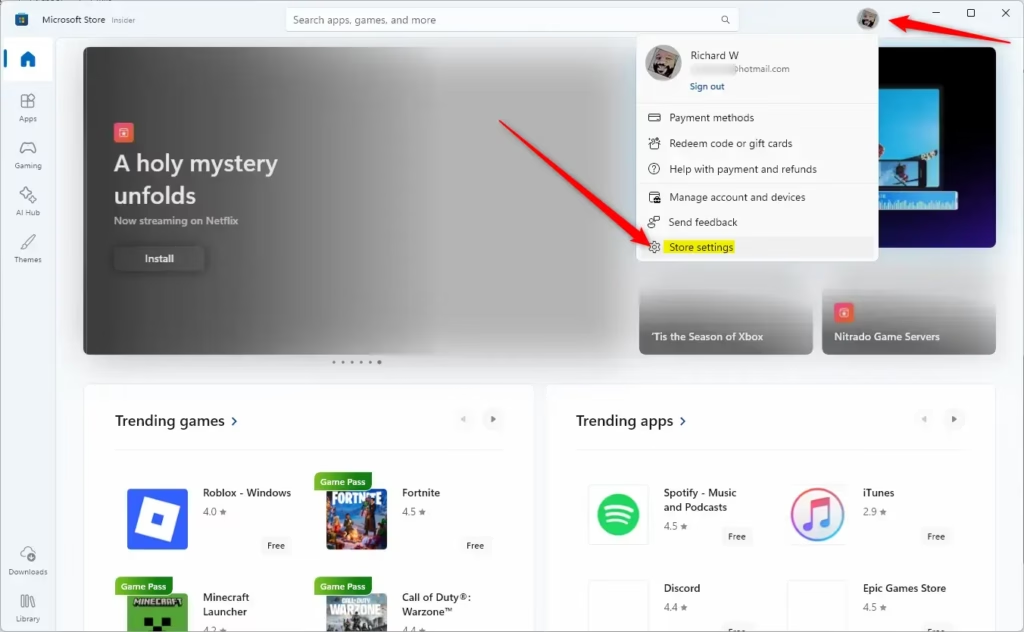
First, open the Microsoft Store and select your Profile image next to the search box.
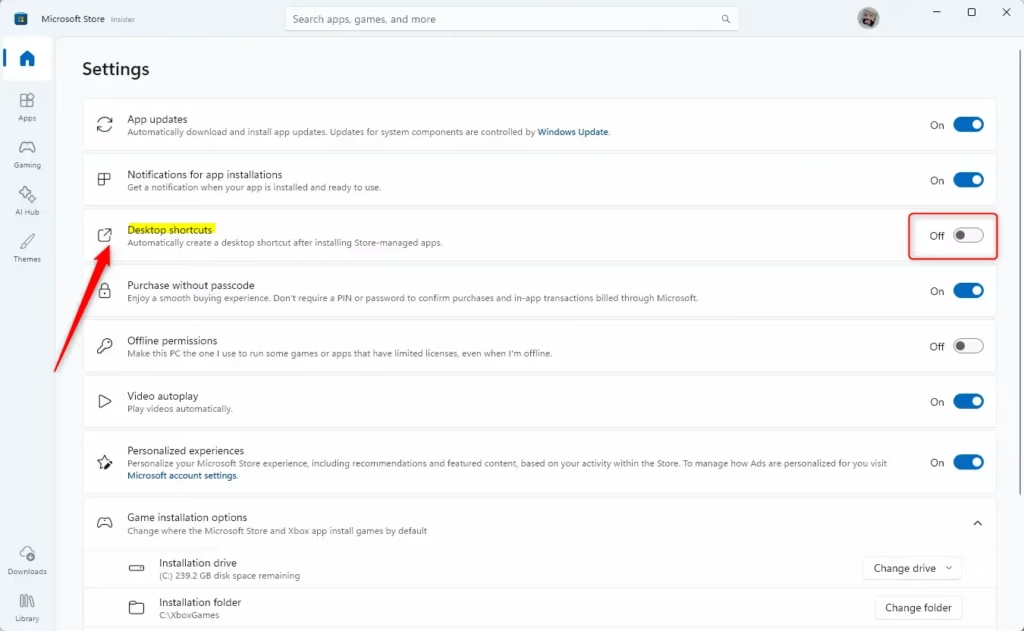
On the Settings pane, toggle the “Desktop shortcuts” button to the On or Off position to enable or disable this feature in the Microsoft Store app.
That should do it!
Conclusion:
- The Microsoft Store app on Windows 11 now allows users to control the creation of desktop shortcuts for new installations.
- By toggling the “Desktop shortcuts” option in the Settings pane, users can easily enable or disable this feature.
- This flexibility helps tailor the user experience for managing applications on the desktop.
- Following the outlined steps ensures that users can customize their installation preferences according to their needs.
Leave a Reply Cancel reply