
Windows 11 has a feature called Snap Layouts. When you drag a window to the top of your screen, a menu pops up. This menu helps you arrange your open windows side by side. Some people like this feature. Others find it annoying and want to turn it off.
If you want to stop the Snap Layout menu from appearing, you’re in the right place. This guide will show you how to turn it off (or back on) in just a few simple steps.
How to Turn Off or Turn On Snap Layouts
Why do this? You may want to disable Snap Layouts if you accidentally trigger the menu when dragging windows. Or you might prefer to manage your windows manually.
What happens when done? The Snap Layouts menu will no longer appear when you drag a window to the top of your screen.
Step 1: Open Windows Settings
Press the Windows key + I on your keyboard at the same time. This opens the Settings app right away.
Or, click the Start button (the Windows icon at the bottom left). Then select Settings from the menu.

Step 2: Go to System > Multitasking
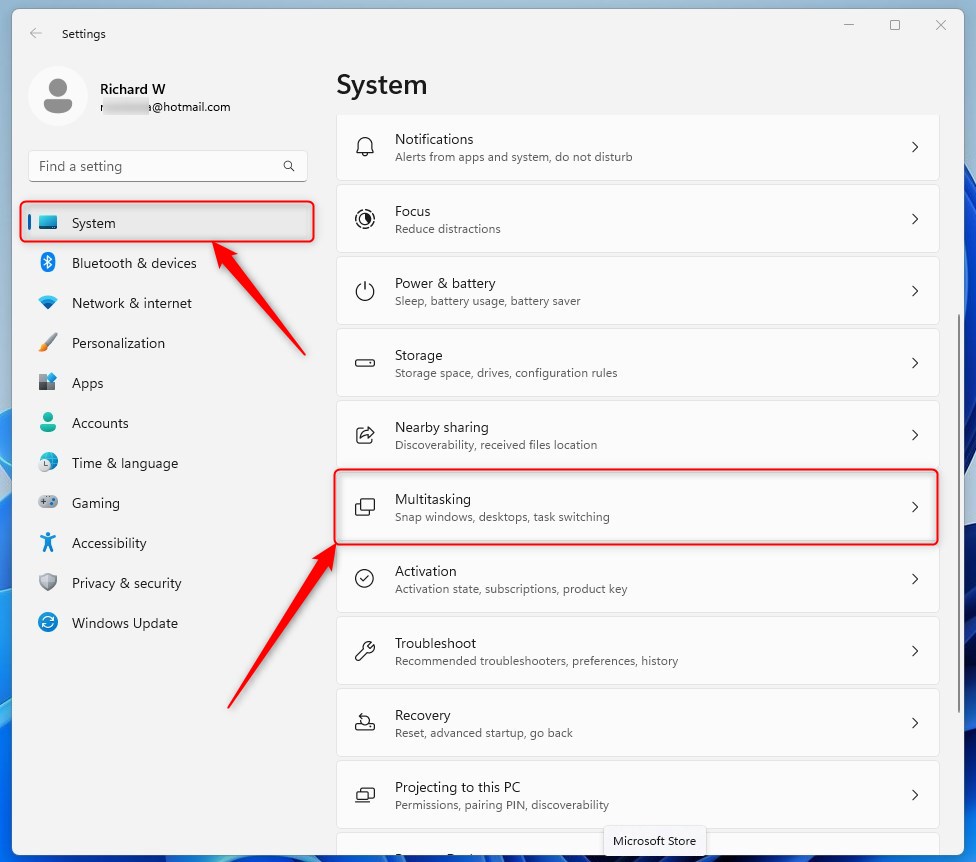
In the Settings window, click on System from the left side menu.
Then find and click on Multitasking on the right side.
Step 3: Change Snap Layouts Setting
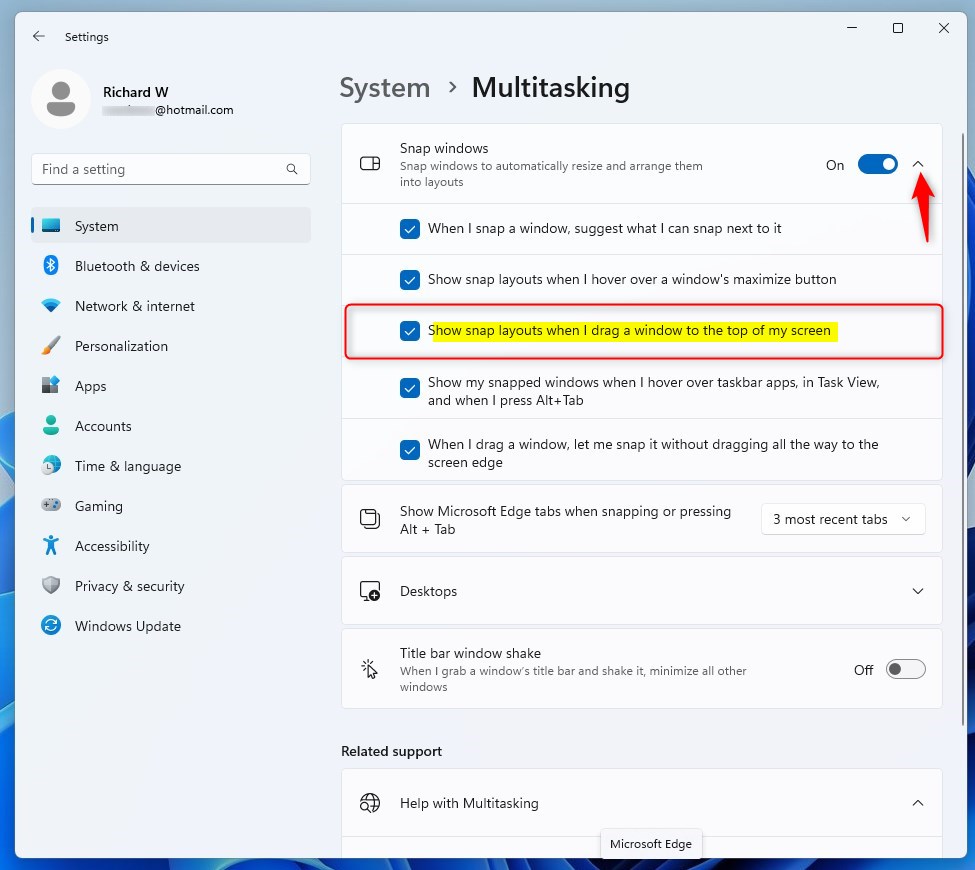
In the Multitasking settings, look for the Snap windows section. Click the small arrow to open more options.
You will see a checkbox labeled “Show snap layouts when I drag a window to the top of my screen.”
Uncheck the box to turn off the Snap Layouts menu.
Check the box to turn it back on.
That’s it! Your change takes effect right away.
Summary
- Windows 11 shows Snap Layouts by default when you drag a window to the top of the screen.
- You can easily turn this feature off or on from the Multitasking settings.
- This helps you decide how you want to manage your windows and makes your computer feel just right for you.
- If you want to learn more about Windows 11 features and tips, check out the official Microsoft support page: Microsoft Windows Support.



Leave a Reply Cancel reply