
If you use a pen (stylus) with your Windows 11 device, you can make the pen button work like a right-click on a mouse. This guide will show you how to set it up easily.
Before You Start: Pair Your Pen with Windows 11
First, make sure your pen is paired with your device using Bluetooth. If you need help pairing your pen, check out this simple guide: How to Pair a Pen with Windows 11.
What Does the Pen Button Do by Default?
By default, pressing and holding the pen tip is like right-clicking with a mouse. But, you can also change what the pen button does to better fit how you work.
How to Make the Pen Button Act Like Right-Click
- Open the Settings app:
Click the Start menu and select Settings, or press Windows key + I on your keyboard. - In Settings, click on Bluetooth & devices on the left side menu.
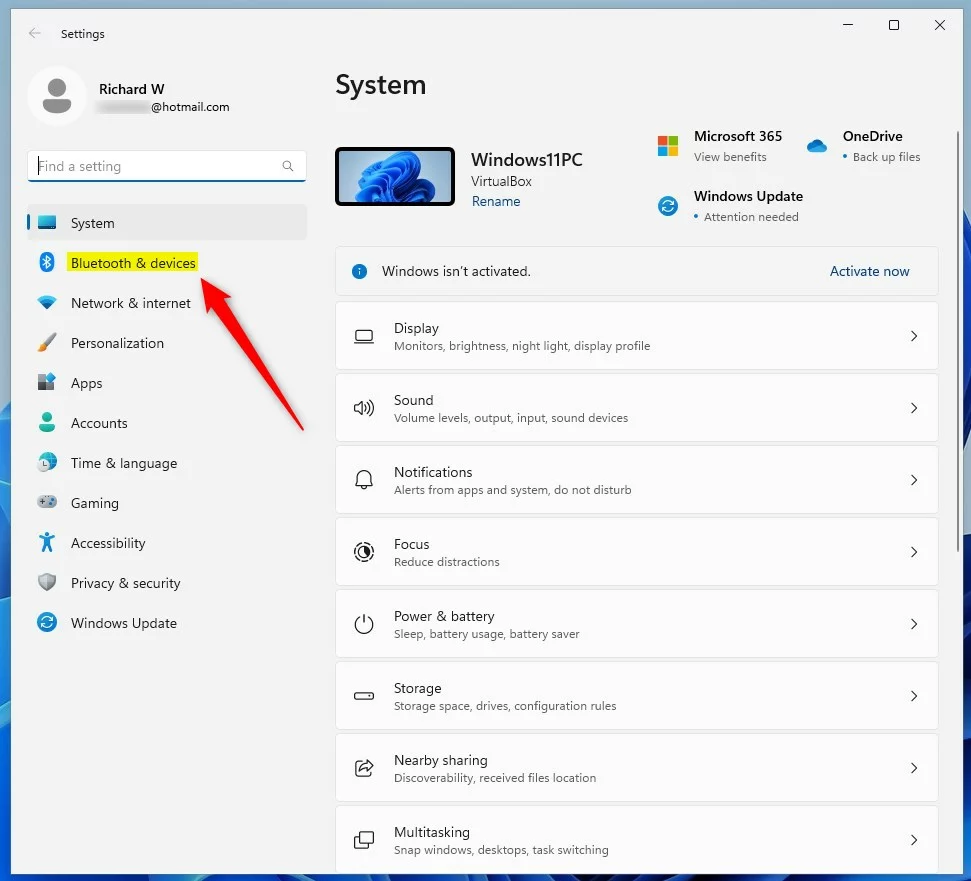 Windows 11 Bluetooth & devices icon in the Settings app
 - Find and click on the Pen & Windows Ink tile on the right side.
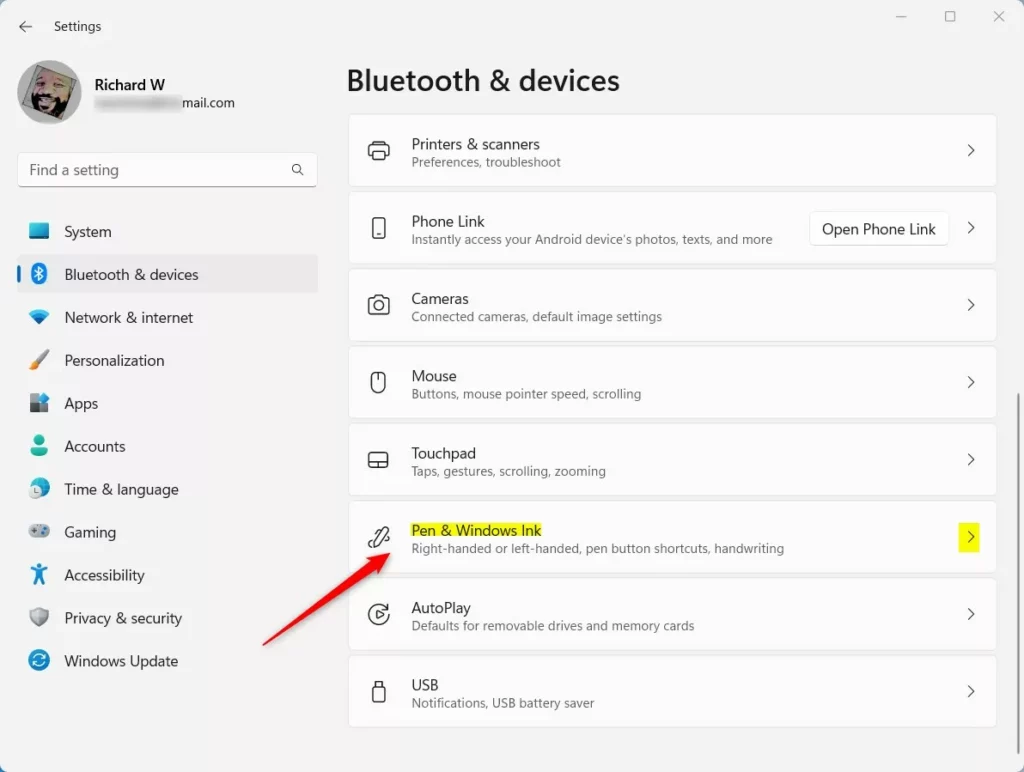
Windows Pen & Windows Ink tile - Click to open Additional pen settings inside the Pen & Windows Ink section.
- Look for the option “Use the pen button as a right-click equivalent” and check the box to turn it on.
- If you want to turn this off, just uncheck the box.
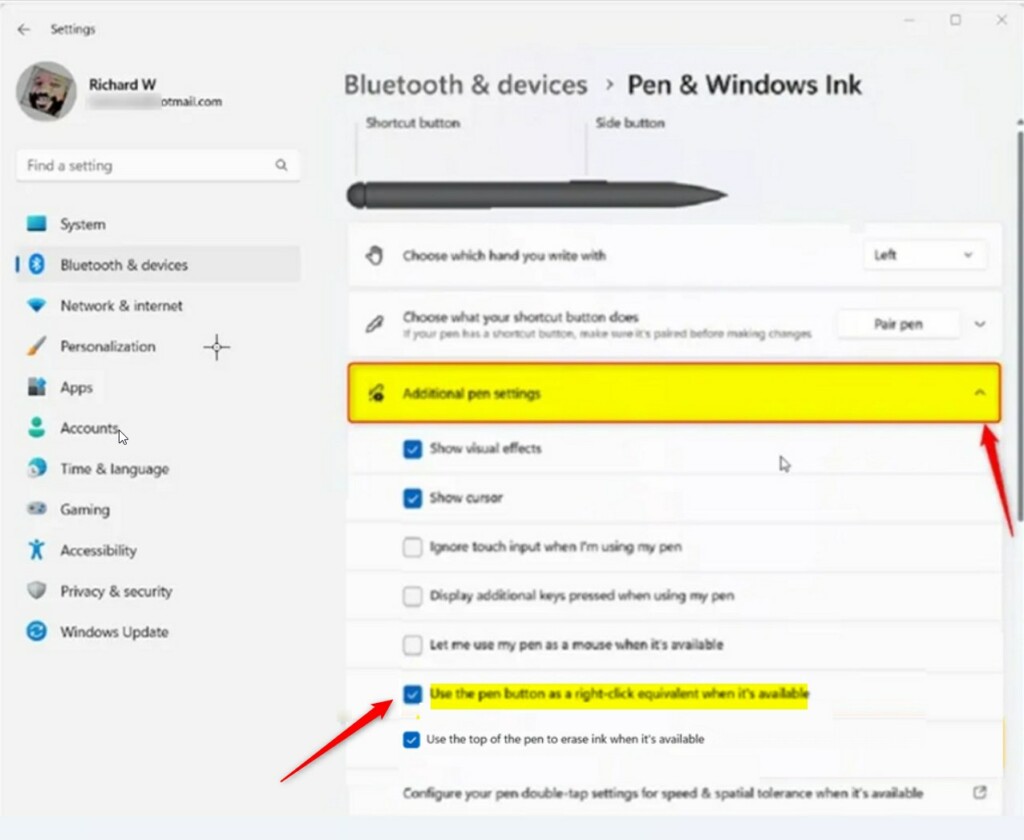
When done, just close the Settings app. Your pen button will now work like a right-click!
Advanced: Turn On/Off Pen Button Right-Click Using Windows Registry (Optional)
If you like, you can also change this setting using the Windows Registry Editor. This method is for more advanced users.
- Open the Windows Registry Editor.
- Go to this folder path:
HKEY_CURRENT_USERSoftwareMicrosoftWispPenSysEventParameters
- If you don’t see the
SysEventParametersfolder, right-click onPen, choose New > Key, and name itSysEventParameters.
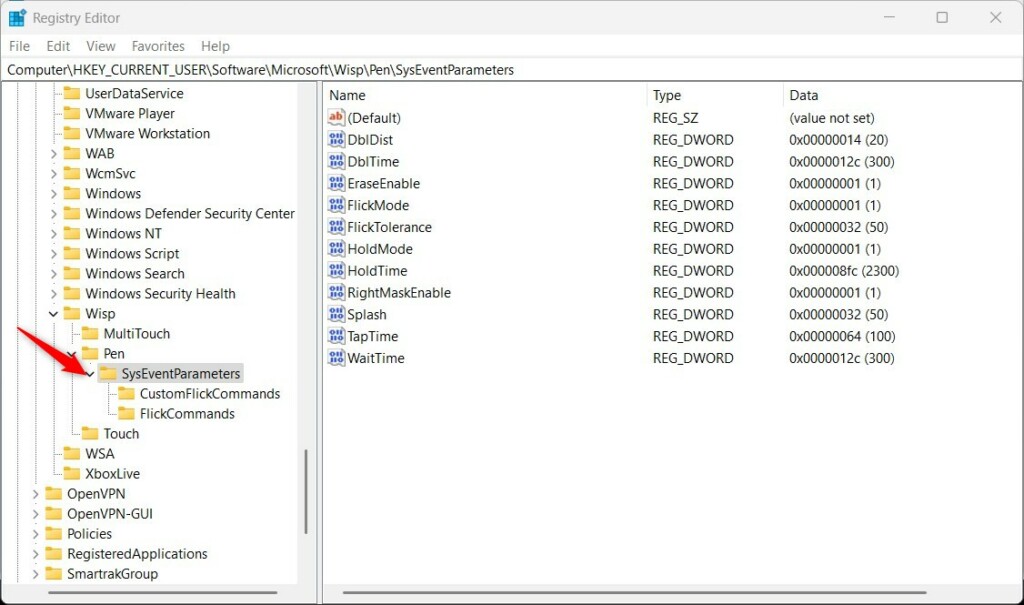
- Right-click on the right side of the
SysEventParameterskey, choose New > DWORD (32-bit) Value, and name itRightMaskEnable. - Double-click
RightMaskEnable, set the Base to Decimal, and enter:1to enable the pen button right-click0to disable it
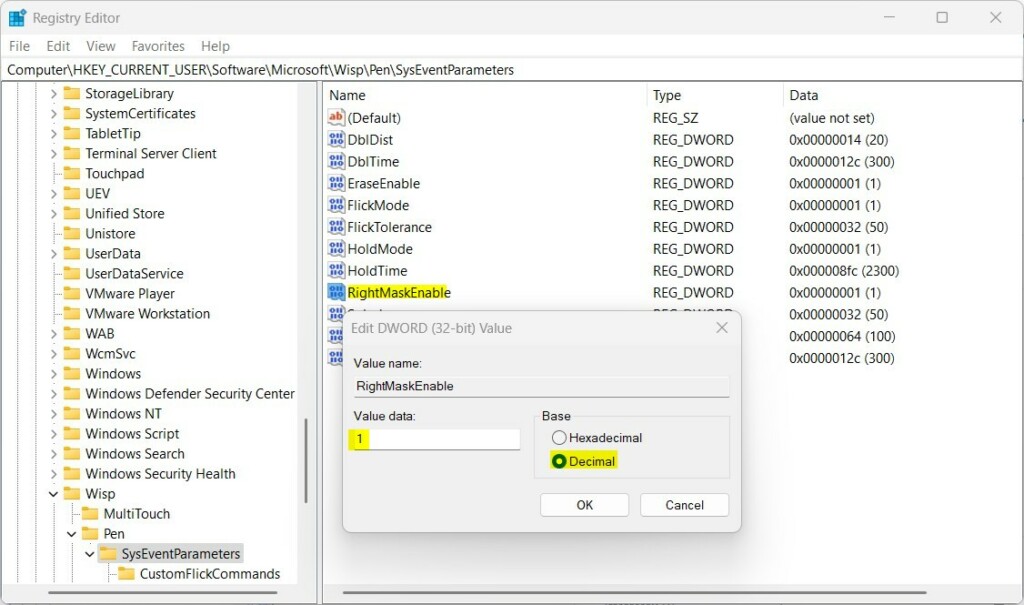
Save your changes and restart your computer to make it work.
Summary
- Using your pen button as a right-click can make working on Windows 11 easier and faster.
- You can easily turn this on or off in the Settings app without any technical skills.
- For advanced users, the Registry Editor offers another way to control this feature.
- Customize your pen to fit your style and boost your productivity!
Need more info? Check Microsoft’s official guide on changing pen settings: Microsoft.com



Leave a Reply Cancel reply