
This simple guide will help you add or remove the Microsoft Print to PDF feature on your Windows 11 computer.
What Is Microsoft Print to PDF?
Microsoft Print to PDF lets you save any document or webpage as a PDF file without needing extra programs. It is a built-in tool in Windows. By default, PDF files open with Microsoft Edge, but you can use any PDF reader you like.
Why use it? It saves you money since you don’t need to buy PDF software. What happens when done? Your files are saved as PDFs that you can share or store easily.
If the Microsoft Print to PDF option disappears or stops working, you can fix it by turning the feature off and on again.
Note: You need to be signed in as an administrator to make these changes.
How to Add or Remove Microsoft Print to PDF
Option 1: Using Windows Features
- Click the Start button, type
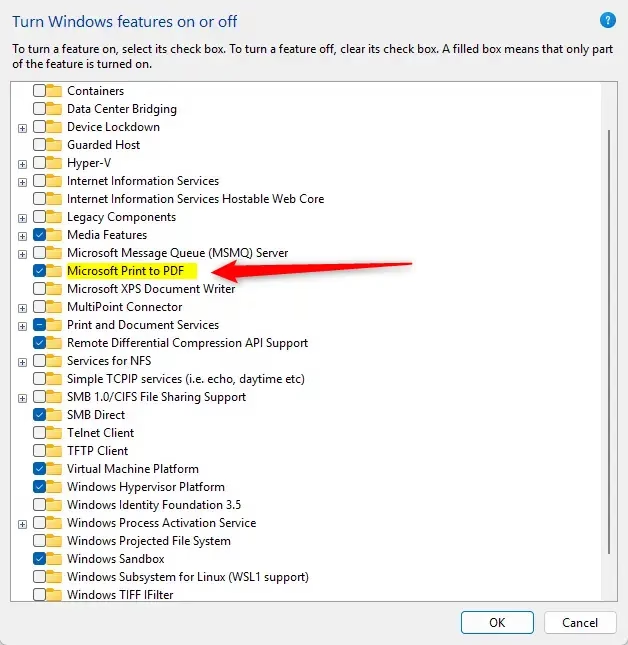
Windows Features, and open Turn Windows features on or off. Requires admin privileges. - In the list, find Microsoft Print to PDF.
- To add it, check the box. To remove it, uncheck the box.
- Click OK to save your changes.
- Restart your computer if prompted.
If the Windows Features window is blank:
- Press Windows + R, type
services.msc, and press Enter. - Find Windows Modules Installer in the list.
- Double-click it and set the Startup type to Automatic.
- Click Start if the service is stopped, then click OK.
Here is what the Windows Features window looks like:
Option 2: Using Command Prompt (DISM)
- Right-click the Start button and choose Windows Terminal (Admin). Requires admin privileges.
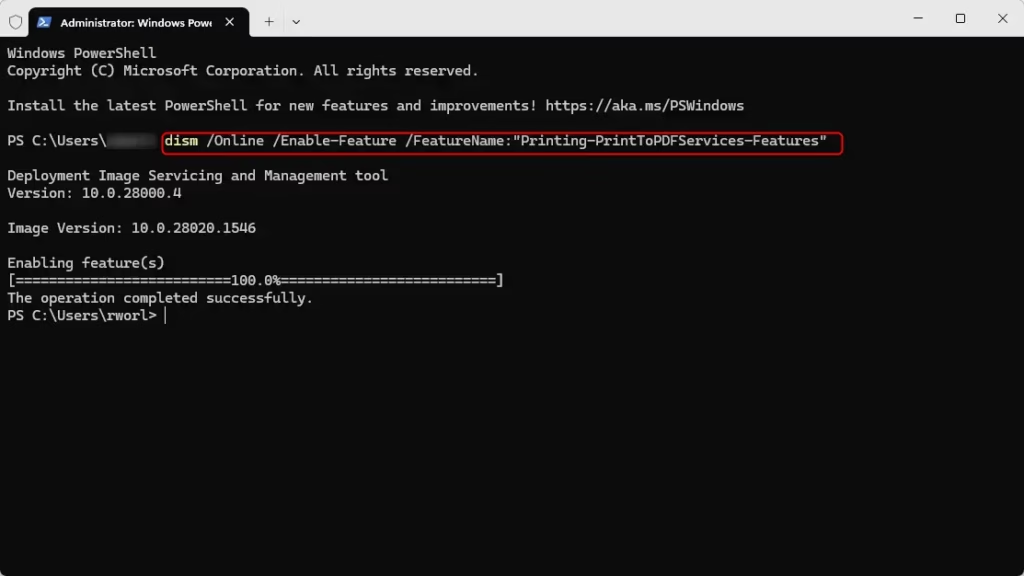
- In the terminal window, type this command to add Microsoft Print to PDF and press Enter:
dism /Online /Enable-Feature /FeatureName:"Printing-PrintToPDFServices-Features" - To remove it, type this command and press Enter:
dism /Online /Disable-Feature /FeatureName:"Printing-PrintToPDFServices-Features" - Close the terminal when done.
Example of the command running in Windows Terminal:
Option 3: Using PowerShell
- Open Windows Terminal (Admin). Requires admin privileges.
- Make sure you are in the PowerShell tab (or type
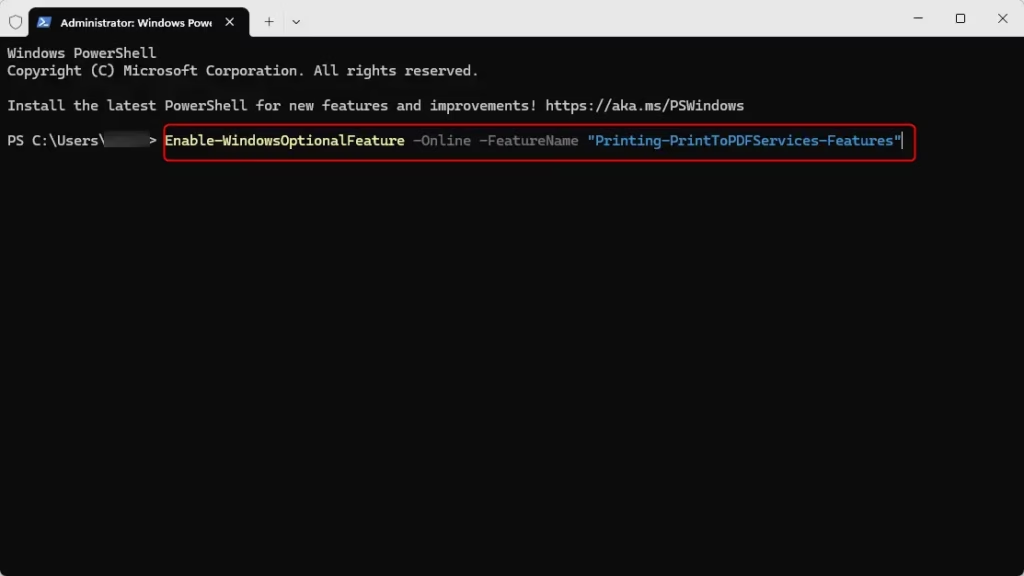
powershelland press Enter). - To add Microsoft Print to PDF, type this command and press Enter:
Enable-WindowsOptionalFeature -Online -FeatureName "Printing-PrintToPDFServices-Features" - To remove it, type this command and press Enter:
Disable-WindowsOptionalFeature -Online -FeatureName "Printing-PrintToPDFServices-Features" - Close PowerShell when finished.
PowerShell example:
Summary
- Microsoft Print to PDF is a handy tool to save files as PDFs without extra software.
- You can add or remove it using Windows Features, Command Prompt, or PowerShell.
- Make sure you run these as an administrator.
- If you have trouble, check that the Windows Modules Installer service is running.
- Once restored, you can print to PDF from any app that supports printing.

Leave a Reply Cancel reply