
Do you want to sign into your Windows 11 computer using your fingerprint instead of typing a password? Windows Hello makes this easy and secure. This guide will show you simple steps to turn fingerprint sign-in on or off on your PC.
What is Windows Hello?
Windows Hello is a safe way to sign into your computer without typing a password. You can use a PIN, face recognition, or your fingerprint. It is safer and faster than using a password.
You can also use a small USB security key to log in, but that is a different tool.
Why Turn Fingerprint Sign-In On or Off?
Why would you want to turn this on? If you want extra security and your device has a fingerprint reader, turning this on is a good choice.
Why would you want to turn this off? If your fingerprint reader is not working or you prefer another sign-in method, you might want to turn it off.
How to Enable or Disable Fingerprint Sign-In
Follow these easy steps. You will be changing a setting in the Windows Registry, so please be careful and follow the instructions exactly.
Step 1: Open Windows Registry Editor
Admin privileges required.
Press the Windows key + R on your keyboard to open the Run box. Type regedit and press Enter.
You might see a pop-up asking for permission. Click Yes to continue.
Step 2: Find the Fingerprint Setting
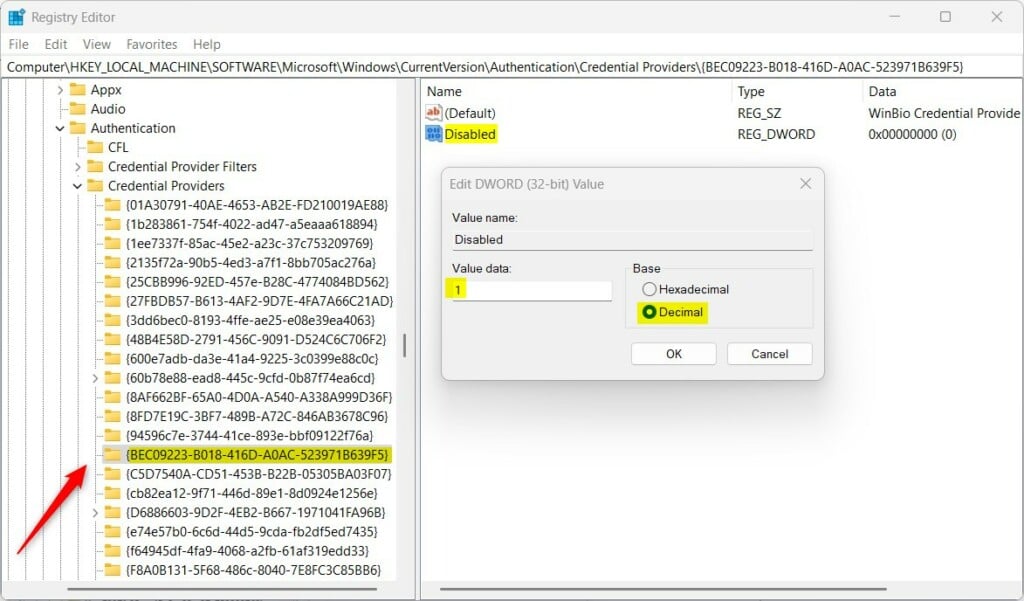
In Registry Editor, use the left sidebar to go to this folder:
HKEY_LOCAL_MACHINE\SOFTWARE\Microsoft\Windows\CurrentVersion\Authentication\Credential Providers\{BEC09223-B018-416D-A0AC-523971B639F5}Step 3: Change the Fingerprint Sign-In Option
On the right side, look for a setting called Disabled.
To disable fingerprint sign-in: Double-click Disabled, change the value to 1, and click OK.
To enable fingerprint sign-in: Delete the Disabled entry by right-clicking on it and choosing Delete.
If you do not see Disabled, right-click on an empty space on the right side, choose New > DWORD (32-bit) Value, name it Disabled, and set the value to 1 to disable or delete it to enable.
Step 4: Restart Your Computer
Close Registry Editor and restart your PC to apply the changes.
Need More Help?
Check out the official Microsoft guide about Windows sign-in options and account protection.
Summary
- You can easily turn fingerprint sign-in on or off depending on your needs.
- Changing this setting requires using the Registry Editor, so be careful.
- Fingerprint sign-in adds security but may not work on all devices.
- Always restart your PC after making changes.


Leave a Reply Cancel reply