How to Share Folders in VirtualBox with Ubuntu

Shared folders in VirtualBox let you pass files between your Windows PC and an Ubuntu virtual machine without needing USB drives or email. This feature creates a digital bridge so you can open files stored on your main computer directly inside Ubuntu.
You need VirtualBox version 7.0 or later and Ubuntu 22.04 LTS or newer to make folder sharing work smoothly.
Configure shared folders in VirtualBox settings and install VirtualBox Guest Additions in Ubuntu. After installation, add the host folder via VirtualBox’s “Settings” > “Shared Folders” and reboot the guest.
Install VirtualBox Guest Additions
Installing VirtualBox Guest Additions is required to share folders between your main computer and an Ubuntu virtual machine. This software package installs the necessary drivers so Ubuntu can communicate with your host operating system. Without this step, you cannot mount shared folders or use features like drag-and-drop file transfers between your desktop and the virtual machine.
Additionally, it enables users to copy and paste text, images, and files between the host and guest machines, improving overall usability.
Follow the steps below to install the tool on Ubuntu. Start by updating the system packages.
sudo apt update && sudo apt dist-upgrade && sudo apt autoremove
Next, install the kernel headers (files that help your system interact with the Linux kernel) and the Dynamic Kernel Module Support (DKMS) package.
sudo apt install virtualbox-guest-dkms build-essential linux-headers-virtual
After installing the packages above, restart your machine and continue below.
To install VirtualBox Guest Additions software on Ubuntu virtual machine operating systems, select the Devices from the VirtualBox host application menu and click Insert Guest Additions CD image…
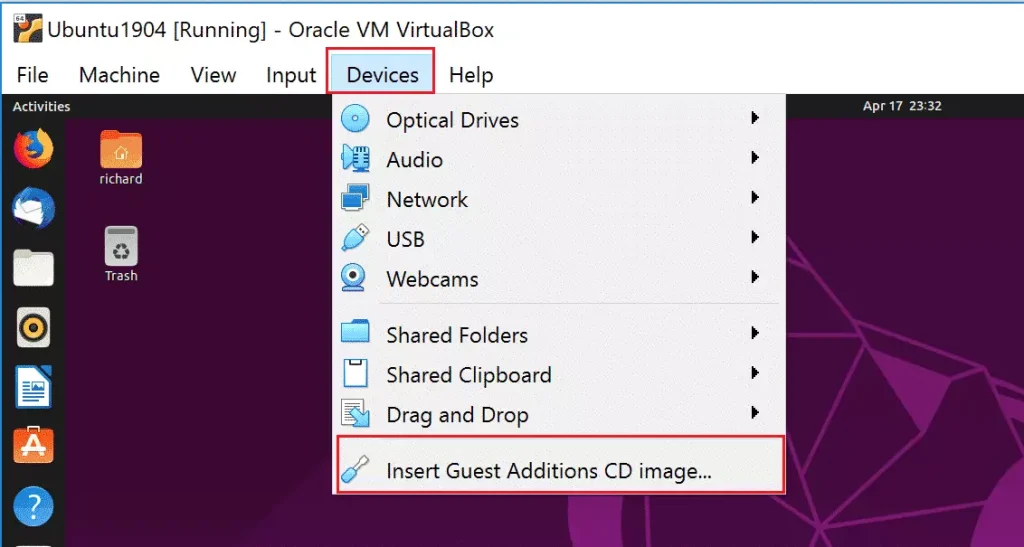
This should mount a virtual CD/DVD drive inside the Ubuntu guest machine. When that happens, you should get a prompt to run the software. Click Run to begin the installation.
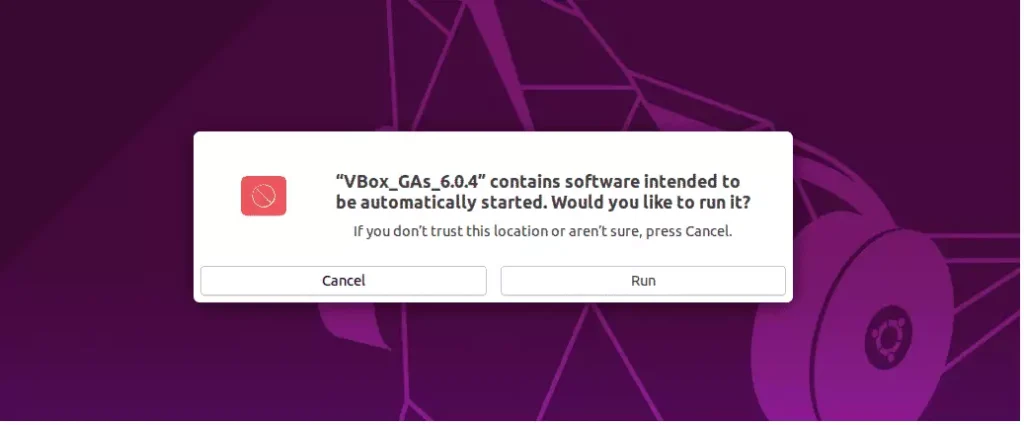
If your account is not an administrative account, the installation will fail.
Guest Additions is the official driver and utility package provided by VirtualBox.
Restart the guest machine, and you'll be all set.
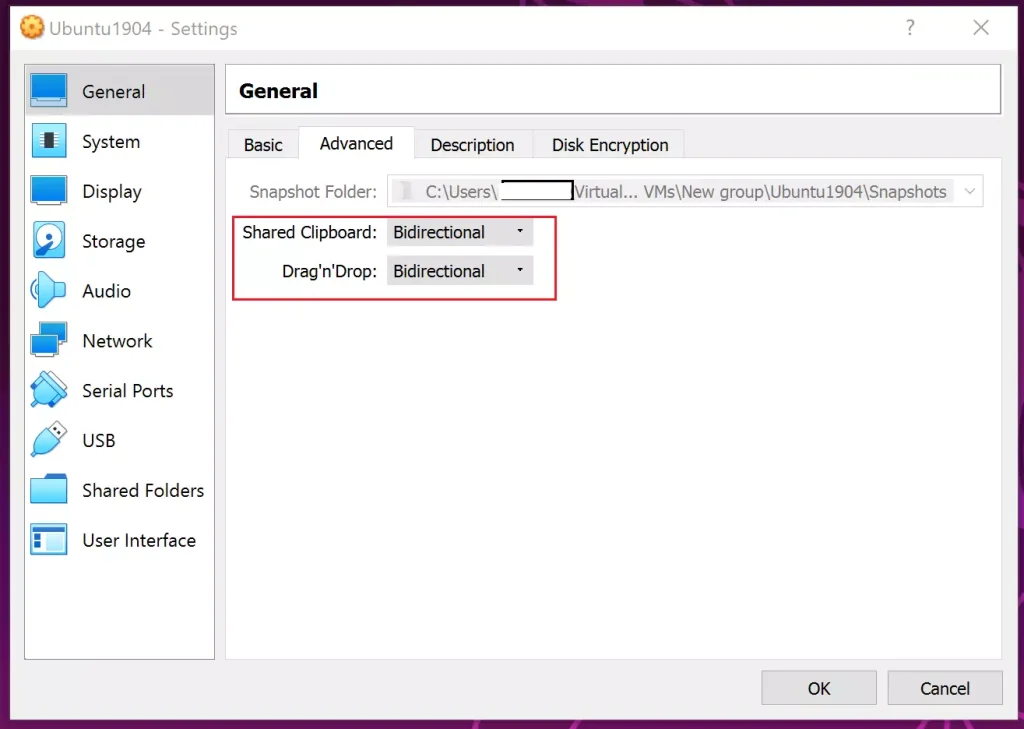
To enable copying and pasting between the guest machine and the host, access the guest machine's settings page by navigating to General - Advanced, and enable the feature as shown below.
Share the Host Folders
Sharing host folders in VirtualBox with Ubuntu requires adding your user account to the correct access group and defining the folder path in the virtual machine settings. You must run the command sudo usermod -G vboxsf -a $USER inside the Ubuntu terminal to grant your user permission to read and write to the shared directory before you can access your host files.
The command to do that is below:
sudo usermod -G vboxsf -a $USER
After executing the command from one Ubuntu guest to another, share the folder from the host machine using the host software's settings.
Select the virtual machine you wish to share with, navigate to the Settings tab, and select Shared Folders from the list. Click the Plus (+) button at the top to add the folder you want to share.
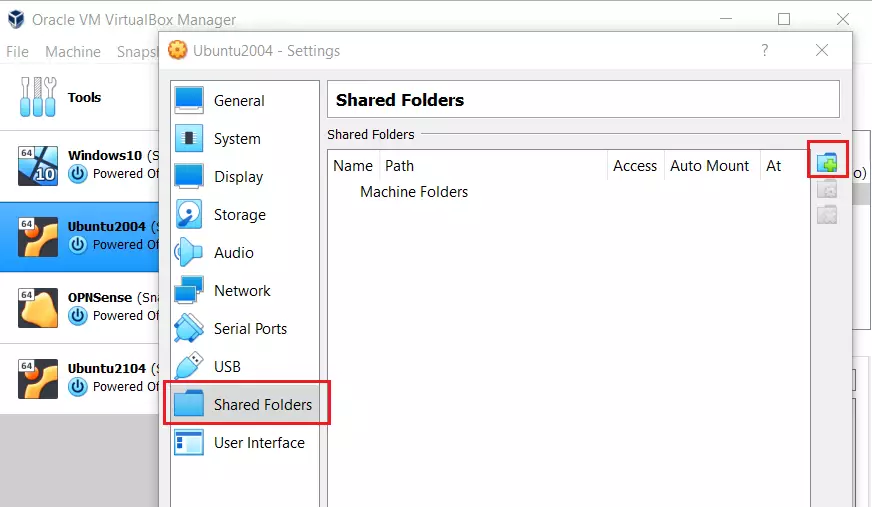
Navigate to the folder on the host machine and select it. Choose this option if you want the folder to mount automatically every time the guest machine starts.
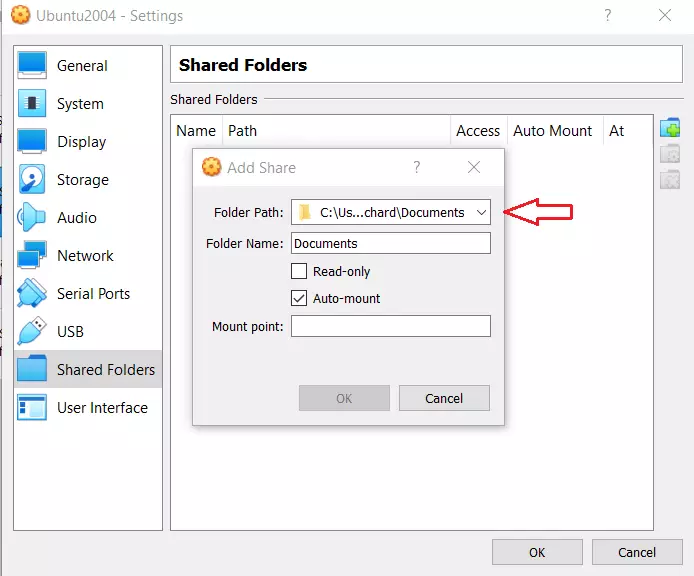
Click OK to save your changes and close.
Turn on the guest machine or reboot if you're already logged in. The next time you log in, the shared folder on the host should be mounted.
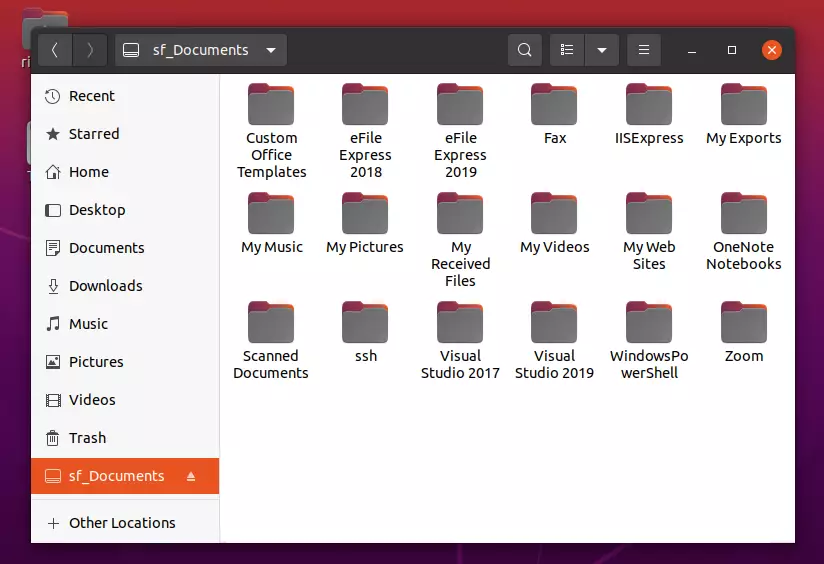
If you don't see it mounted, go to the /media/sf_FOLDERNAME
That's it!
Conclusion:
This post demonstrated the process of sharing folders from VirtualBox host computers with Ubuntu guest machines. Here are the key points to remember:
- Ensure you are using the latest version of VirtualBox and install Guest Additions for optimal functionality.
- Install required packages and update your Ubuntu system to prepare for folder sharing.
- Use the VirtualBox menu to insert the Guest Additions CD image and follow the on-screen prompts to install it.
- Enable copying and pasting between guest and host by adjusting the guest machine's settings.
- Add the shared folders in VirtualBox settings and configure them for auto-mounting if desired.
- Access shared folders on the guest machine, typically located in /media/sf_FOLDERNAME.
If you encounter any issues during the setup, please leave a comment for assistance.
Was this guide helpful?

About the Author
Richard
Tech Writer, IT Professional
Richard, a writer for Geek Rewind, is a tech enthusiast who loves breaking down complex IT topics into simple, easy-to-understand ideas. With years of hands-on experience in system administration and enterprise IT operations, he’s developed a knack for offering practical tips and solutions. Richard aims to make technology more accessible and actionable. He's deeply committed to the Geek Rewind community, always ready to answer questions and engage in discussions.


As a newbie, I am baffled from Step 2 onwards.
My guest machine is Windows XP, so I can’t run Linux commands on it.
The title of this tutorial is “Share Host Folders with VirtualBox Ubuntu Guests”. Emphasis is on the last three words. 😉
Well done, It worked for me.