

This brief tutorial shows students and new users how to set up two-factor or multi-factor authentication for SSH on Ubuntu 20.04 | 18.04 using Google Authenticator.
Suppose you’re accessing your server via SSH remotely and want to add another layer of security to ensure unauthorized user agents and threat actors can’t log in. In that case, adding two-factor authentication is a great move.
Two-factor authentication enables users to provide specific details, such as random code or OTP (Time Password ), to add another layer of security to standard usernames and passwords.
We previously showed you how to use Google Authenticator to set up two-factor authentication with Ubuntu.
To read this post, click here.
To get started with setting up two-factor authentication for SSH on Ubuntu using Google authenticator, follow the steps below:
Install Google Authenticator
Before configuring the SSH server to enable two-factor or multi-factor access, you must install Google Authentication.
Since we’ve already shown you how to install Google Authenticator Ubuntu and set it up on your mobile device, please reference the post below so we don’t write it again.
How to install Google Authenticator on Ubuntu Linux
After setting up the steps above, continue below.
Configure Two-factor SSH
Now that you have installed Google Authenticator on Ubuntu and your mobile device, continue below to configure the SSH server to use it.
To set up SSH, run the commands below to open its default configuration file on Ubuntu.
sudo nano /etc/ssh/sshd_config
Next, make the highlighted changes in the file to make this work.
# Authentication:
#LoginGraceTime 2m
PermitRootLogin yes
#StrictModes yes
MaxAuthTries 3

#MaxSessions 10

# Change to yes to enable challenge-response passwords (beware issues with
# some PAM modules and threads)
ChallengeResponseAuthentication yes


# PAM authentication, then enable this but set PasswordAuthentication
# and ChallengeResponseAuthentication to 'no'.
UsePAM yes
Save and exit.
Next, run the commands below to open Ubuntu’s PAM SSH configuration file.
sudo nano /etc/pam.d/sshd
Then append the highlighted changes below and save.
# PAM configuration for the Secure Shell service

# Standard Un*x authentication.
@include common-auth
# Disallow non-root logins when /etc/nologin exists.
account    required     pam_nologin.so

auth   required   pam_google_authenticator.so
Save the file and exit.
After making the changes above, restart the SSH service.
sudo systemctl restart sshd
Now, go and test it out. You should be prompted for a one-time code every time you attempt to sign in.
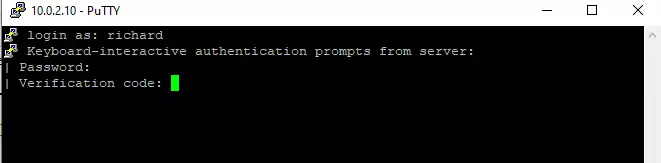
If you set up SSH public key authentication, you’ll want to add this line to the main SSH configuration file at the/etc/ssh/sshd_config file.
AuthenticationMethods publickey,keyboard-interactive
Then ensure this is included in the PAM SSH rule file at /etc/pam.d/sshd file.
auth required pam_google_authenticator.so
Exit both files and save your changes, then restart SSH.
sudo systemctl restart sshd
That should do it!
Conclusion:
This post showed you how to configure SSH to accept two-factor authentication using Google Authenticator.
If you find any error above, please use the form below to report.
You may also like the post below:
Leave a Reply Cancel reply