
Did you know you can use the Copilot app in Windows 11 to quickly find files on your computer? This feature helps you search your documents, pictures, and more — just by typing or asking questions in simple language.
With the latest update (version 1.25034.133.0), Copilot makes searching your files easier than ever. It can look inside many file types like pictures (.png, .jpeg, .svg), documents (.pdf, .docx), spreadsheets (.xlsx, .csv), and text files (.txt, .json).
Before you start, you need to turn on the file search and file read permissions in Copilot. This lets the app see your files and help you find what you need.
To learn how to enable these permissions, visit this helpful guide:
Enable File Search in Windows 11 Copilot
How to Find Files Using Copilot in Windows 11
Follow these easy steps to start searching your local files with Copilot:
- Open the Copilot app on your Windows 11 PC. You can click the Copilot icon on the taskbar or press
Win + Con your keyboard. - Go to the Settings page inside the Copilot app.
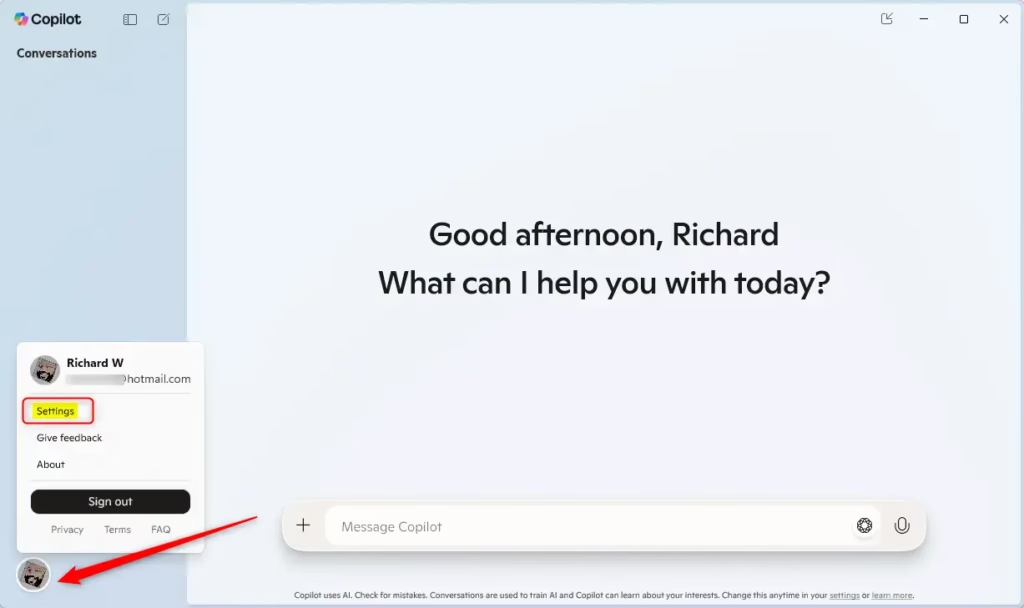
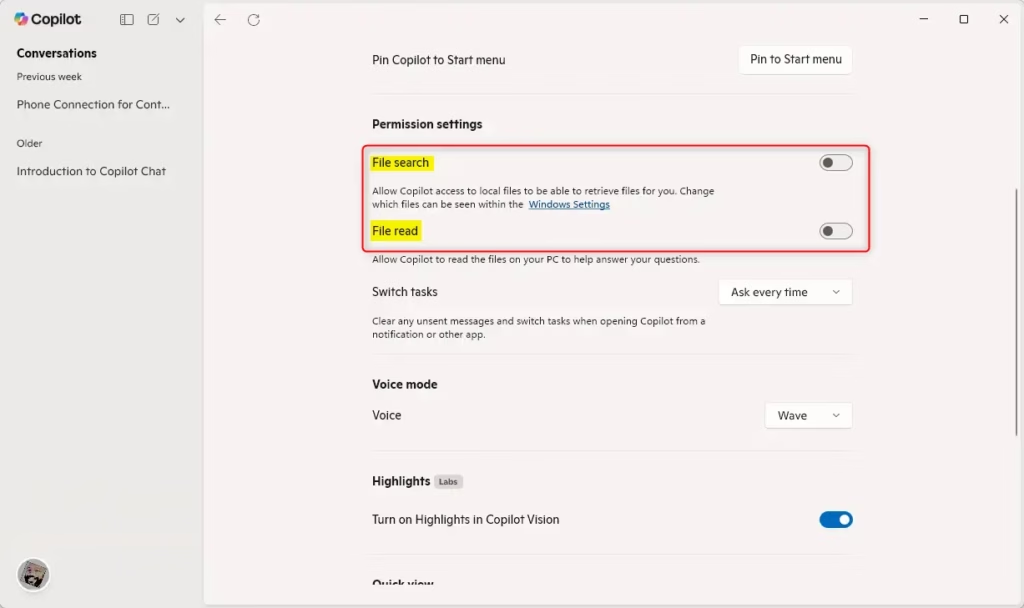
- Find the Permissions section.
- Turn on both File search and File read permissions.
Now, you’re ready! Just type in what you want to find — for example, “Show me my vacation photos from last year” or “Find the report I worked on last week.” Copilot will quickly find your files.
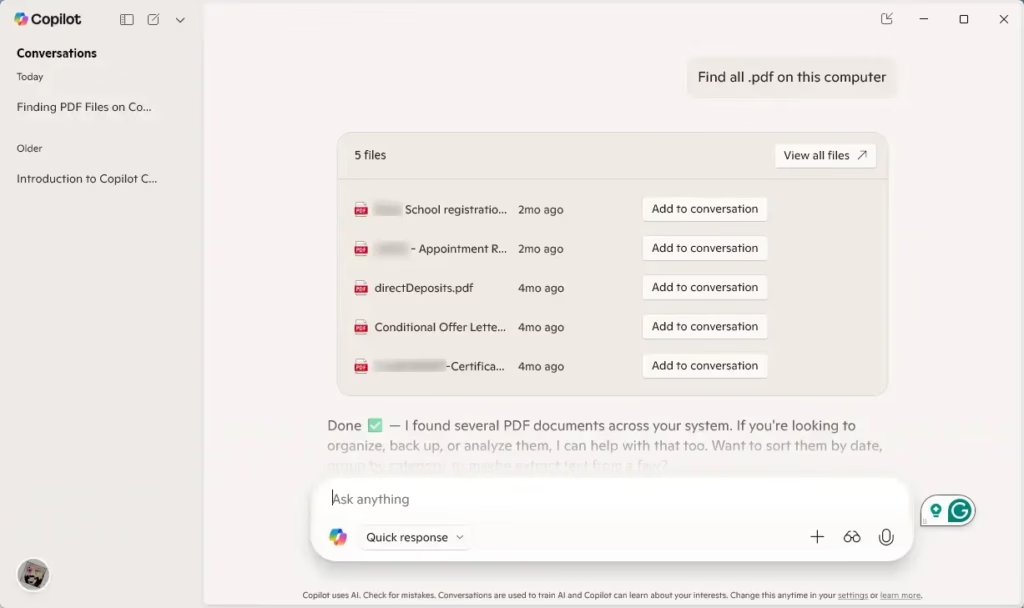
That’s it! You can now find files on your PC faster and easier using simple language with Windows 11 Copilot.
Why Use Copilot to Search Your Files?
- Easy Language: Just type or ask in everyday words — no need to remember exact file names.
- Supports Many File Types: Works with pictures, documents, spreadsheets, and more.
- Simple Setup: Turning on permissions only takes a few clicks inside Copilot.
- Saves Time: Quickly find files so you can focus on what matters.
- Smart AI Search: Copilot uses AI to give you better and more accurate results.
Give it a try and see how Copilot can make finding files on your Windows 11 computer fast and easy!



Leave a Reply Cancel reply