
Voice Access lets you control your Windows 11 PC using your voice. You can open apps, navigate your computer, and even type by speaking commands.
If you tried Voice Access, you probably added extra languages to talk to your PC in different accents or versions of English, like English (UK) or English (India).
Sometimes, you might want to remove a language you no longer use. This guide will show you easy steps to uninstall Voice Access languages on your Windows 11 computer.
What is Voice Access?
Voice Access is a tool in Windows 11 that helps you control your PC by speaking. It supports several English language versions:
- English – US
- English – UK
- English – India
- English – New Zealand
- English – Canada
- English – Australia
You can add or switch between these languages in Voice Access Settings > Languages.
How to Uninstall Voice Access Languages
You can remove Voice Access languages in two simple ways: using the Windows Settings app or using the Windows Terminal app. Let’s go through both.
1. Using Windows Settings
Follow these steps to uninstall a Voice Access language with the Settings app:
- Click the Start button (Windows icon) at the bottom-left corner.
- Select Settings (gear icon).
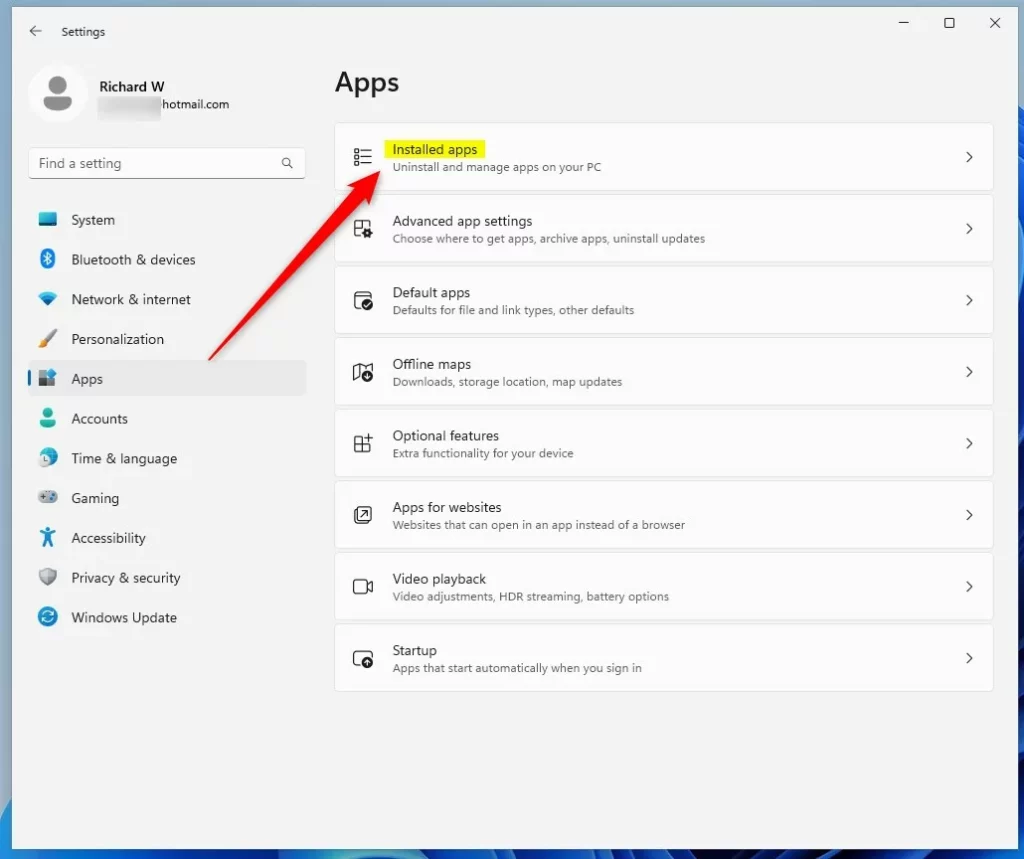
- From the left menu, click Apps.
- Click on Installed apps.
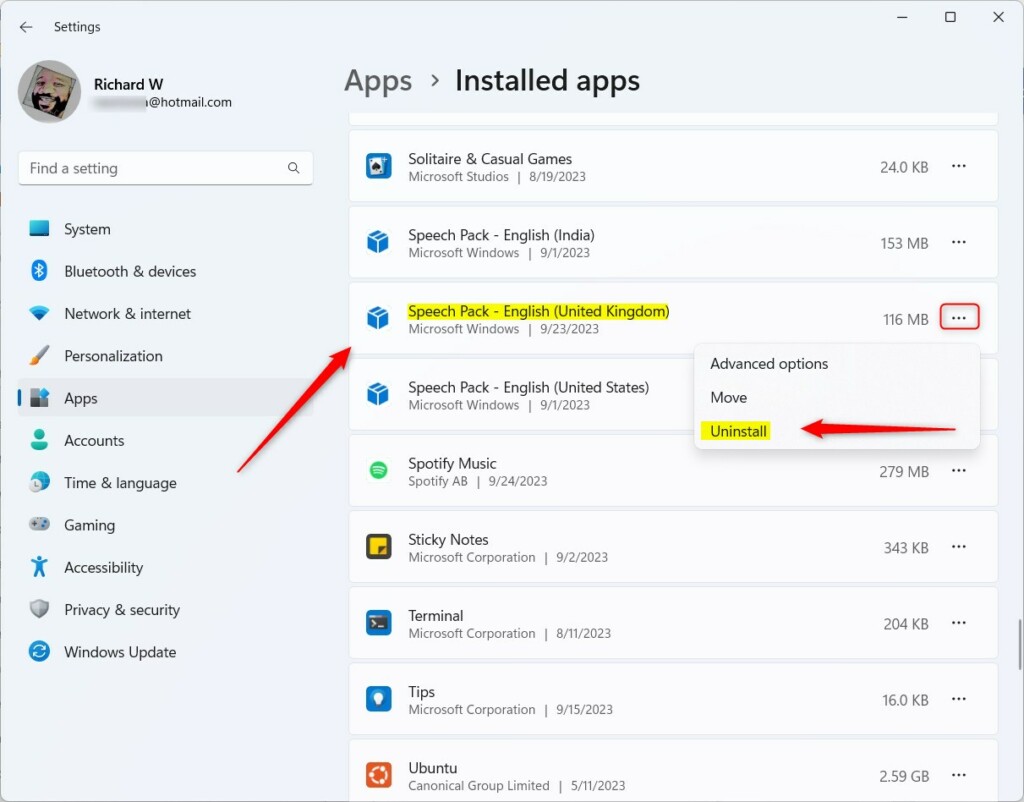
- Scroll through the list and find the language pack you want to remove. It will be named something like Speech Pack (English United Kingdom).
- Click the three dots (Settings option) next to it and choose Uninstall.
- When Windows asks, click Uninstall again to confirm.
2. Using Windows Terminal
If you like using commands, you can remove Voice Access languages through Windows Terminal.
⚠️ Admin Required: This method requires administrator privileges.
Steps:
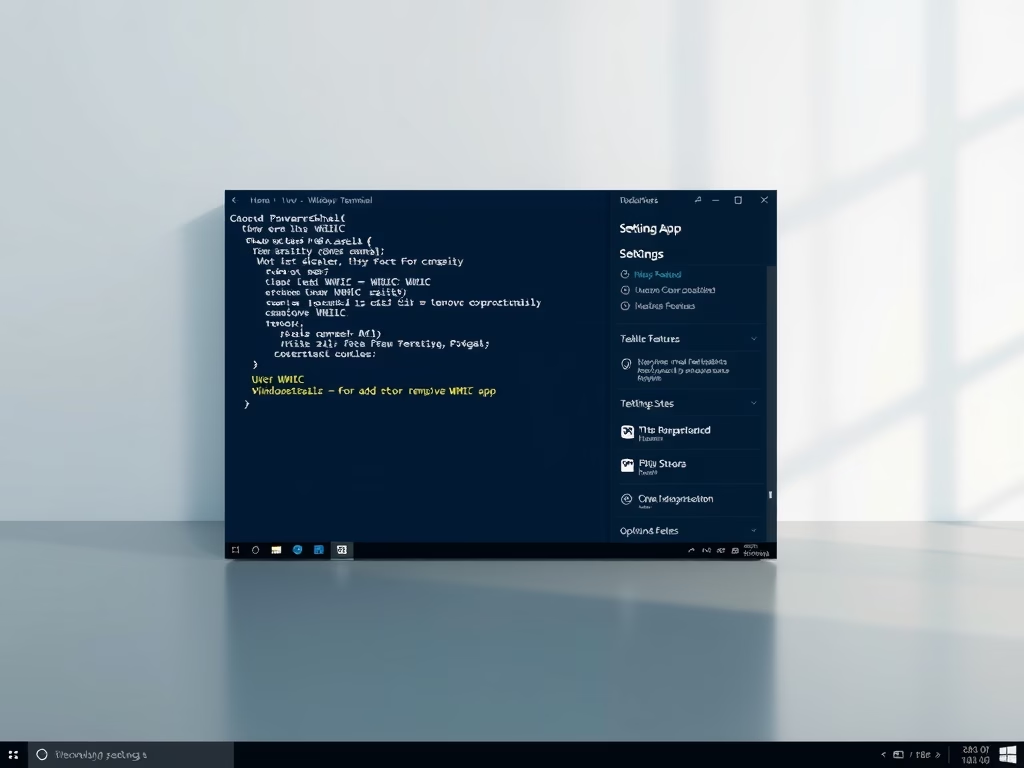
- Open Windows Terminal as an administrator. To do this:
- Click Start, type Terminal, right-click on Windows Terminal, and select Run as administrator.
- Type this command to see a list of installed Voice Access languages:
Get-AppxPackage *MicrosoftWindows.Speech* | Select Name, PackageFullName - You will see a list like this:
Name                            PackageFullName
----                            ---------------
MicrosoftWindows.Speech.en-US.1 MicrosoftWindows.Speech.en-US.1_1.0.16.0_x64__cw5n1h2txyewy
MicrosoftWindows.Speech.en-IN.1 MicrosoftWindows.Speech.en-IN.1_1.0.7.0_x64__cw5n1h2txyewy
MicrosoftWindows.Speech.en-GB.1 MicrosoftWindows.Speech.en-GB.1_1.0.7.0_x64__cw5n1h2txyewy - Find the PackageFullName of the language you want to uninstall.
- Then run this command, replacing the package name with the one you want to remove:
Remove-AppxPackage -Package 'MicrosoftWindows.Speech.en-GB.1_1.0.7.0_x64__cw5n1h2txyewy' - After running the command, the language pack will be removed from your PC.
Summary
You can uninstall Voice Access languages either through the Windows Settings or Windows Terminal.
- Using Settings is easier if you prefer clicking through menus.
- Using Terminal is faster if you’re comfortable with commands.
- Removing languages you don’t need helps keep your PC clean and organized.
If you want to learn more about turning Voice Access on or off or installing new Voice Access languages, check out these helpful guides.
If you have questions or tips, feel free to leave a comment below!


Leave a Reply Cancel reply