

This article explains how to turn “Security alerts” on or off when someone’s security keys change in Messenger on mobile devices.
The Messenger Desktop app is a standalone messaging app developed by Facebook that allows users to send and receive messages, make audio and video calls, and share files and media with other users without going through a web browser.
When you use the Messenger app on Windows, you can turn auto-start on or off, change your online status, turn message preview on or off, mute or unmute all notifications, change skintone for emojis and hand gestures, turn to spell-check and auto-correction on or off, turn open Messenger when used in a browser, on or off, and more.
On mobile devices, you can also turn Active status on or off, turn on safe website browsing, add or remove people from hidden contacts, turn unlock with biometrics on or off, add or remove people from restricted accounts, show or hide notifications on lock screen, turn new friend notifications on or off, turn notifications and sounds on or off, change who can see your stories, and more.
When you use Messenger for communications, it encrypts your chats from end to end so that your conversations are secured. There’s a security setting that, when enabled, will let you know if your contact’s security keys have changed.
This is one way to ensure you’re not chatting with the wrong person. You will not receive these notifications by turning “Security alerts” off.
Turn “Security alerts” on or off for Messenger
As mentioned above, users can turn Messeger’s security alerts on or off to get notifications when someone’s security keys have changed. This is an important step to ensure you’re always chatting with the right person.
Here’s how to do it.
First, open the Messenger app on your mobile device.

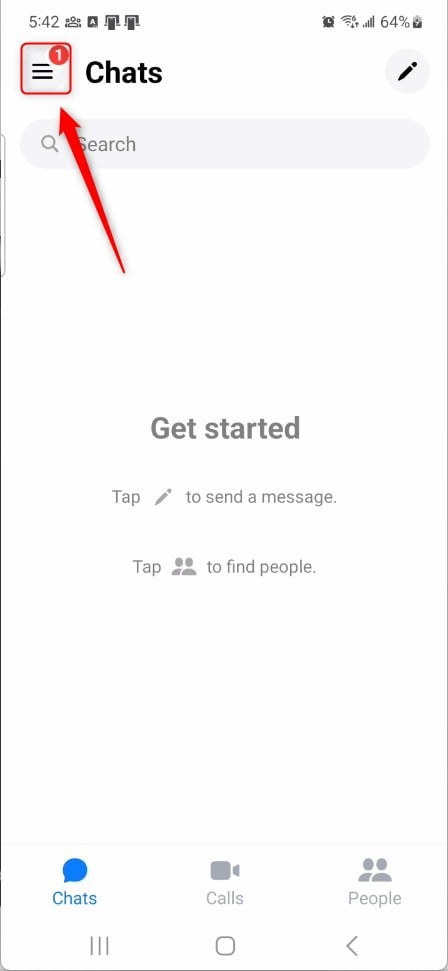
When the app opens, click Menu on the top left and select the Settings (gear) button on the profile menu.
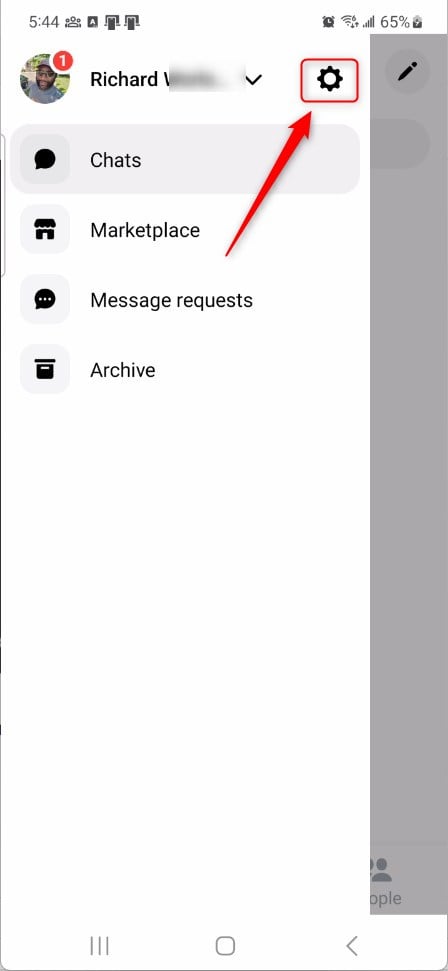
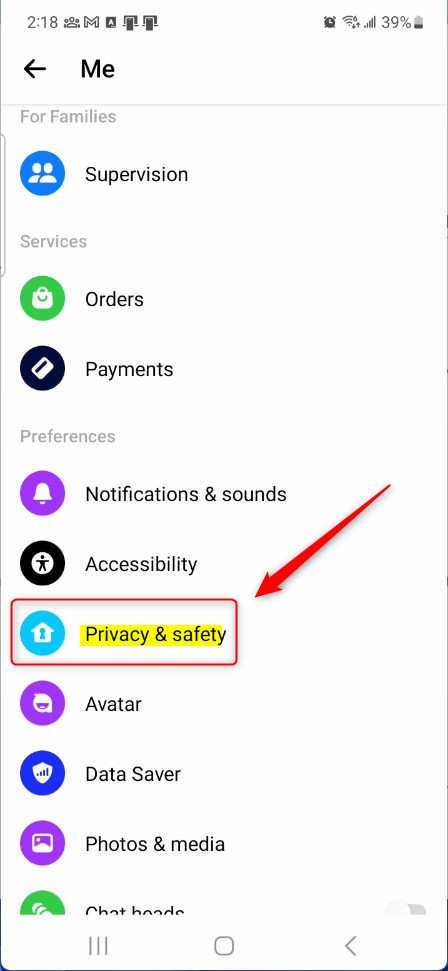
Next, click the Privacy & safety tile to expand it.
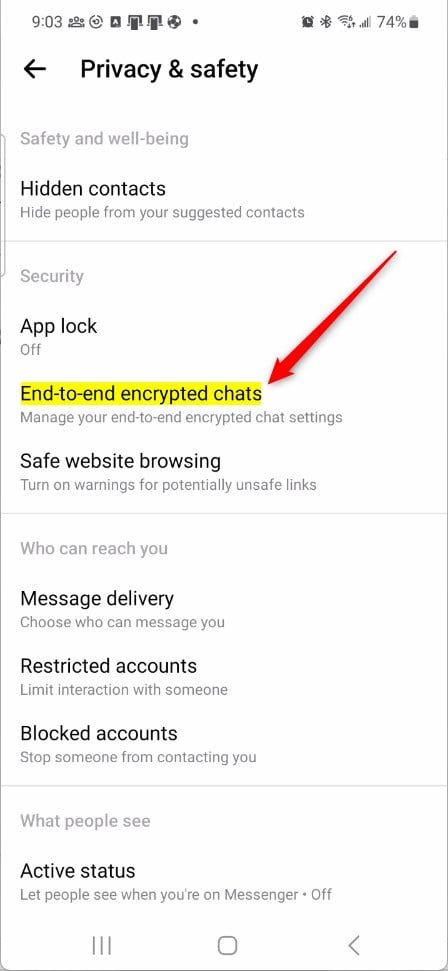
On the Privacy & safety settings page, select the “End-to-end encrypted chats” tile to expand it.
Next, select “Security alerts” on the End-to-end encrypted chats settings page.
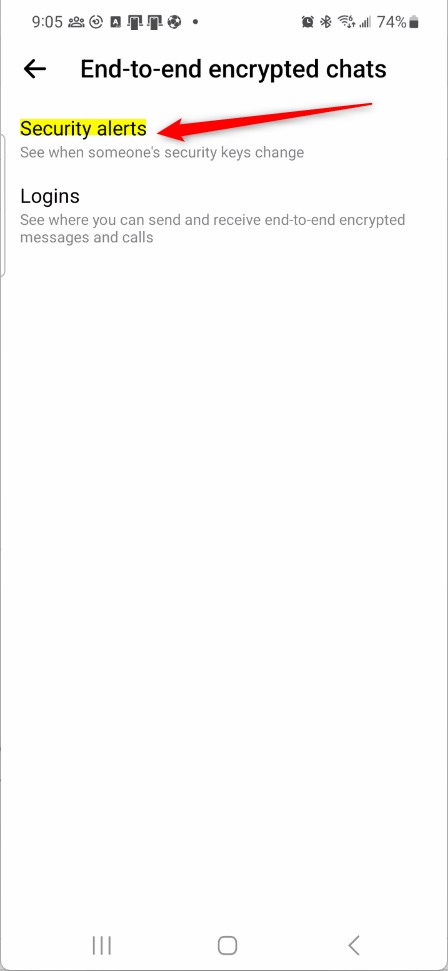
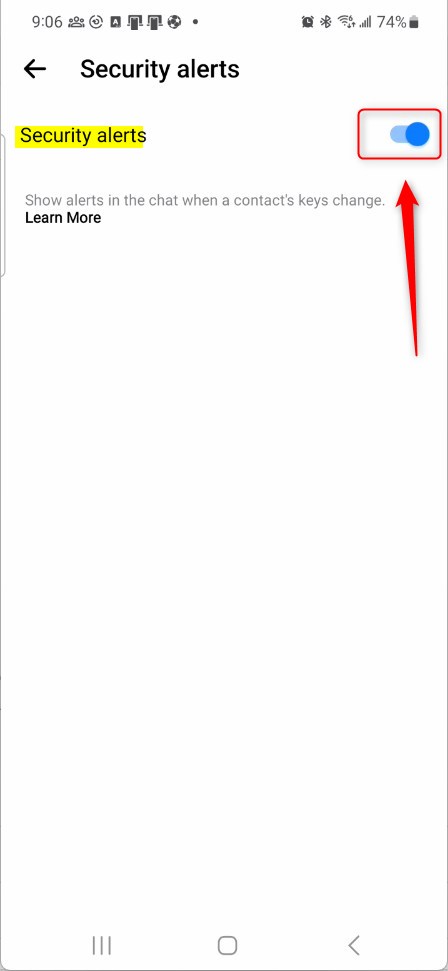
Next, select the “Security alerts‘ tile, then toggle the switch button to the On position to enable this feature.
To disable it, toggle the switch button to the Off position.
That should do it!
Conclusion:
- This guide has demonstrated the step-by-step process to turn “Security alerts” on or off in the Messenger app on mobile devices.
- Ensuring that your contact’s security keys have not changed is essential, providing an added layer of security to your conversations.
- Following these instructions, you can effortlessly manage the “Security alerts” feature and enhance your messaging privacy on Messenger.

Leave a Reply Cancel reply