If you want to easily arrange your open windows side by side or in a grid on your screen, the Snap windows feature in Windows 11 can help you do that automatically.
This simple guide will show you how to turn Snap windows on or off, so you can use it when you want, or turn it off if you don’t need it.
What is Snap Windows?
Snap windows helps you quickly resize and place your open apps by dragging them to the edges or corners of your screen. For example, you can drag a window to the left edge to make it fill the left half of the screen, and another window to the right to fill the other half.
Want to learn more? Check out this official Microsoft support page: Snap Your Windows – Microsoft Support
How to Turn Snap Windows On or Off in Settings
- Press Windows key + I on your keyboard to open Settings.
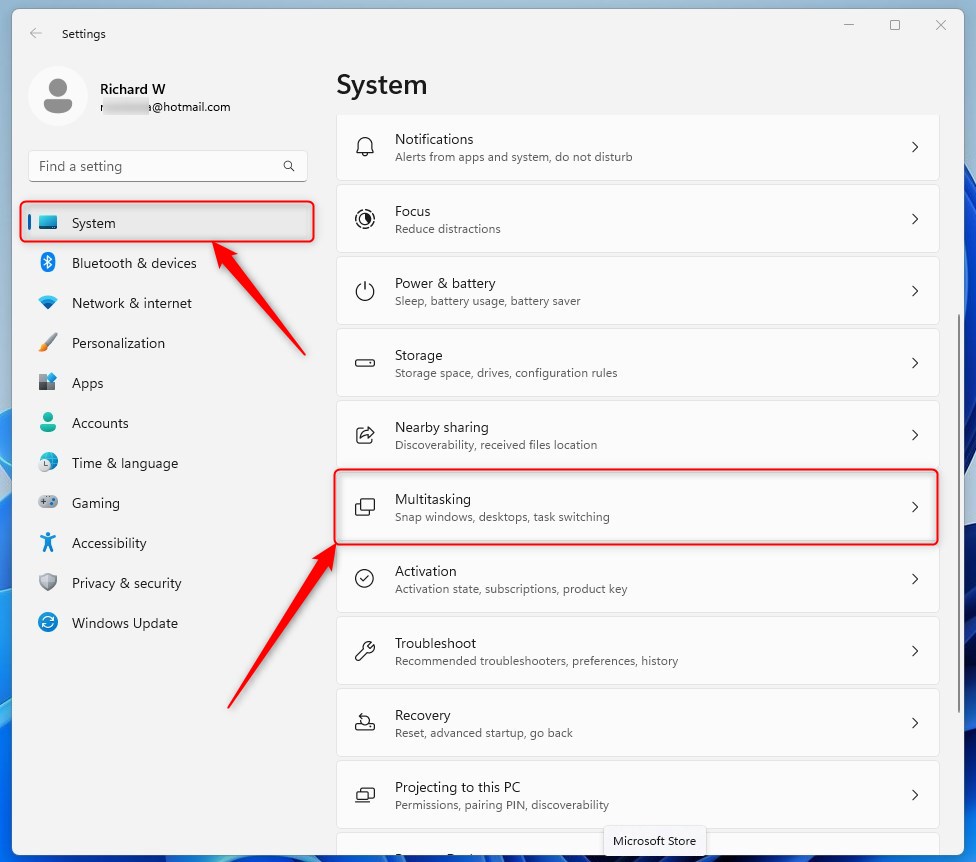
- In the Settings window, click on System on the left side.
- Click on Multitasking on the right side.
- Under Snap windows, toggle the switch to On to enable it, or Off to disable it.
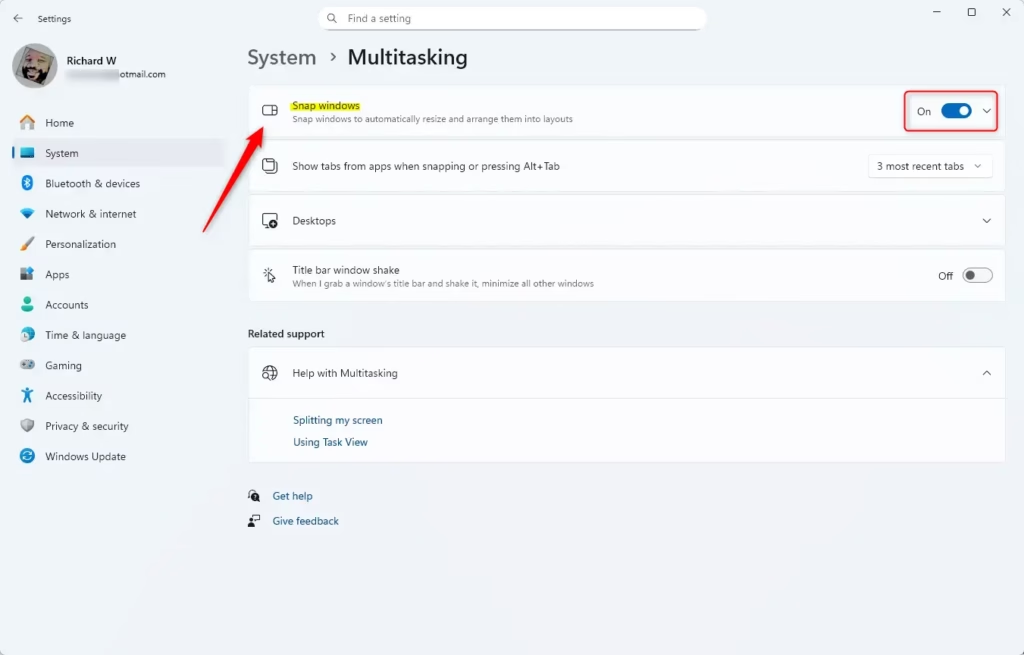
When Snap windows is turned off, you won’t be able to drag windows to the screen edges to snap them or double-click the top edge to maximize vertically.
How to Turn Snap Windows On or Off Using Control Panel
- Open the Control Panel (you can search for it in the Start menu).
- Make sure your Control Panel view is set to Small icons or Large icons.
- Click on Ease of Access Center.
- Click on any of these links:
- Make the mouse easier to use
- Make the keyboard easier to use
- Make it easier to focus on tasks
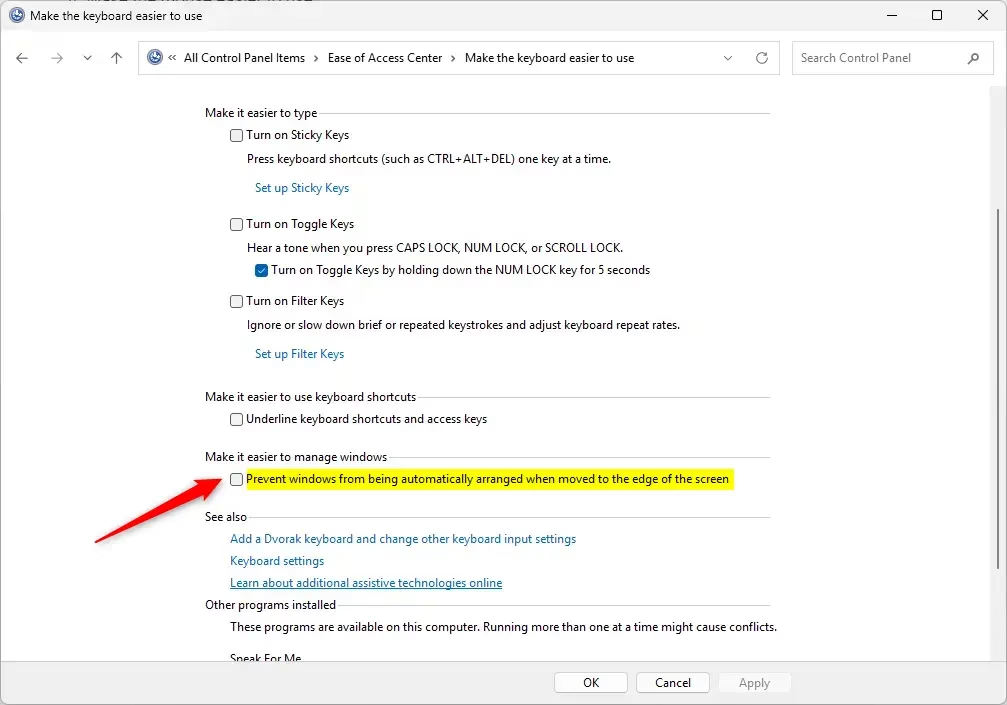
- Look for the option Prevent windows from being automatically arranged when moved to the edge of the screen.
- Check this box to turn off Snap windows, or uncheck it to turn on Snap windows.
- Click OK to save your choice.
How to Turn Snap Windows On or Off Using the Registry (Advanced)
Warning: Editing the registry can cause problems if not done correctly. Please back up your registry before making changes, or ask someone experienced to help.
Turn On Snap Windows (Default)
reg add "HKCU\Control Panel\Desktop" /v WindowArrangementActive /t REG_SZ /d 1 /f
Turn Off Snap Windows
reg add "HKCU\Control Panel\Desktop" /v WindowArrangementActive /t REG_SZ /d 0 /f
Things to Know About Snap Windows
- Screen Size: Your screen resolution should be at least 1024×768 for Snap windows to work well. Windows 11 recommends 1366×768 or higher.
- New Features: Some recent Windows 11 updates show helpful tips when you use Snap and suggest Microsoft Edge tabs for snapping side by side.
- What Happens When Disabled: Turning Snap off stops windows from snapping when dragged to edges and disables vertical maximize by double-clicking the top edge.
Summary
Snap windows is a handy feature in Windows 11 that makes it easy to organize your open apps and work faster by arranging windows on your screen.
You can turn Snap windows on or off in different ways:
- Using the Settings app (quick and easy).
- Through the Control Panel’s Ease of Access Center.
- By editing the Windows Registry (for advanced users).
Try using Snap windows to improve your multitasking, and turn it off anytime if you prefer to arrange windows manually!
Leave a Reply Cancel reply