
This tutorial will show you how to turn on or off password protected sharing on your Windows 11 PC.
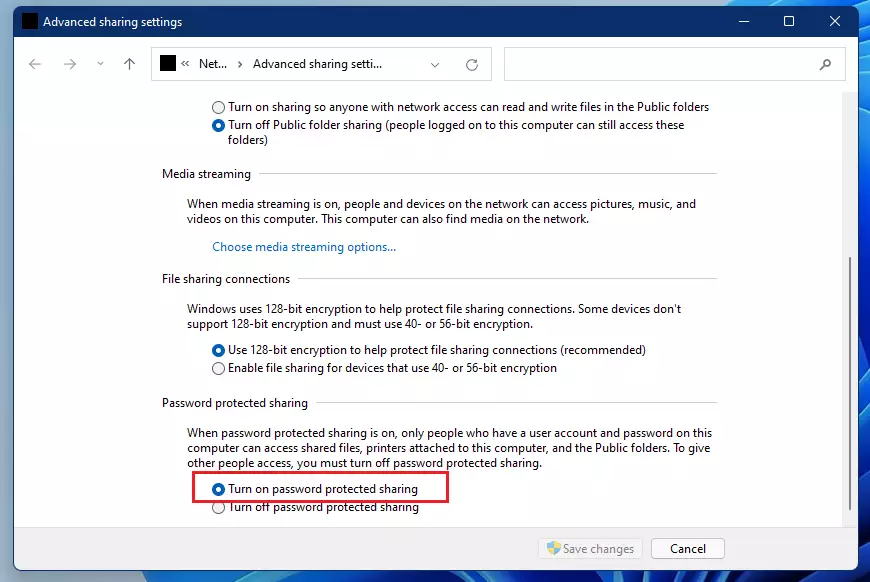
When password protected sharing is turned on, only people who have an account and password on your computer can access shared files and folders, shared printers attached to your computer, and Public folders on the network.
If you want to give access to shared items to other people without an account and password on your computer, then you will need to turn off password protected sharing.
⚠️ Admin Required: You must be signed in as an administrator to turn on or off password protected sharing.
Option One: Using Settings
This option is only available starting with Windows 11 version 22H2 KB5030310 Build 22621.2361.
- Open Settings by pressing
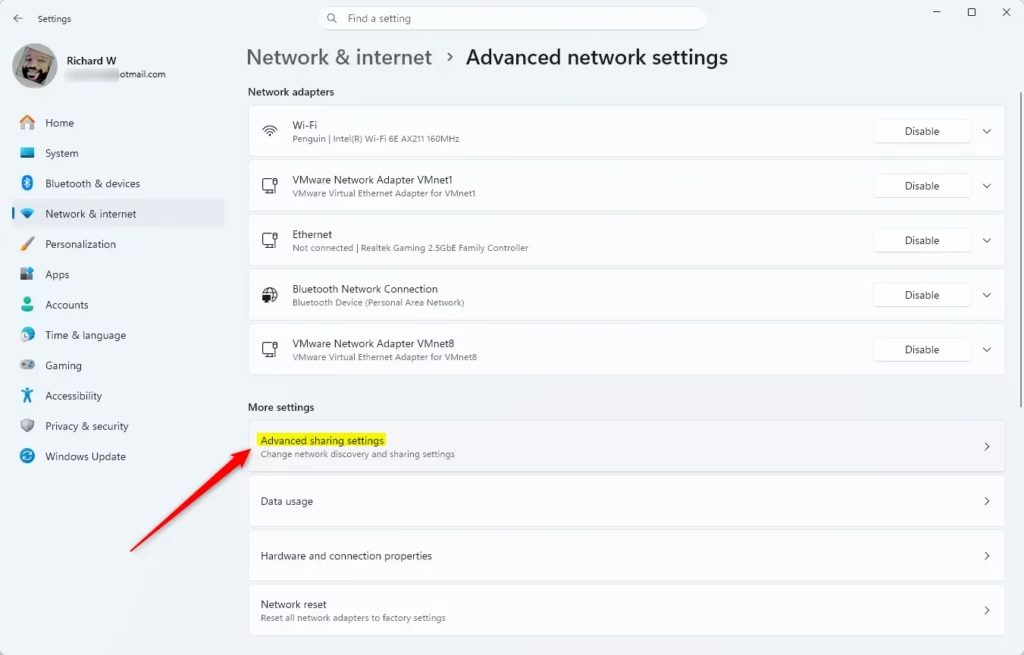
Win+I. - Click on Network & internet on the left side, then click on Advanced network settings on the right side.
- Click on Advanced sharing settings on the right side. Open Advanced sharing settings
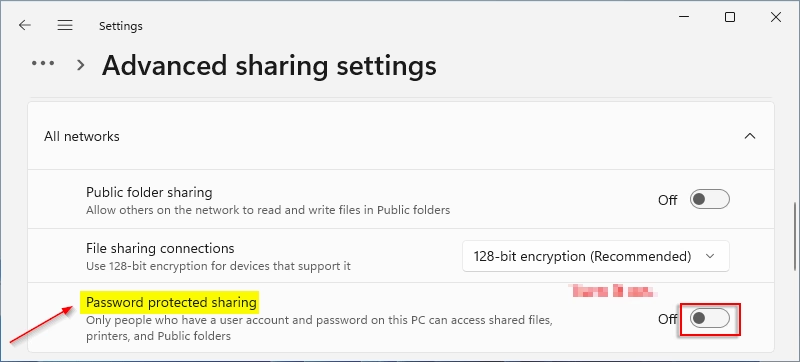
- Click on All networks to expand it open.
- Turn On (default) or Off password protected sharing for what you want.
- You can now close Settings if you like.
Option Two: Using Control Panel
This option is no longer available starting with Windows 11 build 22509.1011.
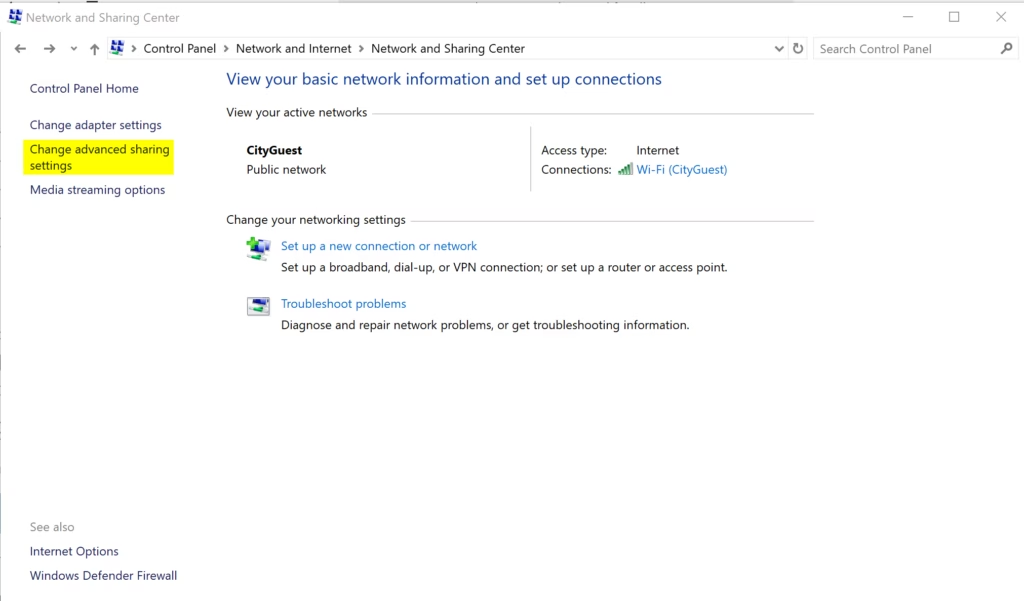
- Open Control Panel (icons view), and click on the Network and Sharing Center icon.
- Click on the Change advanced sharing settings link on the left side in Network and Sharing Center.
- Expand open the All networks section.
- Under Public folder sharing, select either Turn on password protected sharing (default) or Turn off password protected sharing for what you want, then click on Save changes.
- You can now close Control Panel if you like.
Summary
Password protected sharing controls who can access your shared files and folders on a network. When it is turned on, only people with an account on your computer can access shared items. When it is turned off, anyone can access them without a password. You can change this setting in Settings or Control Panel, depending on your Windows 11 version. Remember that you need administrator access to make these changes.


Leave a Reply Cancel reply