
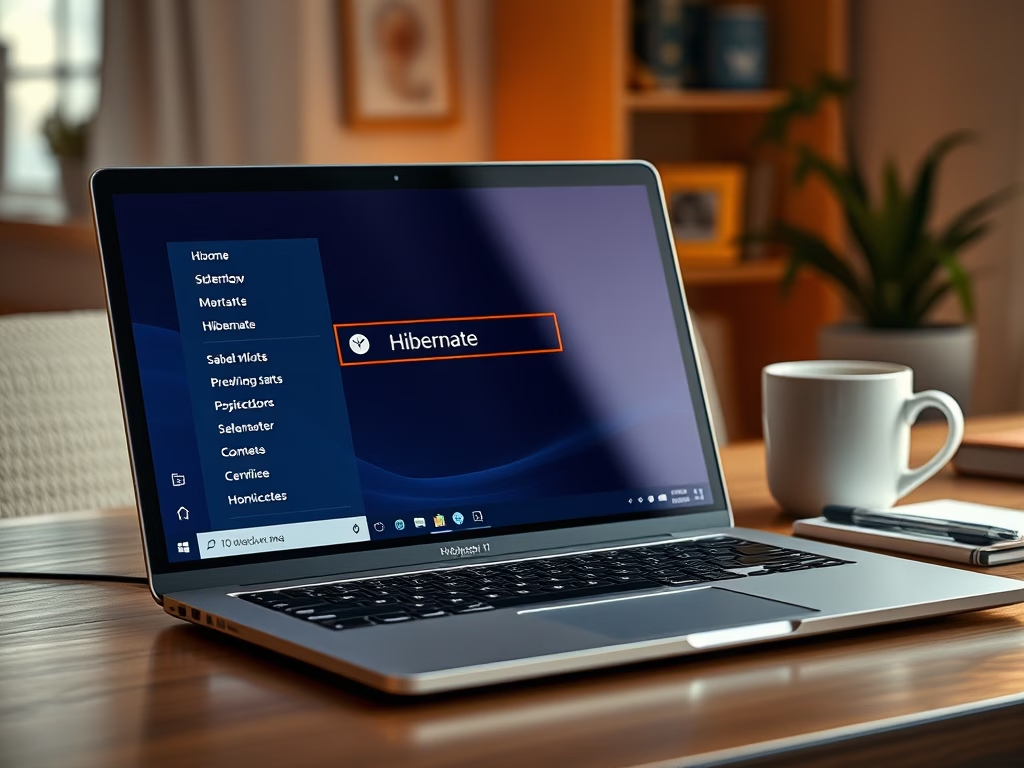
Hibernate is a way to save your work and turn off your computer using very little power. This guide will help you easily turn hibernate on or off in Windows 11.
What is Hibernate?
When you put your computer to sleep, it keeps your work in the memory and uses a little power. But when you use hibernate, your open files and programs are saved to your hard drive, and then your PC turns off completely. This saves more power than sleep and lets you start back where you left off, although it takes a bit longer to start than sleep.
Hibernate is especially useful if you won’t use your laptop or tablet for a long time and won’t have a chance to charge it.
Things to Know About Hibernate
- Windows saves hibernate info in a hidden file called
C:\hiberfil.sys. This file usually takes up about 40% of your computer’s RAM size. - If you turn off hibernate, Windows will delete this file to free up space on your hard drive.
- Turning off hibernate also disables a feature called fast startup, which helps your PC start faster after shutdown.
- When hibernate is off, you won’t see it as an option when you click the Power menu.
How to Turn Hibernate On or Off
Method 1: Using Commands
- ⚙️ Requires Admin Privileges: Right-click the Start button and choose Windows Terminal (Admin) or Command Prompt (Admin).
- To turn on hibernate, type this command and press Enter:
powercfg -h on - To turn off hibernate, type this command and press Enter:
powercfg -h off - Close the terminal window when done.
Method 2: Use Local Group Policy Editor
- ⚙️ Requires Admin Privileges: In the Local Group Policy Editor, navigate to
Computer Configuration\Administrative Templates\System\Power Management\Sleep Settings - Select “Specify the system hibernate timeout (plugged in/on battery)”
- Set it to Enabled and enter 0
Extra Tip: What if Hibernate Option is Missing?
Some newer PCs use a technology called Modern Standby, which might disable hibernate by default. If you want hibernate but don’t see it, you may need to turn off Modern Standby first. This is a more advanced step and may require changing system settings.
Summary
- Hibernate saves your work and turns off your PC using very little power.
- It’s great if you won’t use your device for a while and can’t charge it.
- Turning off hibernate frees up disk space but disables fast startup.
- You can turn hibernate on or off easily using commands.
- Remember to restart your computer after changing these settings.
- For more details from Microsoft, see their official guide: Disable and Re-enable Hibernation – Microsoft

Leave a Reply Cancel reply