
This guide will help you easily turn on or off the automatic clock change for Daylight Saving Time (DST) in Windows 11. This means your computer will change the clock forward or backward automatically when DST starts or ends.
What is Daylight Saving Time?
Daylight Saving Time (DST) is when we set clocks forward by one hour in spring (“spring forward”) and back by one hour in autumn (“fall back”). This helps us have more daylight in the evenings during warmer months. Not all countries use DST, and the start and end dates can change.
Why Change This Setting?
Windows 11 usually adjusts the clock for DST automatically. But sometimes you may want to turn this off or on, depending on your location or preference.
How to Turn On or Off Daylight Saving Time Adjustment
Option 1: Using Settings
Note: You need to be signed in as an administrator to do this.
- Press Win + I on your keyboard to open Settings.
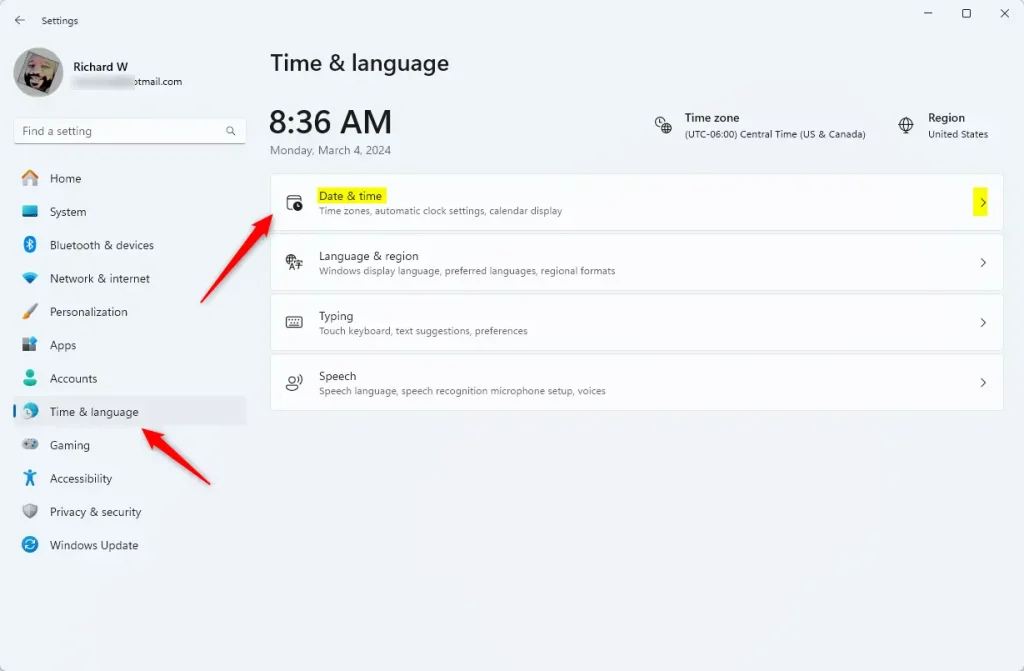
- Click Time & language on the left side.
- Click Date & time on the right side.
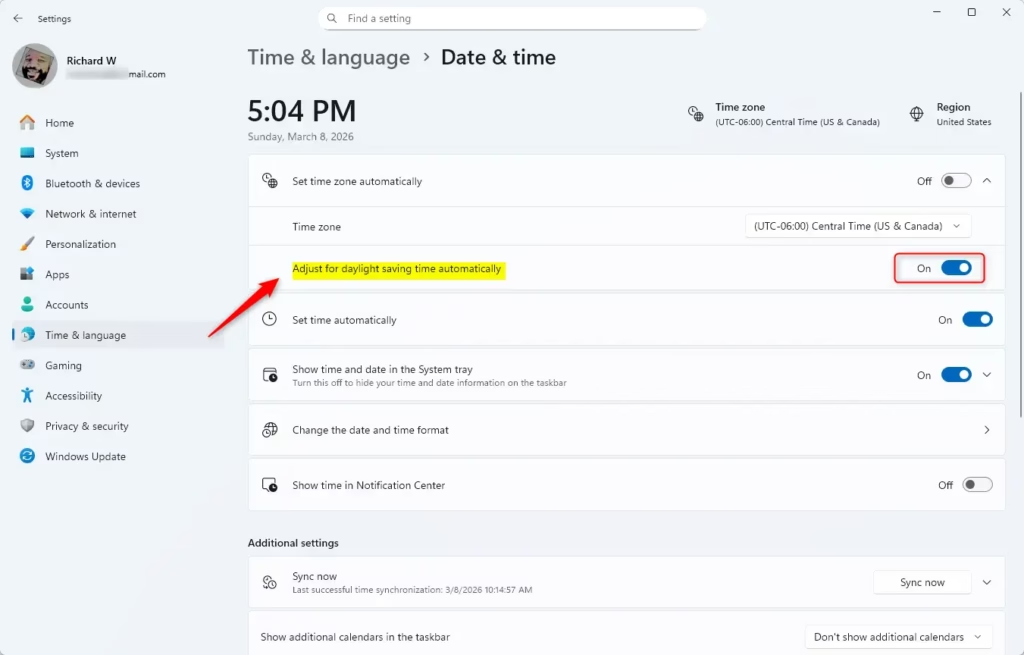
- Find the switch called Adjust for daylight saving time automatically.
- Turn it On to have Windows change the clock automatically, or Off to stop it.
- Tip: If Set time zone automatically is turned on, this option might be greyed out. You can turn off automatic time zone before changing DST settings.
Option 2: Using Control Panel
- Open the Control Panel. You can search for it in the Start menu.
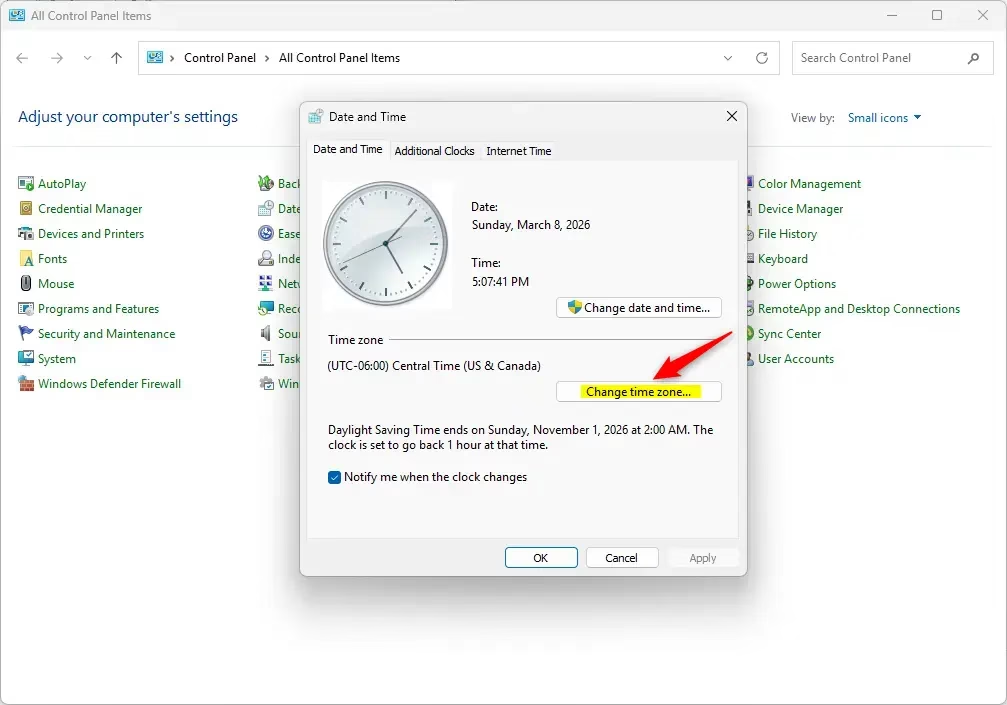
- Make sure the view is set to Icons (not categories), then click on Date and Time.
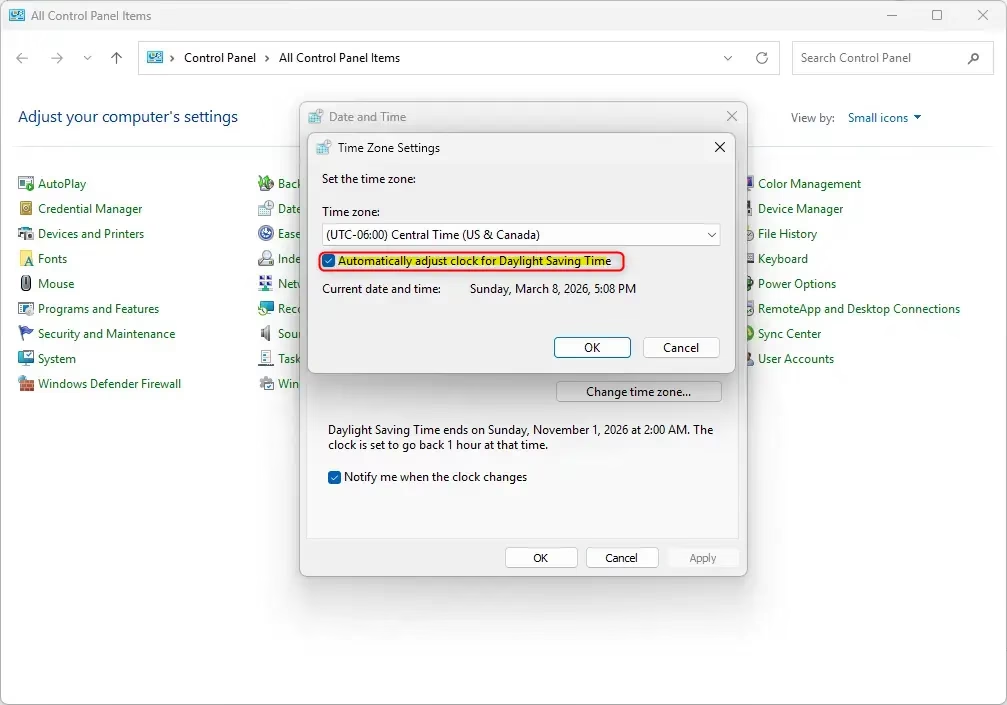
- Click the Change time zone… button.
- Check or uncheck the box for Automatically adjust clock for Daylight Saving Time depending on your preference.
- Click OK to save your changes.
- Close Control Panel when done.
Option 3: Using Registry Editor (Advanced)
Warning: Editing the Registry can cause serious problems if done incorrectly. Only use this if you are comfortable with advanced settings and have administrator rights.
To Turn On DST Adjustment (default setting):
reg add "HKLMSYSTEMCurrentControlSetControlTimeZoneInformation" /v ActiveTimeBias /t REG_DWORD /d 300 /f

reg add "HKLMSYSTEMCurrentControlSetControlTimeZoneInformation" /v Bias /t REG_DWORD /d 360 /f

reg add "HKLMSYSTEMCurrentControlSetControlTimeZoneInformation" /v DaylightBias /t REG_DWORD /d 4294967236 /f

reg add "HKLMSYSTEMCurrentControlSetControlTimeZoneInformation" /v DaylightStart /t REG_BINARY /d 00000300020002000000000000000000 /f

reg add "HKLMSYSTEMCurrentControlSetControlTimeZoneInformation" /v DynamicDaylightTimeDisabled /t REG_DWORD /d 0 /f

reg add "HKLMSYSTEMCurrentControlSetControlTimeZoneInformation" /v StandardStart /t REG_BINARY /d 00000b00010002000000000000000000 /f
To Turn Off DST Adjustment:
reg add "HKLMSYSTEMCurrentControlSetControlTimeZoneInformation" /v ActiveTimeBias /t REG_DWORD /d 360 /f

reg add "HKLMSYSTEMCurrentControlSetControlTimeZoneInformation" /v Bias /t REG_DWORD /d 360 /f

reg add "HKLMSYSTEMCurrentControlSetControlTimeZoneInformation" /v DaylightBias /t REG_DWORD /d 0 /f

reg add "HKLMSYSTEMCurrentControlSetControlTimeZoneInformation" /v DaylightStart /t REG_BINARY /d 00000000000000000000000000000000 /f

reg add "HKLMSYSTEMCurrentControlSetControlTimeZoneInformation" /v DynamicDaylightTimeDisabled /t REG_DWORD /d 1 /f

reg add "HKLMSYSTEMCurrentControlSetControlTimeZoneInformation" /v StandardStart /t REG_BINARY /d 00000000000000000000000000000000 /f
Summary
- Windows 11 usually adjusts clocks for DST automatically by default.
- You can turn this on or off using either Settings, Control Panel, or Registry Editor (for advanced users).
- Administrator rights are needed to change these settings.
- Make sure your time zone is set correctly for DST to work properly.
By following the steps above, you can control how your Windows 11 computer handles Daylight Saving Time changes with ease!
Helpful Links:
Learn more about Daylight Saving Time (Wikipedia)
Microsoft’s Daylight Saving Time Help & Support



Leave a Reply Cancel reply