

This post shows students and new users steps to enable or disable Bluetooth on Ubuntu Linux to connect or disconnect from nearby devices.
Bluetooth is a wireless technology that connects your computers, smartphones, and mobile devices to nearby Bluetooth-enabled devices.
With Bluetooth enabled in Ubuntu Linux, you can stream music, connect to devices like speakers, headphones, keyboards, mouse, send data, and easily communicate with nearby devices.
There are multiple ways to turn Bluetooth on or off on your computer. Some computers come with a dedicated Bluetooth button on top of the keyboard area and/or on either side of the computer.
The physical Bluetooth switch on your computer lets you quickly turn off or on your Bluetooth device. There’s also another way to turn off Bluetooth on Ubuntu Linux, and we’ll also show you how to do that.
Disabling and enabling Bluetooth in Ubuntu Linux hasn’t changed much. Similar to previous editions of Ubuntu, the process is still the same.
To get started with disabling and enabling Bluetooth on Ubuntu Linux, follow the steps below:
How to turn off or on Bluetooth on Laptop
As we mentioned above, there are multiple ways to turn on or turn off Bluetooth on Ubuntu Linux. One way is using your computer’s Bluetooth button.
If your laptop has a physical Bluetooth button, you can quickly turn it on or off the Bluetooth device simply by toggling the button to the On or Off position or tapping it to disable or enable it.
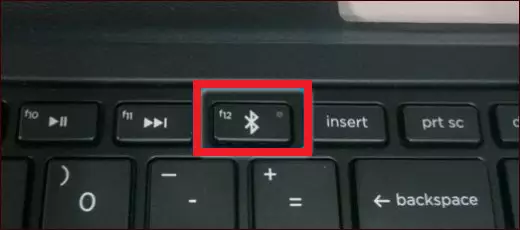
How to turn on or off Bluetooth on Ubuntu
If your computer does not have a Bluetooth switch or button, you can turn off or on Bluetooth from within Ubuntu Linux.
The Bluetooth icon appears in the top system menu when one or more Bluetooth devices are connected. You can see icons for volume, network, Bluetooth, and others. The top panel should look similar to the one below:

If you don’t see the Bluetooth signal icon on the top system menu, simply click the System Menu area to show the menu options. On the menu options, select Turn Off Bluetooth if it’s already On, or Turn On if it’s Off.
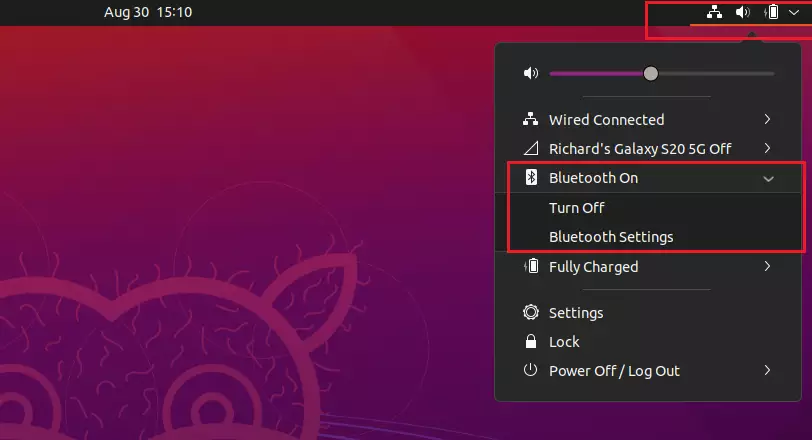
You can also bring up the Bluetooth panel from the system menu option. Click Bluetooth Settings to open the panel.
To connect to a Bluetooth device, use the panel. Then when a list of nearby Bluetooth devices shows up, select the one you want to pair with.
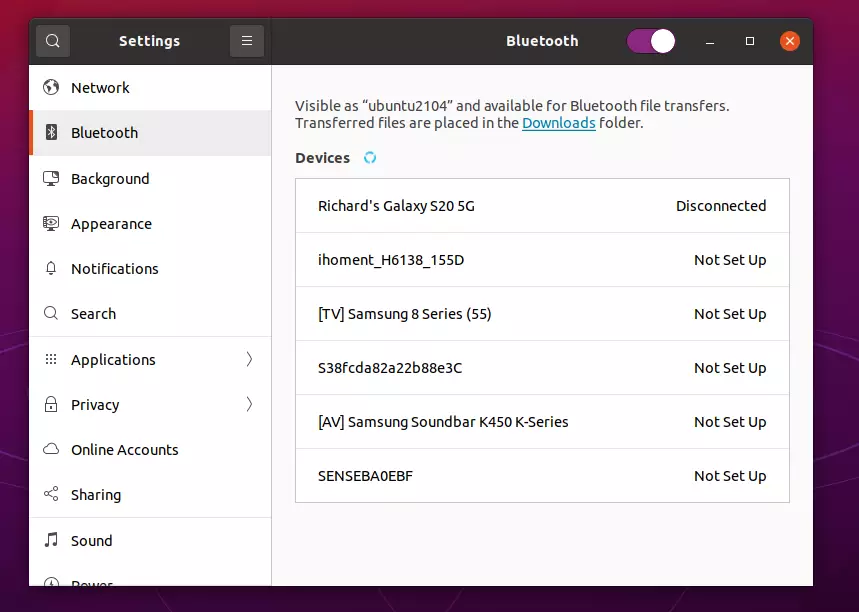
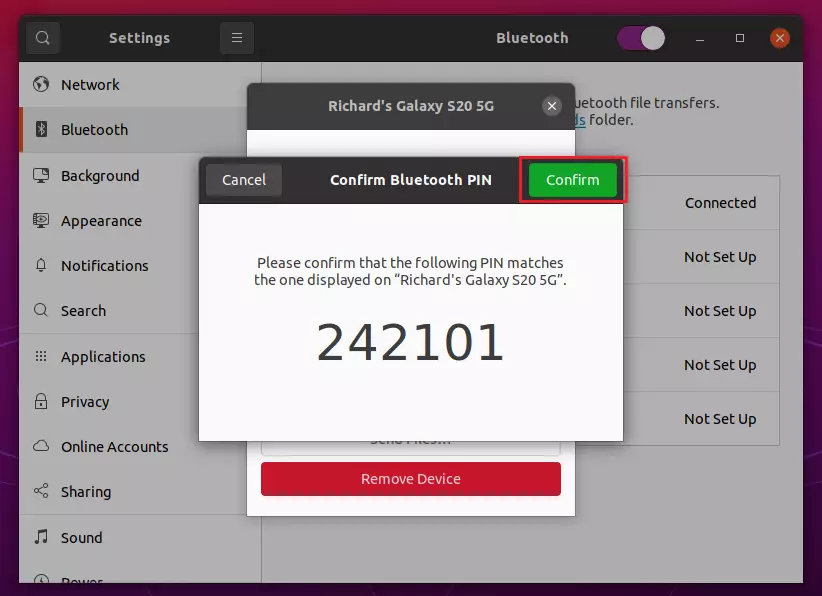
Confirm the Bluetooth connection PIN to pair with other devices.
How to disable or enable Bluetooth on Ubuntu Linux
In some situations, you may want to disable Bluetooth in Windows completely, and not just disconnect. You can do that via the Bluetooth settings panel.
To disable Bluetooth on Ubuntu Linux from the desktop, click on the click the “Show Applications” button from the bottom left or press the Super key (WIN) on your keyboard.
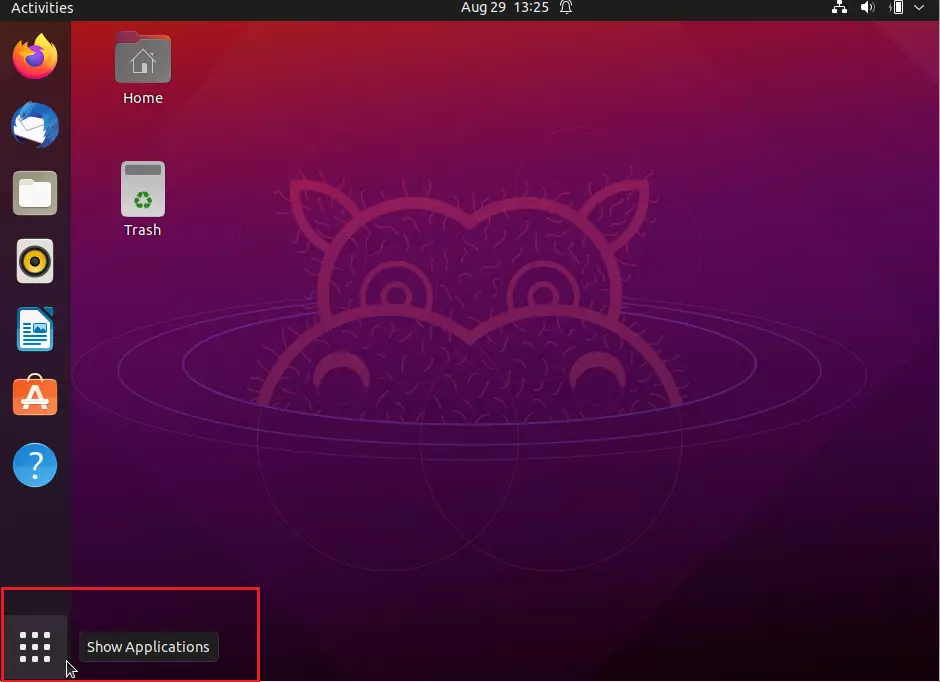
On the Activities overview dashboard, start typing Bluetooth in the search box. Select the Bluetooth app to open the panel. From there you can quickly disable and enable Bluetooth by toggling the button to the On or Off position.
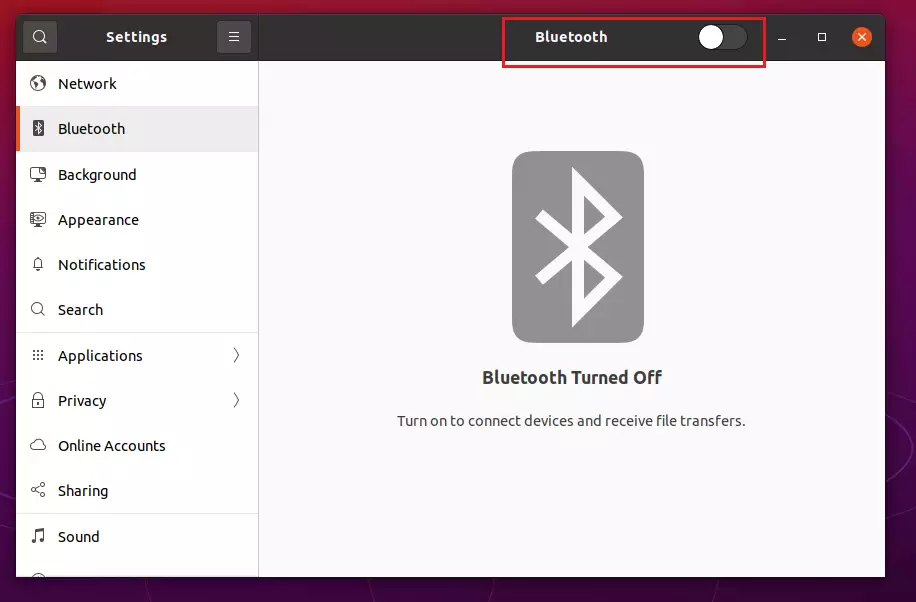
That will turn Off or On the Bluetooth on Ubuntu Linux. You can now exit the settings panel and you’re done.
Conclusion:
This post showed you how to enable or disable Bluetooth on Ubuntu Linux. If you find any error above, please use the comment form below to report.



Leave a Reply Cancel reply