
If you use Windows 11, you might have seen a new button on the Taskbar called “Ask Copilot”. This feature helps you get help using your computer by typing or talking to Copilot right from the Taskbar.
In this simple guide, you’ll learn how to show or hide the “Ask Copilot” button on your Taskbar.
What is “Ask Copilot”?
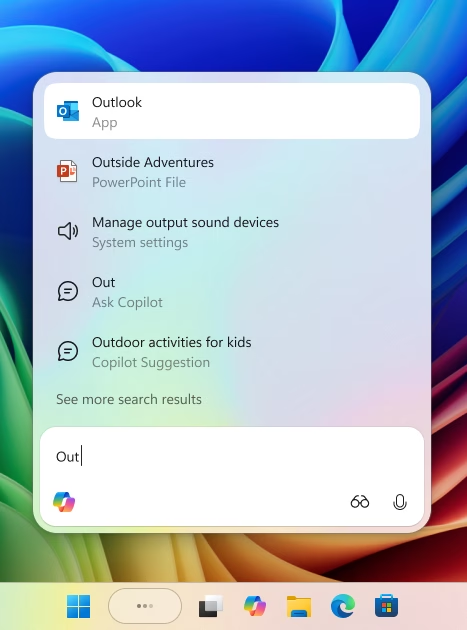
“Ask Copilot” is a tool in Windows 11 that lets you ask questions and find apps, files, or settings quickly. It works like Windows Search but helps you in smarter ways. Don’t worry—it does not look at your personal files or information.
How to Show or Hide “Ask Copilot” on the Taskbar
Follow these easy steps to turn the “Ask Copilot” button on or off:
- Open Settings: Click the Start menu (the Windows icon at the bottom-left), then click Settings. Or, press Windows key + I on your keyboard to open Settings quickly.
- Go to Personalization: In the Settings window, find and click Personalization on the left side.
- Open Taskbar Settings: On the right side, click on Taskbar to see Taskbar options.
- Turn “Ask Copilot” On or Off: Look for the “Ask Copilot” option under Taskbar items. Use the toggle switch to turn it On to show the button or Off to hide it.
Once you turn it on, you’ll see the “Ask Copilot” icon on your Taskbar. Click it anytime to ask Copilot for help using your PC.
Why Use “Ask Copilot”?
- Quick Help: Get answers, open apps, or find files fast.
- Easy to Use: Just click the button or talk to Copilot.
- Privacy Safe: It doesn’t access your private info.
- Simple to Turn On or Off: Manage it anytime in Settings.
More Info
If you want to learn more about this feature from Microsoft, visit their official blog: Windows Insider Preview Build 26220.7051 Announcement.
Summary
To summarize, “Ask Copilot” is a helpful feature in Windows 11 that makes getting assistance easy. You can turn it on or off through the Settings menu whenever you like. This can improve your experience on your PC.

Leave a Reply Cancel reply