
This article explains how to switch to a private account using the Threads app on mobile devices.
The Threads app is a messaging app developed by Facebook for users who want to keep in touch with their closest friends and share their status. It allows users to share photos, videos, messages, stories, and more.
When you create an account, the account is public by default. You can switch to a private account using the app so only approved followers can see and interact with your content.
Switching to a private account using the Threads app on mobile devices has several benefits. First, it ensures that only approved followers can see and interact with your content. This can be particularly useful for users who want to keep their personal life private.
Additionally, it can prevent unwanted messages or interactions from strangers. Finally, it can also help users feel more comfortable sharing personal information or updates with their closest friends without worrying about it being seen by anyone else.
Switch to a private account in Threads
As mentioned above, users can switch to private accounts in Threads so only approved followers can see and interact with their content.
Here’s how to do it.
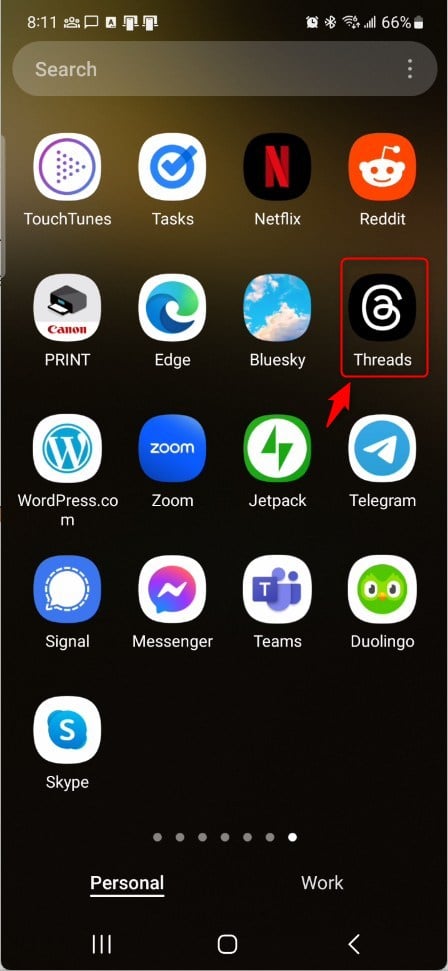
First, open the Threads app on your device.
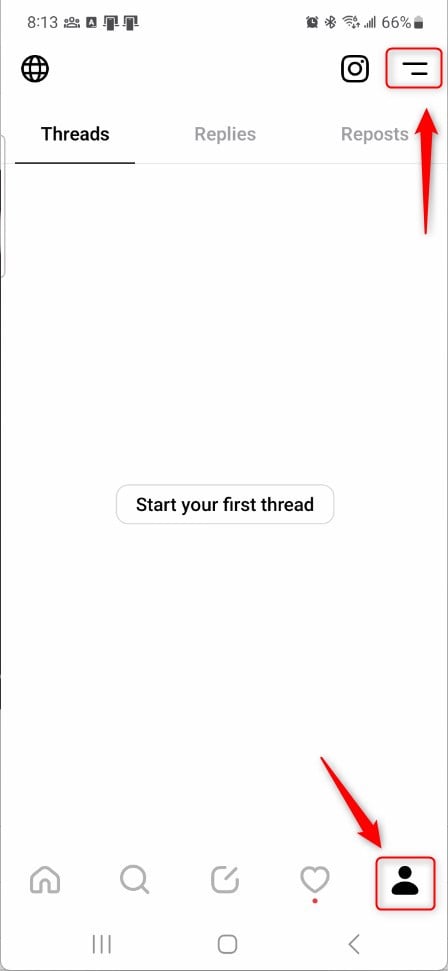
When the app opens, click your person image at the bottom right, then select the Settings Menu at the top.
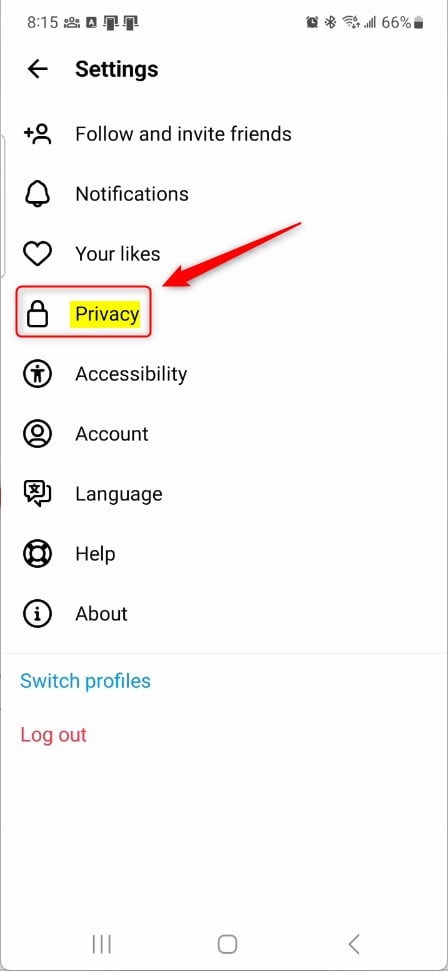
On the Settings page, select the Privacy tile to expand it.
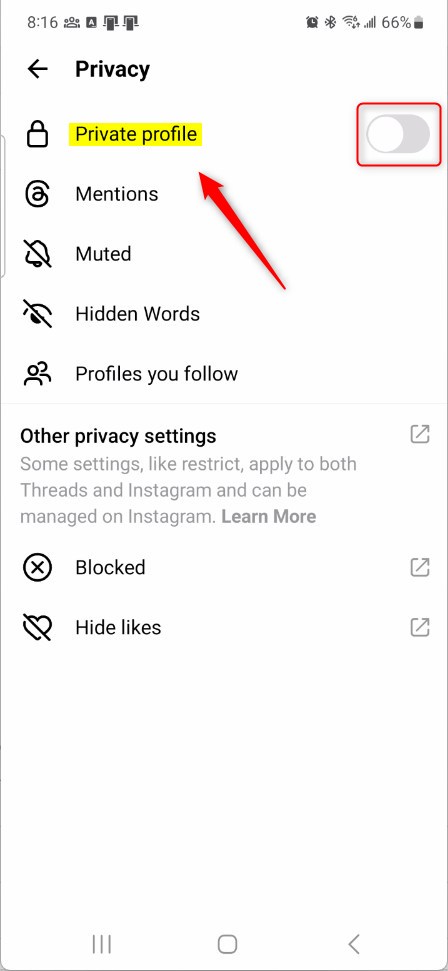
On the Privacy settings page, select the Private profile tile. Then, toggle the switch button to the On position to turn your account into a private account.
To switch back to a public account, toggle the switch button to the Off position.
When prompted, click OK to switch.

That should do it!
Conclusion:
- Switching to a private account in the Threads app is simple and provides added privacy and control over your content.
- Following the steps outlined in this article ensures that only approved followers can see and interact with your shared content.
- Embracing a private account setting can help you safeguard your personal information and enjoy a more secure and comfortable sharing experience with your close friends.


Leave a Reply to A Guide to Setting Up Break Reminders on Threads – Geek Rewind Cancel reply