
Want to send photos or documents from your Windows 11 computer to your Android phone quickly? You can do this with a feature called Nearby Sharing. It uses Bluetooth or Wi-Fi to send files. No cables needed. No extra apps required.
What is Nearby Sharing?
Nearby Sharing is built into Windows 11. It lets your computer share files and links with devices nearby. It uses Bluetooth or Wi-Fi to send files fast and safely.
To learn more about how to turn on Nearby Sharing, check out this guide: How to Enable Nearby Sharing in Windows 11.
How to Connect Your Android Phone to Your Windows PC
Before sharing files, you need to link your Android phone with your Windows PC. This is done using the Phone Link app on your PC and the Link to Windows app on your phone.
- On your Windows PC, open the Phone Link app.
- On your Android phone, install and open Link to Windows.
- Follow the steps to connect the two devices using your Microsoft account.
Here’s a helpful article on linking your Android device to your PC: Link Your Android Mobile Device to Your Microsoft Account.
Share Files from Windows 11 to Your Android Phone
Once your phone and PC are linked, sharing files is simple. Follow these steps:
- Find the file on your Windows PC that you want to send.
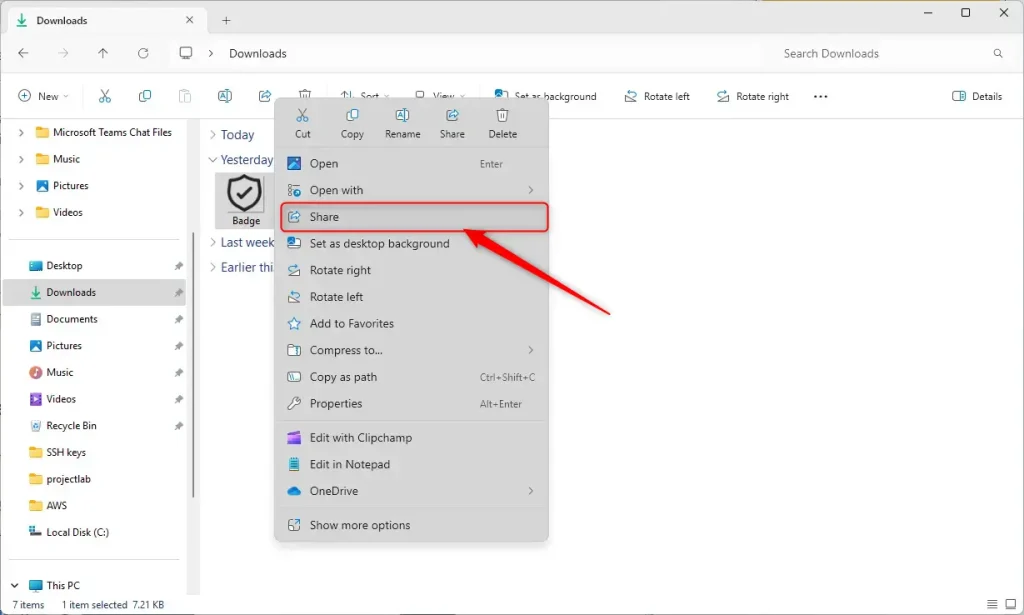
- Right-click the file to open the menu.
- Click the Share button.
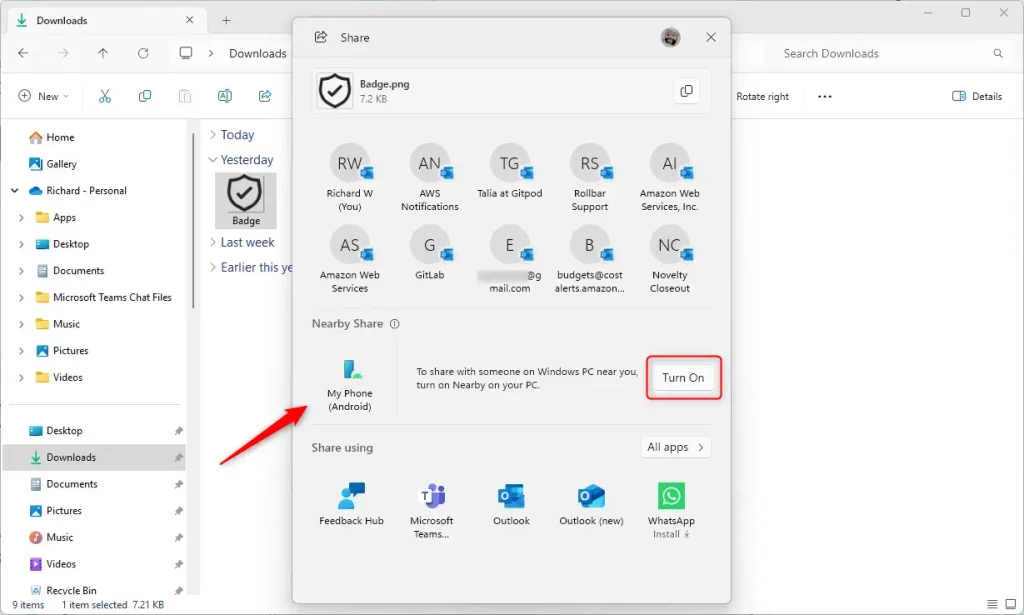
- In the sharing window, find Nearby Share and click the Turn On button.
- Select your Android phone from the list of devices.
- Your Android phone will get a notification asking to accept the file. Tap Accept to receive it.
Where Do Files Go on Your Android Phone?
Files you get from your Windows PC will be saved in the Downloads folder under a subfolder called Sent from your PC. You can open these files anytime using your phone’s file manager or gallery app.
Summary
- Why use Nearby Sharing? It lets you send files from Windows 11 to Android devices easily using Bluetooth or Wi-Fi. No cables or email needed.
- What happens first? Make sure your Android phone is linked to your PC using the Phone Link and Link to Windows apps.
- What happens next? Right-click the file on your PC, click Share, turn on Nearby Share, and select your phone.
- What happens on your phone? Accept the file on your Android device when notified.
- Where do files go? Files will be saved in Downloads → Sent from your PC on your phone.
That’s it! Now you can quickly share files between your Windows 11 PC and Android phone without cables or email.



Leave a Reply Cancel reply