
Do you use Microsoft services like Office 365 or Xbox Game Pass? If so, you probably have a subscription. This guide shows you how to check, change, or cancel your Microsoft subscriptions. It’s easier than you think.
Why Manage Your Subscriptions?
Managing your subscriptions helps you control your spending. You can update payment methods, stop services you no longer use, and restart them anytime.
What You Need to Know
- Sign in with the Microsoft account tied to the subscription you want to manage.
- You can change your payment method anytime.
- You can cancel or turn off automatic payments whenever you want.
Steps to View and Manage Your Microsoft Subscriptions
- Sign in to your Microsoft account: Go to Microsoft Account page and enter your email and password or PIN.
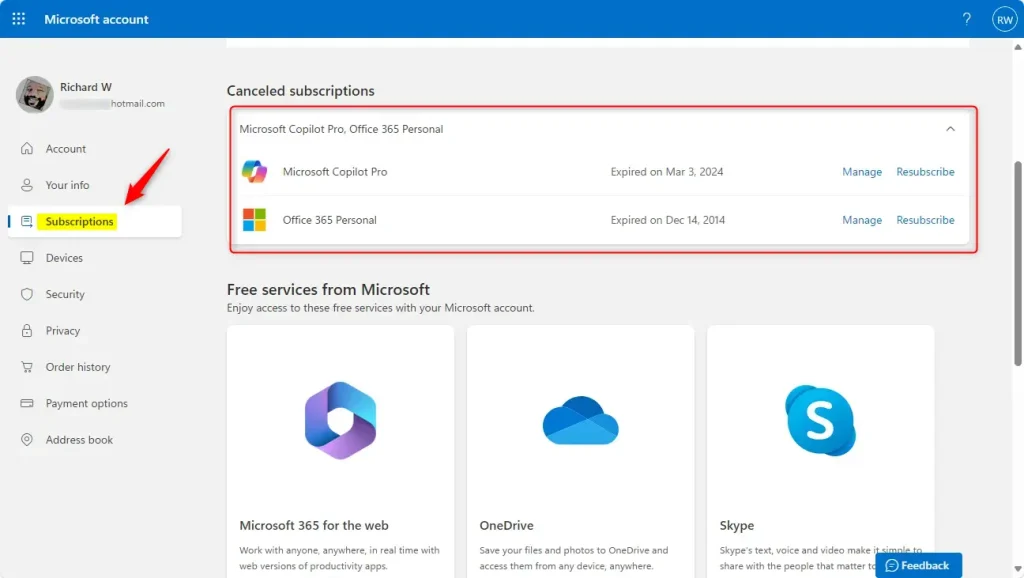
- Go to your subscriptions: After signing in, click on Subscriptions from the menu on the left.
- Manage your subscriptions: Here you can see all your active Microsoft subscriptions. You can:
- View details of each subscription
- Change payment methods
- Cancel or turn off recurring billing
- Resubscribe if you want to restart a subscription
Summary
Managing your Microsoft subscriptions is simple. Just remember:
- Always log in with the right Microsoft account linked to your subscription.
- Use the Subscriptions page to see and change your plans.
- You can stop or start subscriptions whenever you want.
- Update your payment methods easily online.
For more detailed help, you can visit Microsoft’s official support page: Change your Microsoft subscription payment method and options.
That’s all there is to it! Now you can control your Microsoft subscriptions with confidence.


Leave a Reply Cancel reply