

This post describes steps you can take to hide or show all hidden files in File Manager when using Ubuntu Linux.
File Manager in Ubuntu Linux allows you to hide and unhide files. When a file is hidden, it is hidden from the file manager’s normal view but is still in its folder.
You won’t be able to see hidden files just by browsing the folder in File Manager. This is a great way to keep important files out of sight.
If you want to see all hidden files in a folder, go to that folder and either click the view options button in the toolbar and pick Show hidden items or press the CTRL + H keyboard shortcut.
Below are steps that show you how to hide a file and unhide hidden files in File Explorer in Ubuntu Linux.
How to show hidden files in Ubuntu Linux
Not all files are displayed in the standard File Manager views by default. For example, some files are hidden while others are not.
If you want to see all hidden files in a folder, go to that folder and either click the view options button in the toolbar and pick Show Hidden Files or press the Ctrl + H keyboard shortcut.
To show hidden files, open File Manager, then click the view options button in the toolbar.
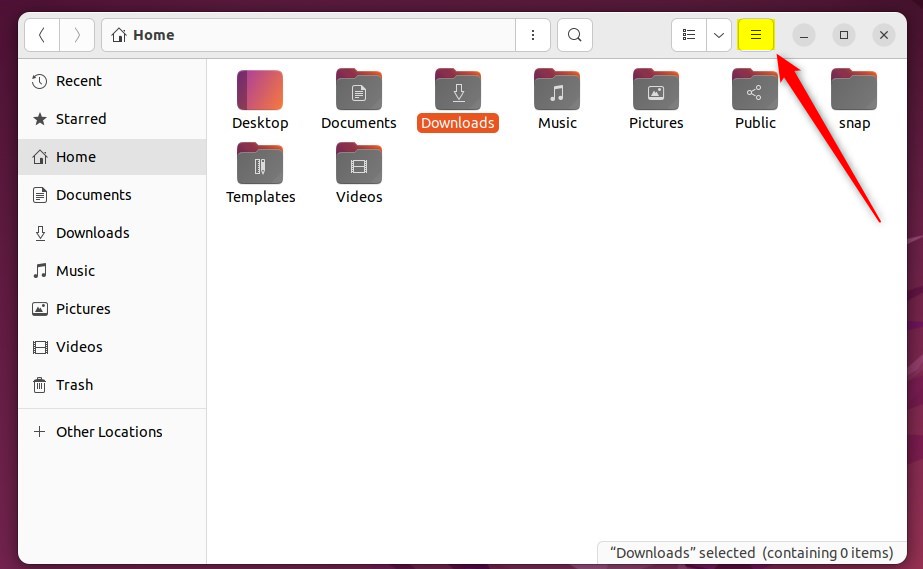
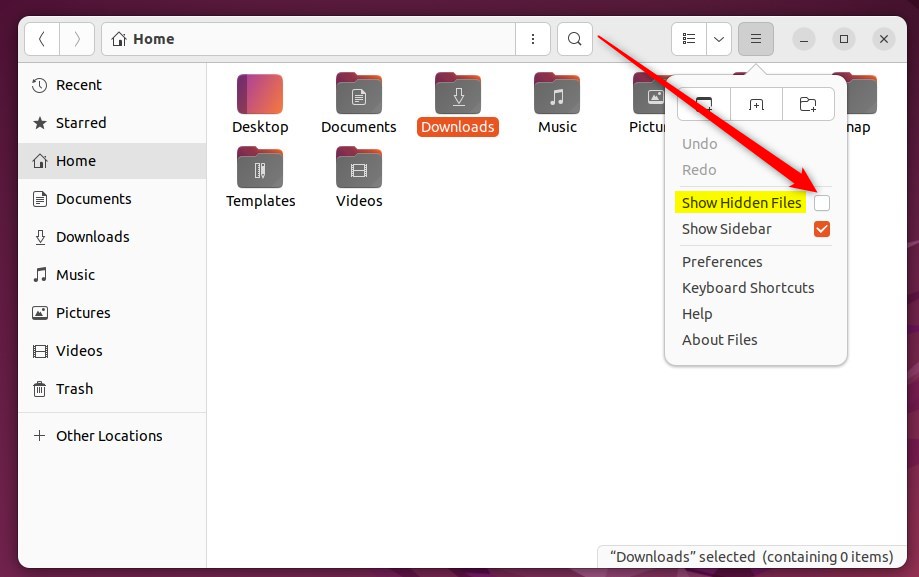
Then, pick Show Hidden Files on the context menu as highlighted below.
You can also use the keyboard shortcut Ctrl + H to show all hidden files.
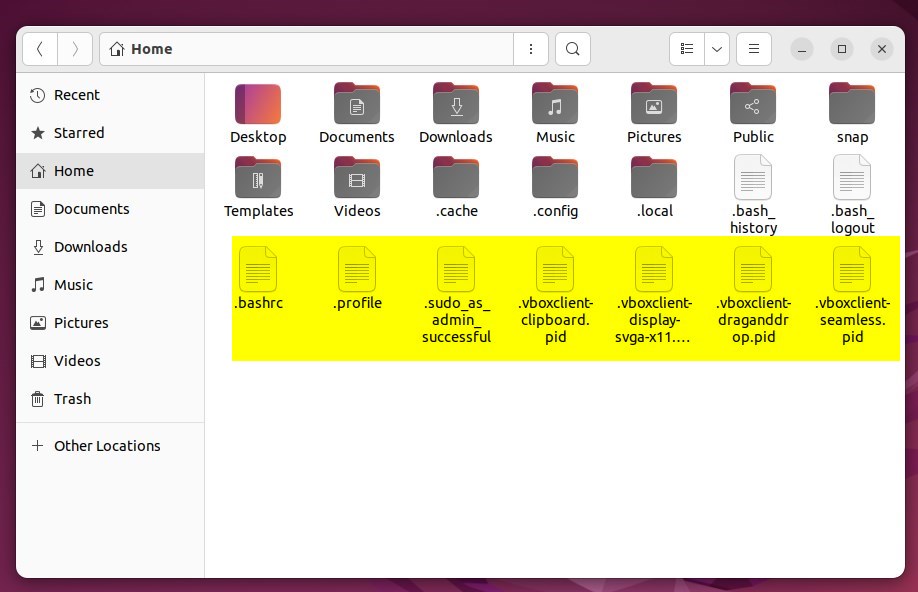
You will see all hidden files and those that are not hidden.
How to hide files in Ubuntu Linux
File Manager gives you the ability to hide files as well. When a file is hidden, it is not displayed by the file manager but is still in its folder.
To hide a file, rename it with a dot ( . ) at the beginning of its name.
For example, to hide a file named example.txt, you should rename it to
.example.txt
The file will become hidden in the File Manager’s standard view folder.
That should do it!
Conclusion:
- Showing hidden files in Ubuntu Linux is a simple process that can be done through the view options button or the keyboard shortcut Ctrl + H.
- Similarly, hiding files in Ubuntu Linux involves renaming the file with a dot at the beginning of its name.
- These steps provide a convenient way to manage file visibility in the File Manager, ensuring that important files can be kept out of plain sight when necessary.


Leave a Reply Cancel reply