

This post shows students and new users steps to export passwords from the Google Chrome web browser.
Google Chrome has a built-in password manager that’s useful for autofill purposes. Although the password manager in Chrome is adequate, you may want to look into other third-party password managers, as the one available in Chrome might not be the most secure.
If you need to export your password stored in Google Chrome to migrate to other password managers, the steps below will show you how. When you export passwords from Google, they are stored in a CSV file format that can easily be imported to other password managers.
You can then use this file to take account of all your passwords or import them into a secure password manager. Whatever you want to do, exporting passwords from Google Chrome is simple.
To start exporting passwords from Google Chrome, follow the steps below.
How to export passwords from Google Chrome
As mentioned above, exporting passwords from Google Chrome is simple.
Below is how to do that.
It would be best if you were signed into your Google account with your browser profile to export your passwords. Then click the settings (ellipse) at the top right corner and select Settings, as shown below.
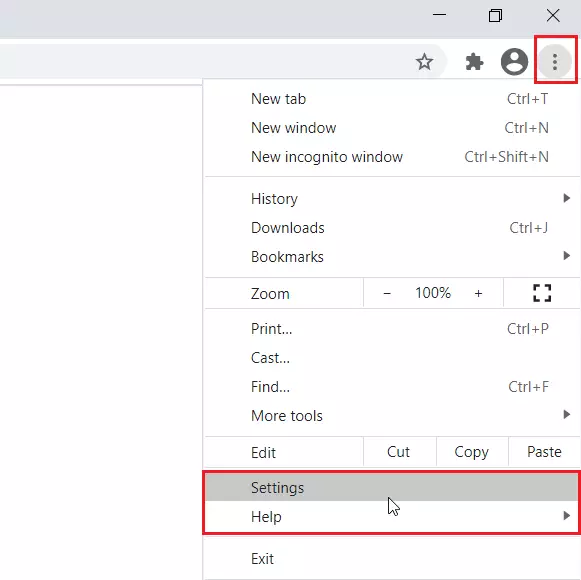
On the Settings page, select Autofill and click the Passwords tile, as shown below.
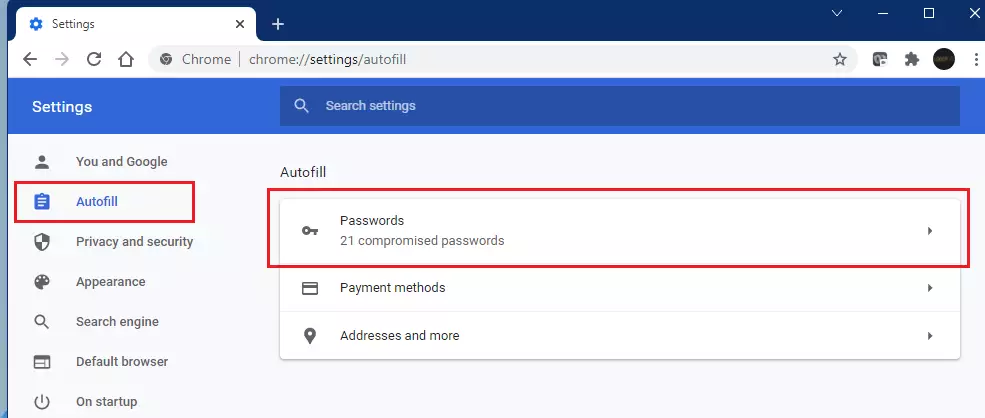
On the Autofill ==> Passwords page, click the ellipse (three vertical dots) and select Export passwords.
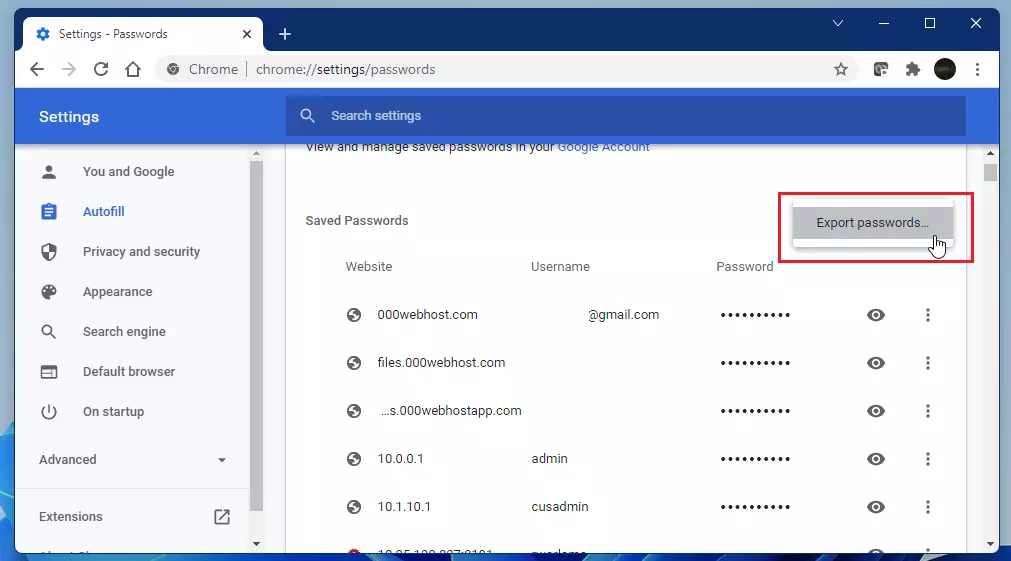
On the pop-up screen, click the Export passwords.. button.
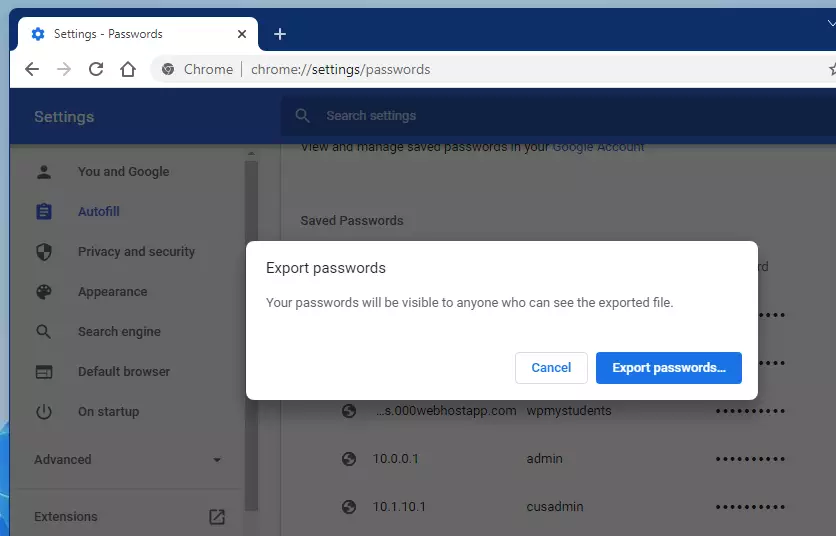
Google Chrome will prompt you to type in your Windows password before you are allowed to export Chrome passwords.
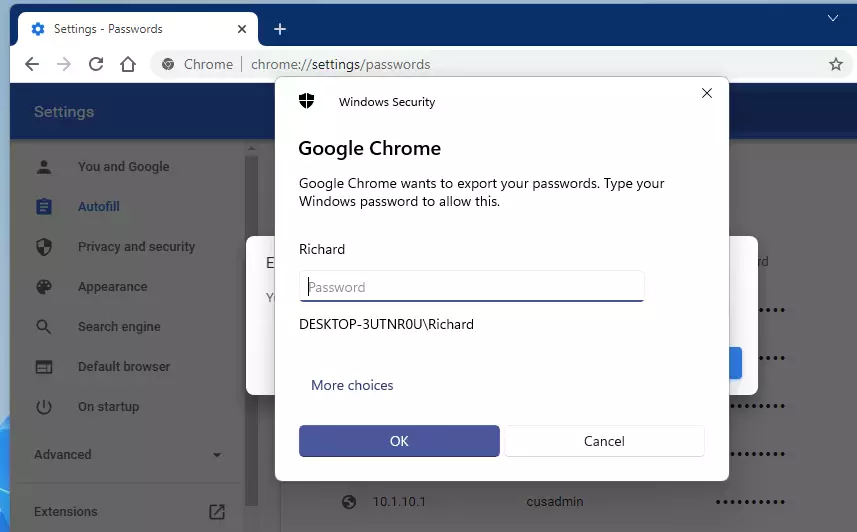
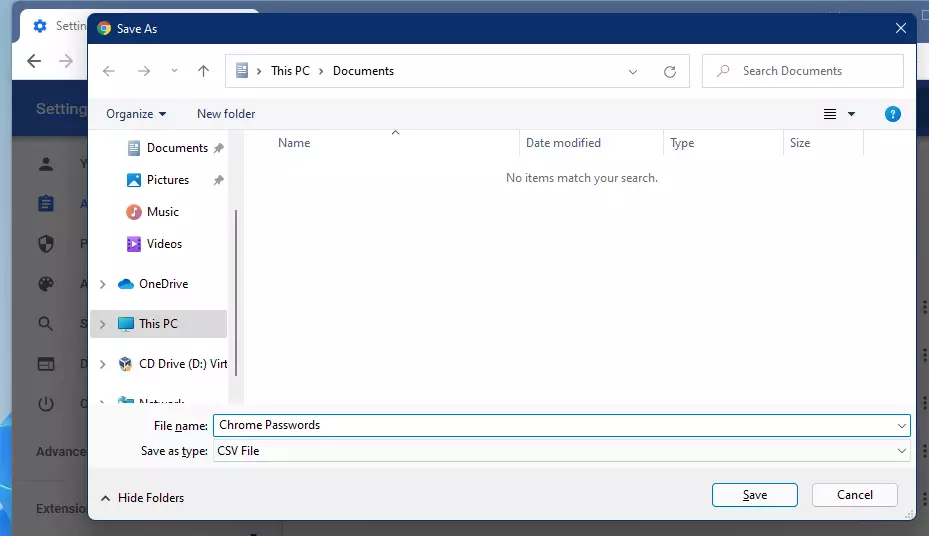
After successfully typing your Windows password, you’ll be allowed to save the password at any location you like.
That should do it!
Conclusion:
- Exporting passwords from Google Chrome is a straightforward process that allows you to take control of your password management.
- The exported CSV file can be easily imported into various third-party password managers, enhancing your security.
- Ensure you are signed into your Google account to access and export your saved passwords.
- Keep in mind the importance of safeguarding your exported password file, as it contains sensitive information.
- Regularly update your password management practices to ensure your online security remains robust.
Frequently Asked Questions
How do I export my passwords from Google Chrome?
What format are exported passwords from Google Chrome saved in?
Do I need to be logged into my Google account to export passwords?
Is it safe to export passwords from Google Chrome?
Can I import the exported passwords into another password manager?



Leave a Reply Cancel reply