
This tutorial shows you how to turn pen visual effects on or off in Windows 11. Why would you do this? Some pens show ripple effects when you tap the screen. You might want to disable these effects to reduce distractions.
First, let’s explain what’s happening. When you pair a pen with your Windows 11 PC via Bluetooth, you can customize how it works. One option is controlling whether visual effects appear when you use the pen.
Option One: Using Settings
This is the easiest method for most users.
- Open Settings by pressing
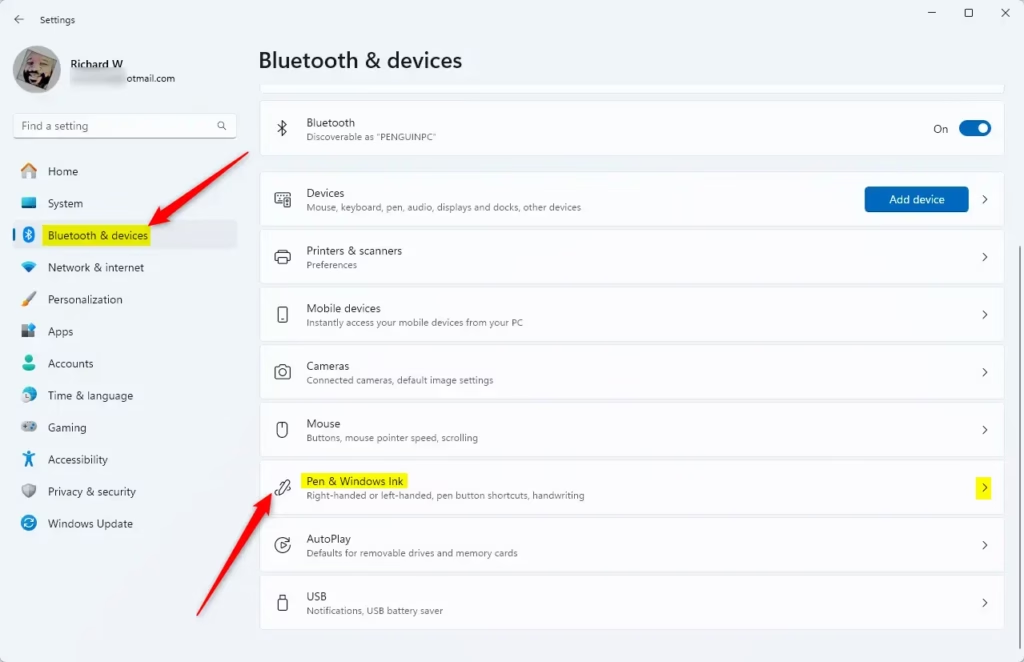
Win+Ion your keyboard. - Click on Bluetooth & devices on the left side.
- Click on Pen & Windows Ink on the right side. Open Pen & Windows Ink settings
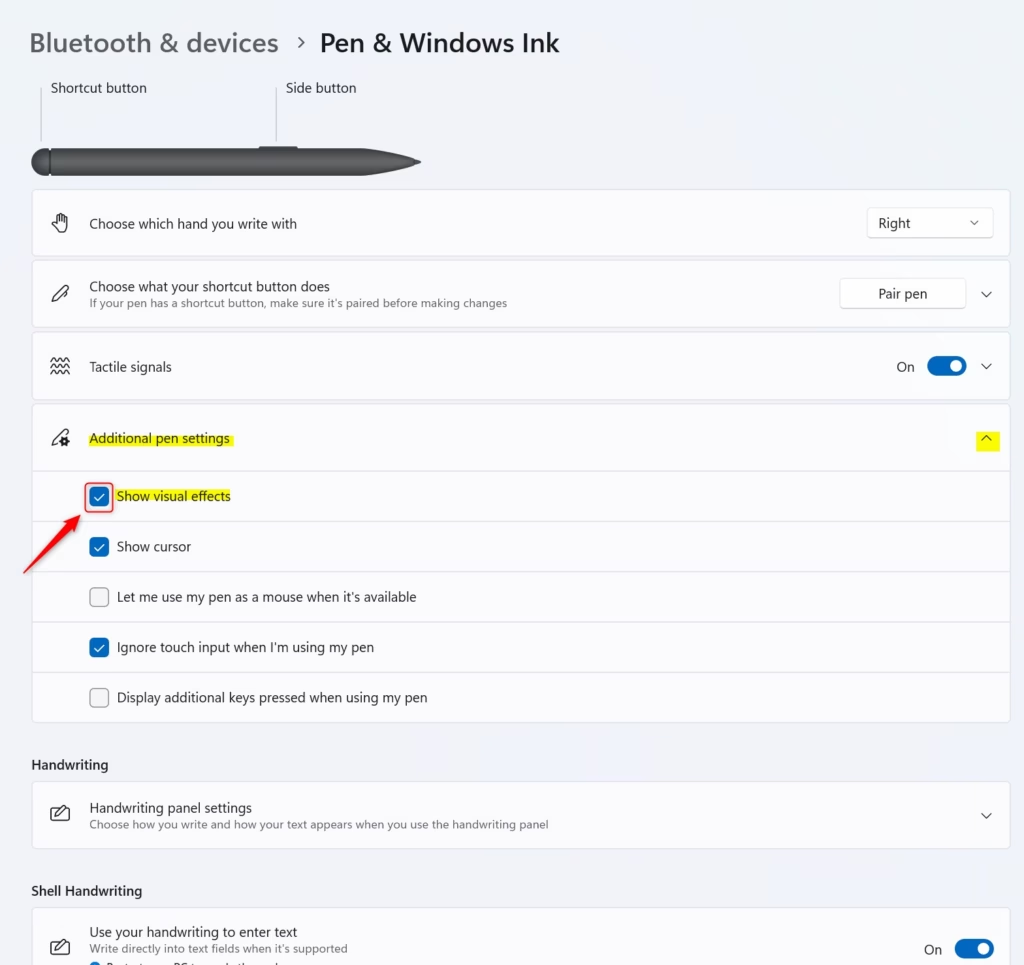
- Click on Additional pen settings to expand the menu.
- Look for the Show visual effects option. Check the box to enable it (turn on). Uncheck the box to disable it (turn off).
- Close Settings when you’re done.
Option Two: Using Windows Terminal (Advanced)
⚠️ Requires admin privileges
This method uses commands to change settings directly. Why use this? It’s faster if you need to change settings on multiple computers.
Open Windows Terminal and run one of these commands:
Turn On visual effects and cursor (default setting):
reg add "HKEY_CURRENT_USER\Control Panel\Cursors" /v PenVisualization /t REG_DWORD /d 35 /f
Turn Off visual effects and cursor:
reg add "HKEY_CURRENT_USER\Control Panel\Cursors" /v PenVisualization /t REG_DWORD /d 0 /f
Turn Off visual effects and keep cursor On:
reg add "HKEY_CURRENT_USER\Control Panel\Cursors" /v PenVisualization /t REG_DWORD /d 32 /f
Turn On visual effects and turn Off cursor:
reg add "HKEY_CURRENT_USER\Control Panel\Cursors" /v PenVisualization /t REG_DWORD /d 3 /f
Summary
You can control pen visual effects in Windows 11 two ways. The Settings method is simple and doesn’t require admin access. The Windows Terminal method is faster for advanced users. Visual effects like ripples can be helpful or distracting depending on your preference. Choose whichever method works best for you. After making changes, your pen will work exactly how you want it to.
Leave a Reply Cancel reply