

This post describes how to enable or disable the camera in Ubuntu Linux.
When your Ubuntu Linux device has a camera, you can make calls, record videos, and take pictures.
Depending on the camera’s capabilities, some or all the following controls may be available, including rotation, background effects, auto framing, and more.
Ubuntu Linux will identify and install all related drivers that make the camera work by default. If additional drivers are needed, you will be prompted to install them.
If you have administrator or root access, you can disable and enable cameras for everyone who uses the device.
Below is how to enable or disable the camera in Ubuntu Linux.
How to enable or disable the camera in Ubuntu Linux
As described above, if you have administrator access, you can disable and enable cameras for everyone who uses the device.
Below is how to do that.
Find the Camera driver module
As of this writing, there are no settings in the Ubuntu settings app to enable or disable the built-in or attached camera. So, until there’s a setting in the app, the most efficient way to disable or enable the camera is by using the command line console.
Most recent camera and webcam drivers in Ubuntu are UVC (USB Video Class) compliant and supported by the generic uvcvideo kernel driver module.
Using the command line, you can list the uvcvideo kernel driver module:
sudo lsmod | grep 'uvcvideo'
If the commands return nothing, then Ubuntu does not identify the camera or doesn’t install a driver for it. If a camera is identified and drivers loaded, you should see similar lines as the ones below:
uvcvideo              106496  0
videobuf2_vmalloc      20480  1 uvcvideo
videobuf2_v4l2         32768  1 uvcvideo
videobuf2_common       77824  4 videobuf2_vmalloc,videobuf2_v4l2,uvcvideo,videobuf2_memops
videodev              258048  3 videobuf2_v4l2,uvcvideo,videobuf2_common
mc                     65536  4 videodev,videobuf2_v4l2,uvcvideo,videobuf2_common
If you don’t get a similar result, it may also mean a different camera driver is installed. Check these sites here and here for additional driver info.
Remove camera drivers from Ubuntu
You can use a system driver from Ubuntu using the modprobe command. Run the commands below to remove the camera driver.
sudo modprobe -r uvcvideo
Replace uvcvideo with other names of drivers identified on your system.
If the camera is in use, you will see the error below:
modprobe: FATAL: Module uvcvideo is in use.
First, exit the app using the camera, then re-run the commands to disable.
The commands above will remove the driver. However, a reboot will reinstall the drivers.
To permanently remove a driver, run the commands below to add the driver to the block list configuration file at ‘/etc/modprobe.d/blacklist.conf ‘.
Drivers that are added to this file are blocked permanently.
echo 'blacklist uvcvideo' | sudo tee -a /etc/modprobe.d/blacklist.conf
Once disabled, apps will not be able to see your camera.
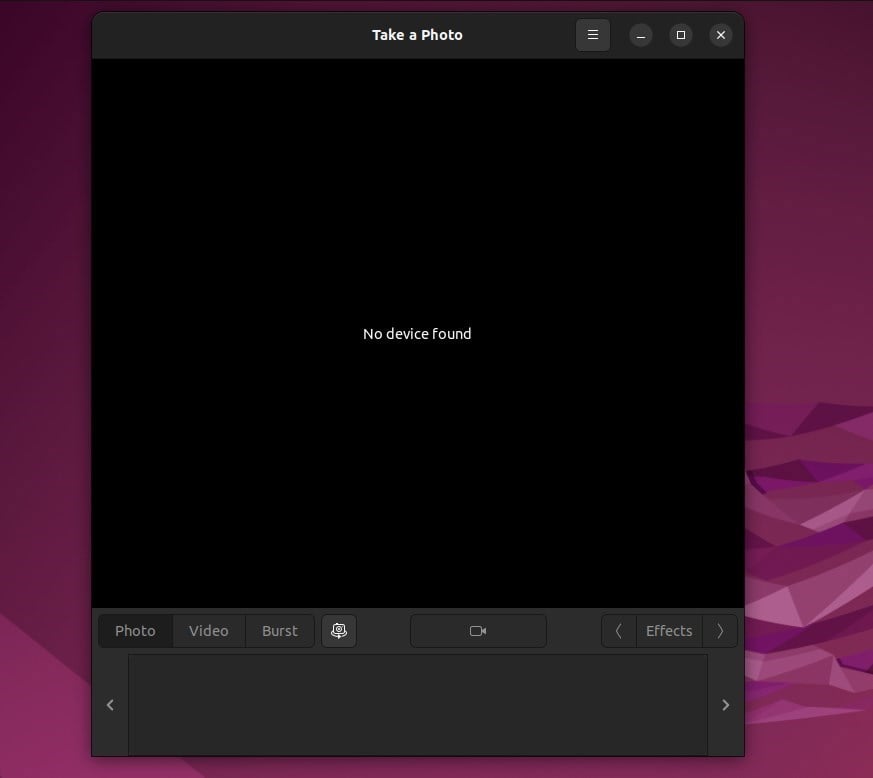
Enable camera in Ubuntu Linux
Remove the line from the blocklist to re-enable the camera driver in Ubuntu. Conf file above. Then, run the commands below.
sudo modprobe uvcvideo
That should do it!
Conclusion:
- Enabling or disabling the camera in Ubuntu Linux requires administrator access
- The uvcvideo kernel driver module is commonly used for recent camera and webcam drivers in Ubuntu
- Removing a camera driver using the modprobe command may require exiting the app using the camera
- Re-enabling the camera driver involves removing the blocklist entry and using the modprobe command
- Once disabled, apps will not have access to the camera


Leave a Reply Cancel reply